Understanding Location vs. Hiring Locations
Last updated: March 12, 2026
TeamOhana uses two distinct location fields for headcount: Location and Hiring Locations. Location controls which pay zone a role is budgeted in and determines salary bands and budget at the time of approval. Hiring Locations define where your team is willing to recruit for the role and map directly to your ATS. This article explains how the two fields work together so you can budget headcount in one pay zone while posting jobs across multiple geographies.
How It Works
Location (Budget Location)
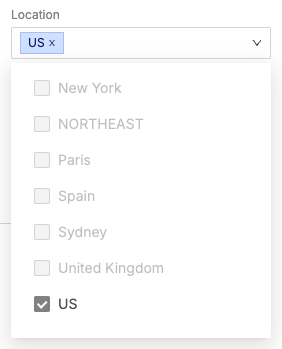
The Location field appears under Basic Details when you create or view a headcount. It represents the pay zone you are budgeting this role in. When you select a Location, TeamOhana uses it to determine the salary band and load factor for the headcount at the time of approval.
Each headcount is budgeted in a single Location. The dropdown shows all approved budget locations configured for your organization. Once the headcount is approved, changing the Location requires going through a re-approval process — because different locations can be associated with different salary bands, this ensures budget integrity across the hiring plan.
Hiring Locations
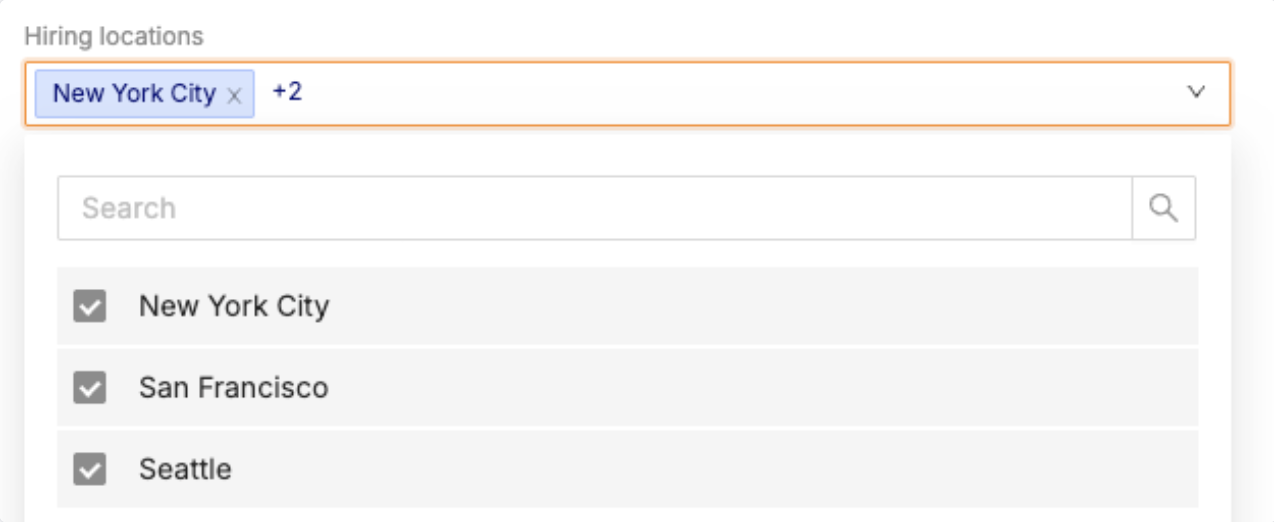
The Hiring Locations field appears under Hiring Details for an approved headcount. Unlike Location, Hiring Locations can include multiple cities or regions where your organization is willing to recruit for the role. These locations map directly to your ATS (such as Ashby, Greenhouse, or Lever), so when a job is posted, the ATS reflects all of the geographies you have selected.
You do not need to set up a custom field to use Hiring Locations. The field is available in the Hiring Details section of any approved headcount, and you can add multiple entries as needed.
Example
Your organization wants to hire a Senior Software Engineer. The role is budgeted in the US pay zone, which sets the salary band and load factor used for financial planning. However, your recruiting team wants to post the job in San Francisco, New York, and Seattle.
When creating the headcount, select US (or the appropriate pay zone) in the Location field under Basic Details. This determines the budget for the role.
After the headcount is approved, open the headcount and navigate to Hiring Details.
In the Hiring Locations field, add San Francisco, New York, and Seattle. These values map to your ATS, so the job posting reflects all three cities.
The budget remains tied to the original US pay zone, while your recruiting team can source candidates from all three locations without any manual work in your ATS.
Key Differences at a Glance
Locations | Hiring Locations | |
Where it appears | Basic Details | Hiring Details |
Purpose | Sets the pay zone for budgeting, salary bands, and load factor | Defines where recruiting can post and source candidates |
How many | One per headcount | Multiple allowed |
When set | At headcount creation | After approval |
Editable after approval | Yes, but requires re-approval | Yes — can be updated anytime |
Maps to ATS | No | Yes — syncs with ATS locations |
Frequently Asked Questions
Do the Hiring Locations need to exist in my ATS first?
Yes. Hiring Locations in TeamOhana map to locations that already exist in your ATS. If you attempt to push a job from TeamOhana to your ATS using a location that has not been configured in your ATS, the API will return an error and the job will not be created. Make sure any locations you plan to use as Hiring Locations are set up in your ATS before adding them in TeamOhana.
What happens if we hire someone in a different location than where the role was budgeted?
The budget remains based on the original Location (pay zone) selected at the time of approval. If you hire a candidate in a Hiring Location that falls under a different pay zone, the actual compensation may differ from the budgeted amount. This variance is captured in TeamOhana's financial tracking so your Finance team has visibility into the difference.
Can I change the budget Location after approval?
Yes, but it requires re-approval. Because different locations can be associated with different salary bands, changing the Location triggers a re-approval process to ensure budget integrity across the hiring plan.
When should I set Hiring Locations during onboarding?
During your initial hiring plan upload, the Location column represents the single budget location (pay zone) for each headcount. Hiring Locations are added at a later step, after the hiring plan has been uploaded and headcount has been approved.
Tip: Discuss your Location and Hiring Locations strategy with your TeamOhana onboarding contact early in implementation. Understanding the distinction upfront helps avoid confusion when building your hiring plan.