Archived Headcount in TeamOhana
Last updated: March 5, 2026
Archived headcount can be easily located and managed within the platform. This article will guide you through the process of finding, viewing, and restoring archived headcount.
Locating Archived Headcount
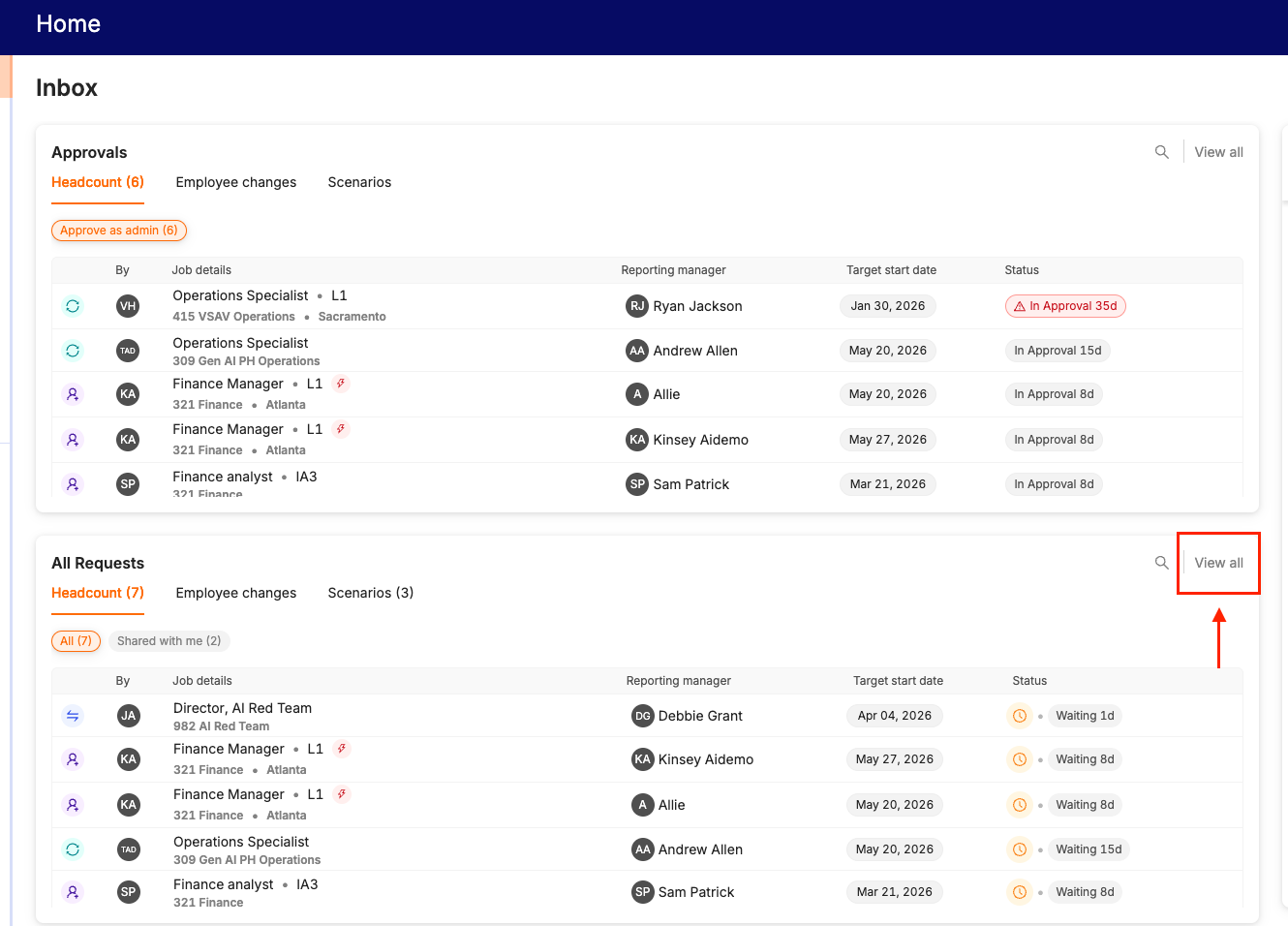
Navigate to the Inbox page in your platform.
Look for the "All Requests" box, and click on "View All" on the top right of the box.
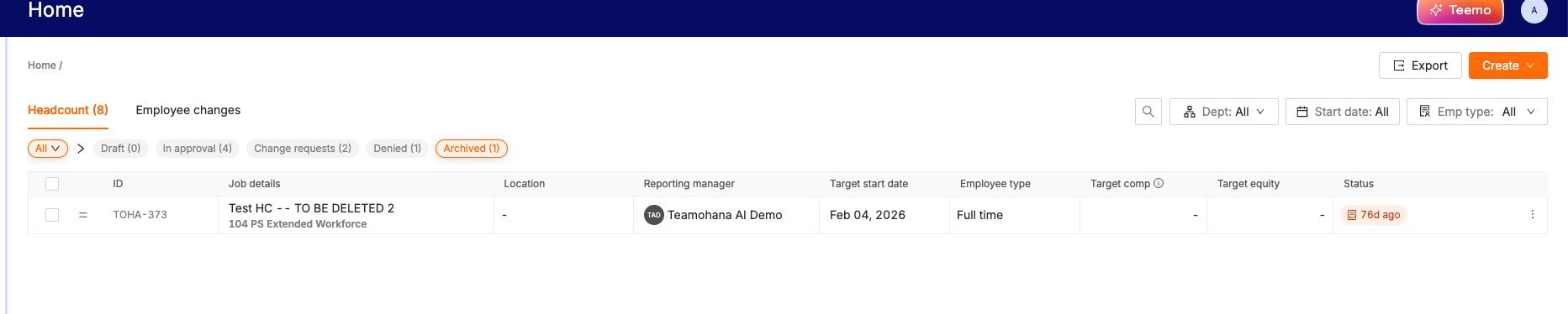
Click on the "Archived" pill to view a list of all archived headcount that you have permission to see.
Viewing Archived Headcount
The archived headcount list will display all positions that have been archived. You can browse through this list to find specific positions or use any available search or filter options to narrow down your results.
Restoring Archived Headcount
If you need to reactivate an archived position, follow these steps:
In the archived headcount list, locate the position you want to restore.
Click the checkbox next to the job information.
Click the orange "Unarchive" button.
Important Notes About Unarchiving
When headcount is unarchived, it will reappear in your Requests tab as a proposed request.
The unarchived headcount will need to go through the entire approval process again.
After approval, your Talent team will need to manually assign a recruiter and relink the corresponding job from the Applicant Tracking System (ATS).
By following these steps, you can efficiently manage your archived headcount, ensuring that you can easily find and restore positions as needed.