Private Headcount Overview
Last updated: July 27, 2026
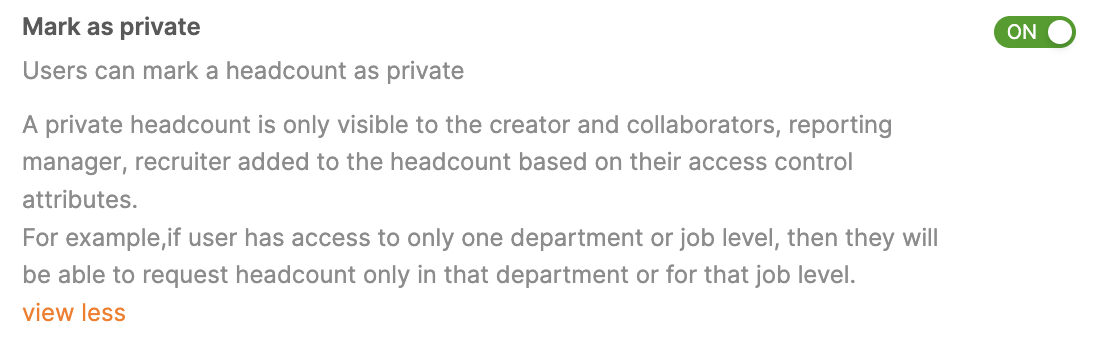
Private headcount lets you add confidential positions to your hiring plan while restricting visibility to only the users who are explicitly involved. This feature is relevant to Admins configuring confidentiality controls and to any user with the Mark as private permission.
Overview
Some positions — executive hires, sensitive backfills, roles tied to unannounced plans — should not be visible to everyone with hiring plan access. Marking a headcount as private ensures that only users added to the headcount can see its details or its impact on the hiring budget. For everyone else, the headcount does not exist anywhere in the platform.
For example, if your hiring plan contains 100 headcount and 2 are private, a user without access sees a plan of 98 roles. A user with access sees all 100.
Who can see a private headcount
Based on their access control attributes (i.e, departments and job levels), the following users can view a private headcount:
The original requestor (if the headcount creator is different than the user who submitted the request, the creator will also be able to see)
Approvers in the private approval chain — an approver can see the request once it is their turn to approve, and is added as a collaborator once they have approved
Users listed as the notification recipient under the private approval chain
Any collaborators added to the headcount
The reporting manager of the headcount
Recruiters linked to the headcount after the request is approved
Users who are @mentioned in the headcount's comments — with a safeguard, described below
Note: If you @mention a user who has not been added to the private headcount, you will see a pop-up reminding you to add them as a collaborator first. If you do not add them, the comment will not post. This prevents accidental exposure through comments.
How private headcount appears across the platform
For users with access, private headcount is marked consistently so it is never confused with public roles:
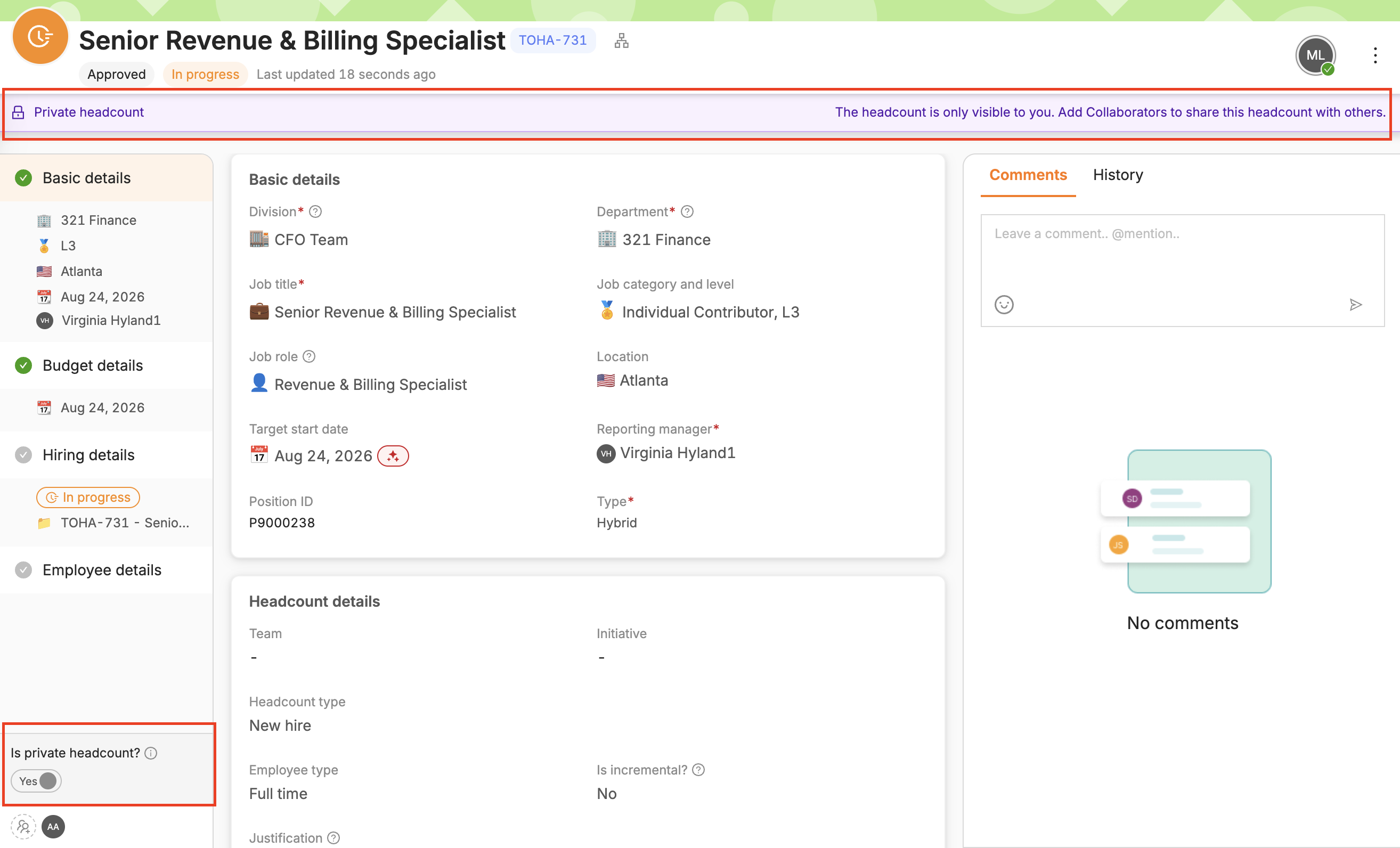
Headcount details drawer — a purple Private headcount banner appears beneath the details at the top of the drawer, both while in approval and after approval
Requests and Approvals widgets — a padlock icon appears to the right of the headcount ID
Hiring Plan, Recruiting Workboard, and Variance Tracker— the padlock icon appears next to the headcount ID
In modules with visibility to TBH headcounts — users with access see a "Private" subfilter
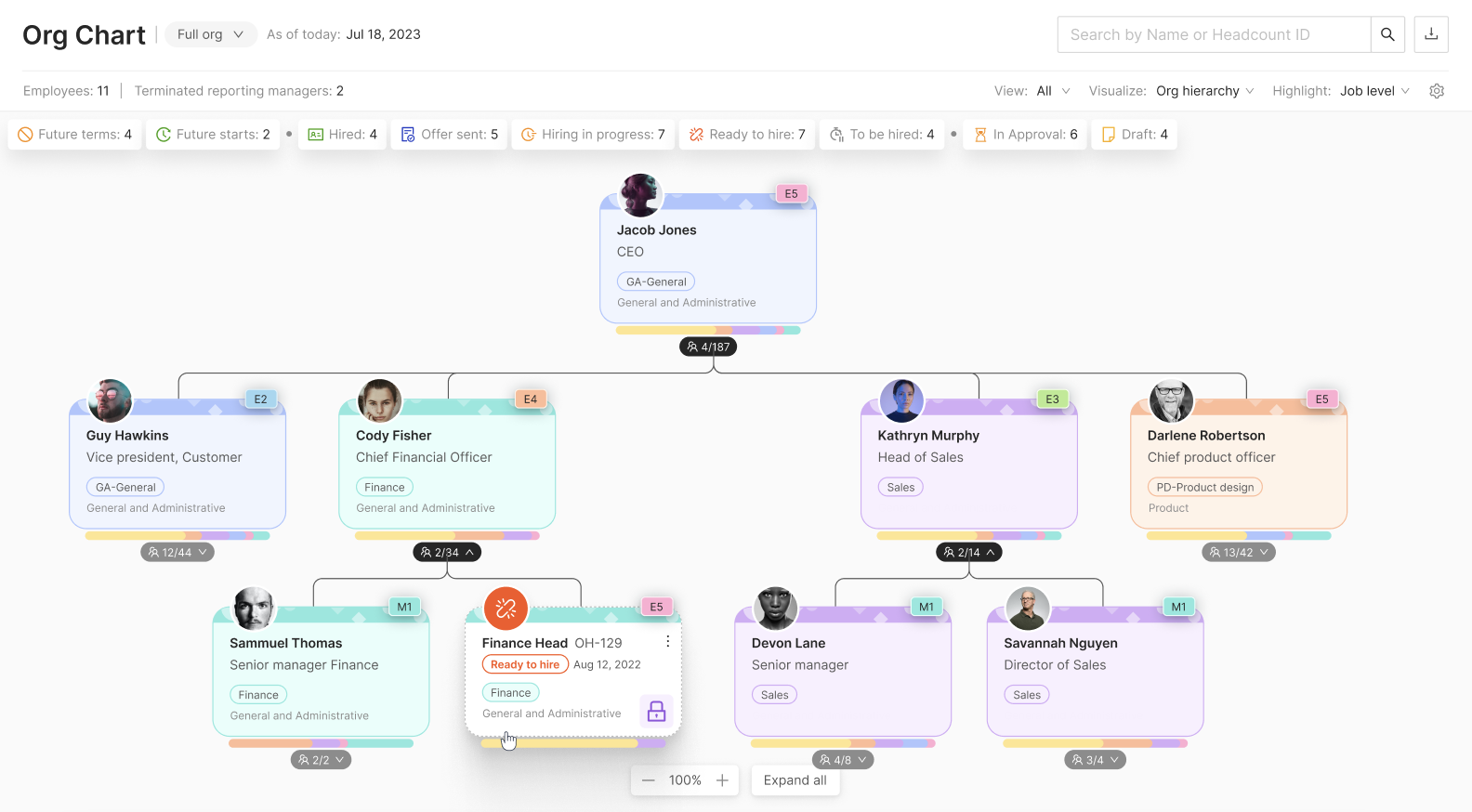
Org Chart — private headcount is marked with the purple padlock icon, and only visible in org chart to those with access


Org Chart behavior
If a private headcount has direct reports, the reporting line displays normally for users with access. Users without access see those direct reports in the "Reporting manager unassigned" reporting tree instead.
Variance Tracker
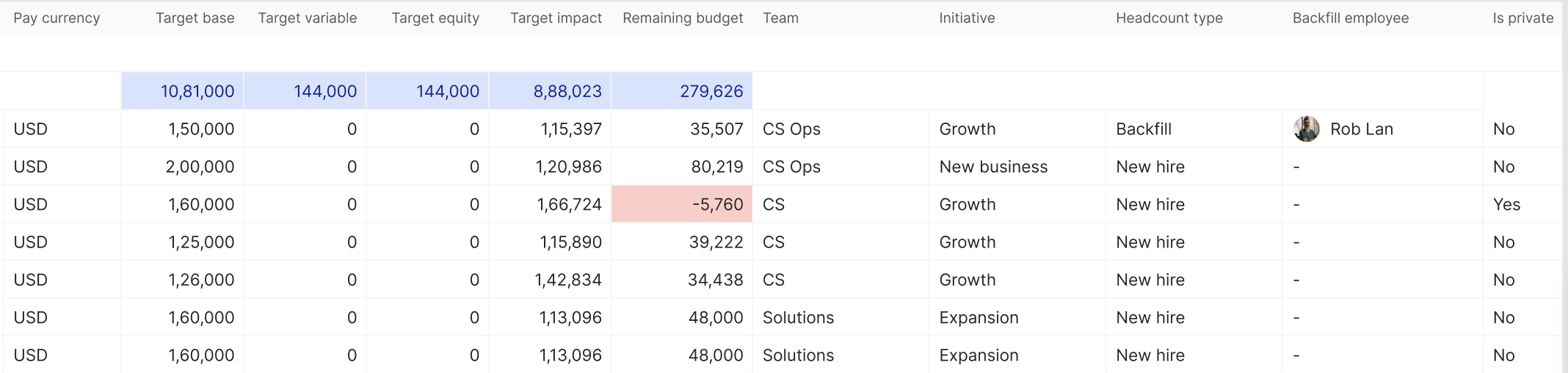
Private headcount is included in Variance Tracker figures for users who have access to it, and excluded for users who do not. This means two users can see different totals on the same view — by design.
Scenarios
In Scenarios > Modify plan or New plan, private headcount is not visible to a scenario's creator or collaborators unless they have access to that headcount outside the scenario. To mark a headcount in a scenario as private – users with the Mark as private permission need to use the Is private column in their scenario to mark yes or no.
Backfills and hires
When viewing the Terminations tile in your headcount module - If a private headcount is created as a backfill for a terminated employee, the linked backfill headcount ID will only be visible for users with access.
Once a candidate is hired into a private headcount, it remains private until after the employee's start date.
Related Resources
See also the companion article: How to Create and Manage Private Headcount.