Job Level Visibility
Last updated: July 31, 2026
Job Level Visibility allows administrators to control which job levels users can view for Headcount and Employee records. These settings are configured at the User Role level and work together with the user's Access Control Attributes.
Configure Job Level Visibility
Navigate to Settings → User Roles.
Select the user role you want to edit.
Scroll to the Job Category & Level section.
Configure visibility separately for:
View Headcount Job Level
View Employee Job Level
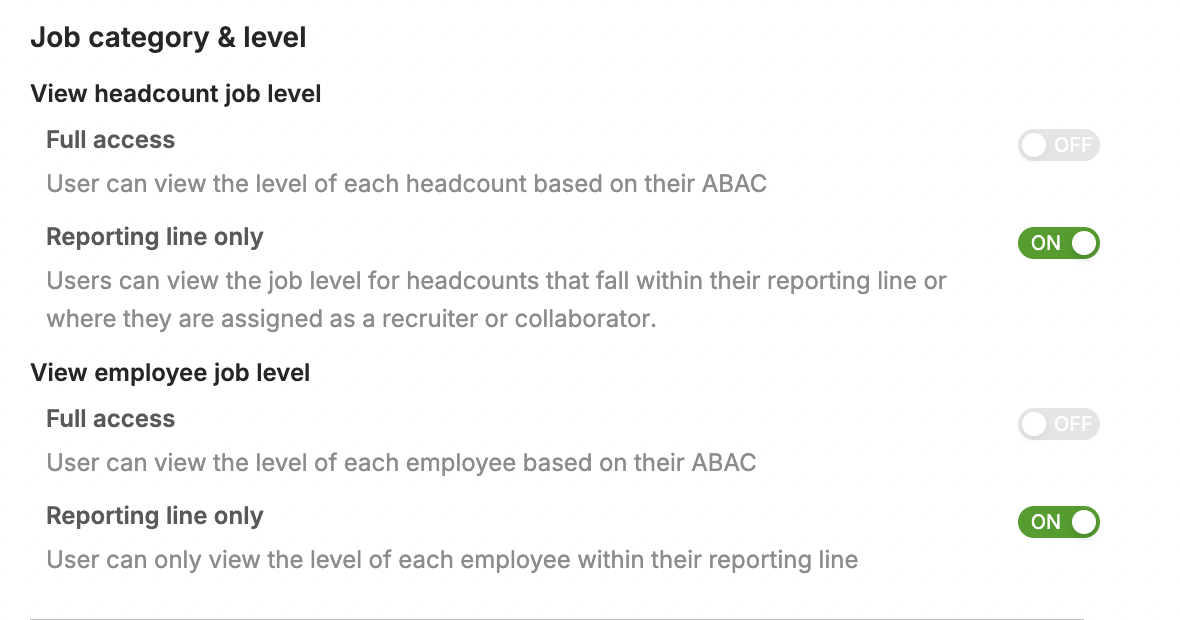
Visibility Options
Full Access
Users can view job levels for all headcount or employee records they have access to based on their Attribute-Based Access Control (ABAC) permissions.
Reporting Line Only
Headcount
Users can view the job level for headcounts that:
Fall within their reporting line, or
They are assigned to as a Recruiter or Collaborator.
Employee
Users can only view the job level for employees within their reporting line.As an example, if you want all Department Head user roles to only see the job levels for their specific reporting line for both headcount and employee records, you would toggle off ‘full access’ and just keep ‘reporting line only’ toggled on (in both ‘view headcount job level’ and ‘employee job level’ sections) within the Department Head user role settings.
Example
Suppose you want Department Heads to only view job levels for employees within their reporting hierarchy.
Configure the role as follows:
Setting | Value |
|---|---|
View Headcount Job Level | Reporting Line Only |
View Employee Job Level | Reporting Line Only |
Job Category & Level Access | Select the job categories and level ranges the role should be allowed to view |
With this configuration, Department Heads can only view job levels for records within their reporting scope and only for the job categories and levels permitted by their access control settings.