Linking Headcount to Jobs and Offers in Ashby
Last updated: July 27, 2026
Linking each headcount to its Ashby job req and opening connects your hiring plan to your recruiting pipeline — hiring status and offer details then update in TeamOhana automatically. This article is for Recruiters, whose primary role in TeamOhana is to link their assigned headcount to jobs and offers in Ashby.
Prerequisites
The Ashby integration must be connected
The headcount must be approved and marked Ready to Hire
The job req and opening should exist in Ashby — ideally created from TeamOhana (see Creating Jobs and Openings in Ashby).
This article walks through the process of linking already existing jobs, openings, and offers. Please review the linked article above about how to start the job/opening creation process from TeamOhana.
Link a single headcount
Recruiters receive an email notification when they are added to a headcount.
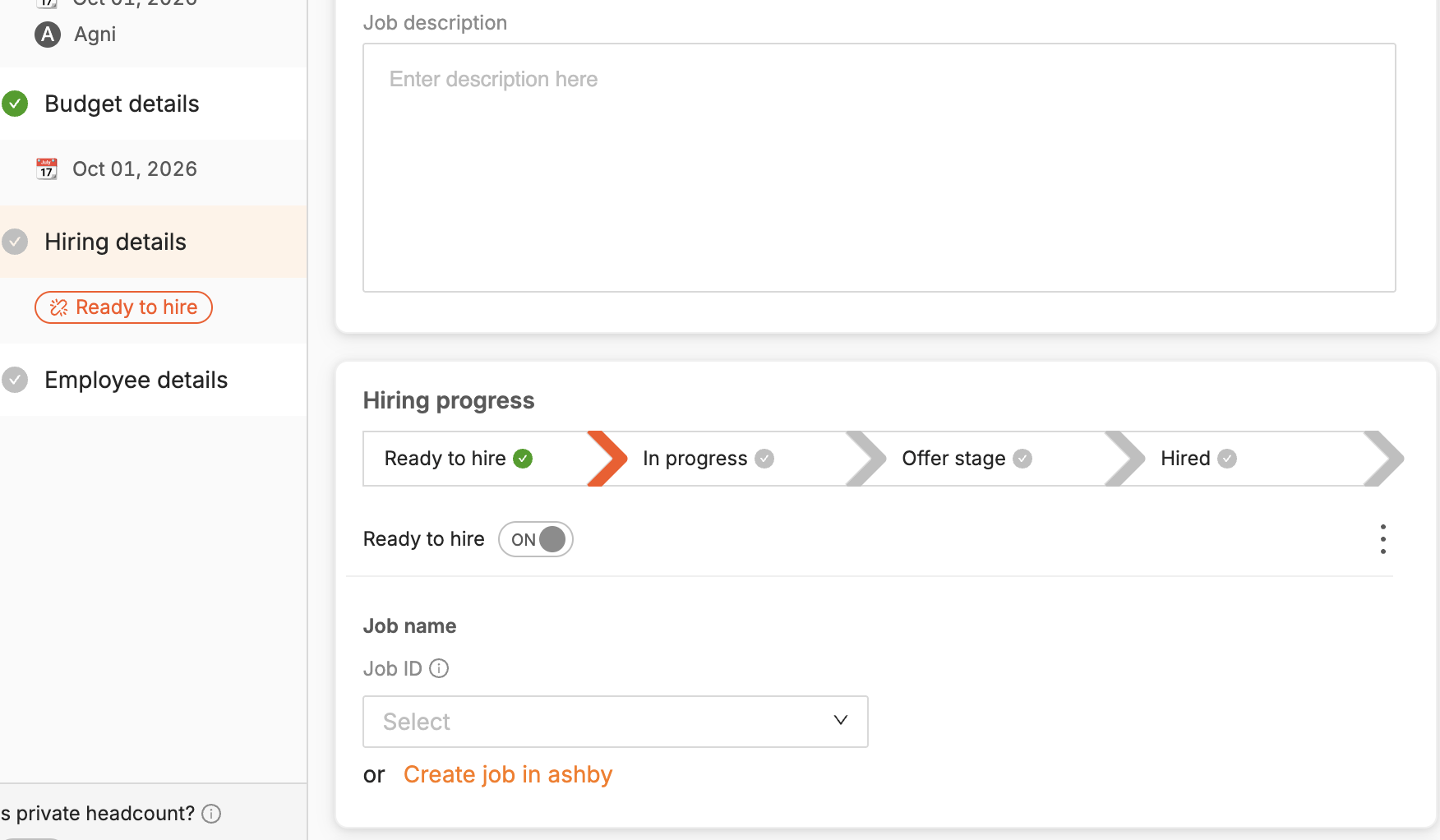
In the notification email, click View Headcount to navigate to TeamOhana platform and review the opened headcount's hiring details.
Click + Link job and select the job req.
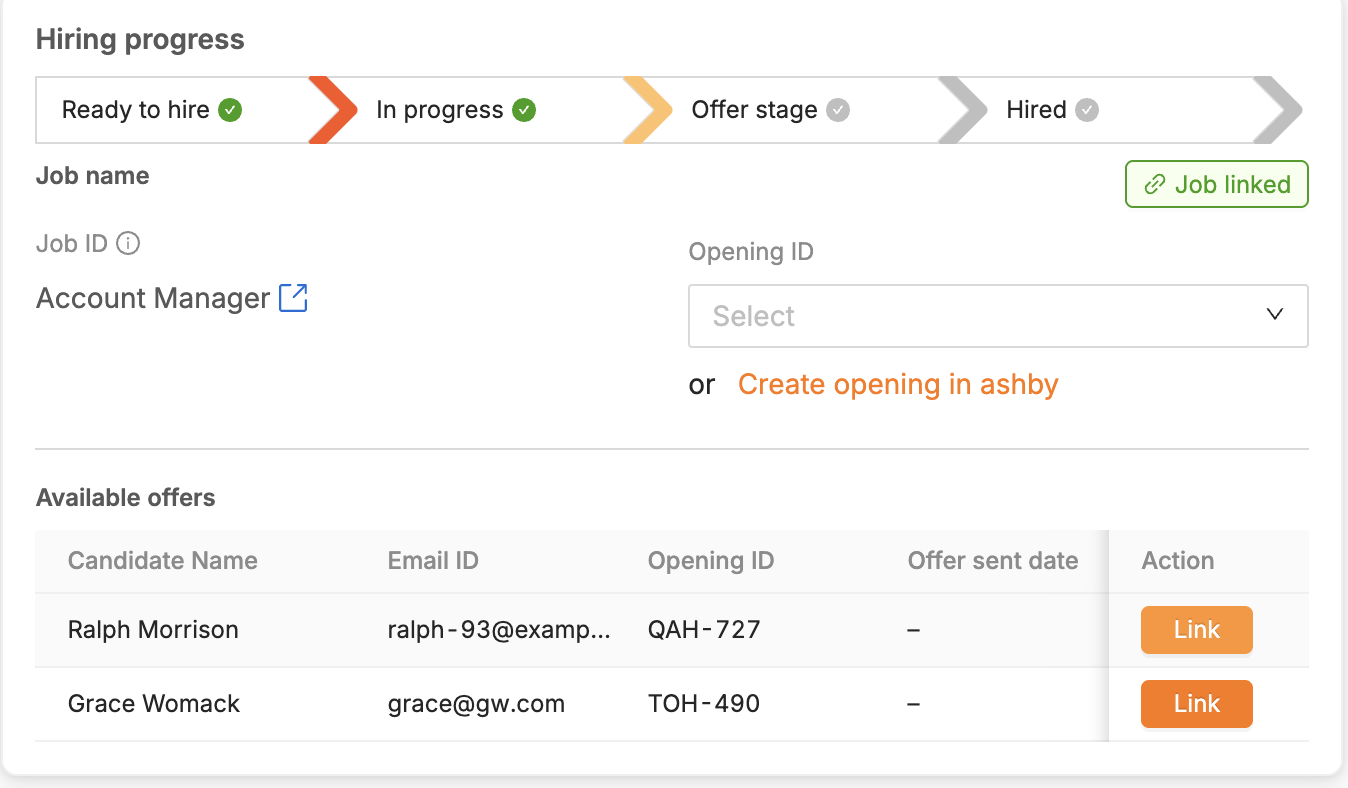
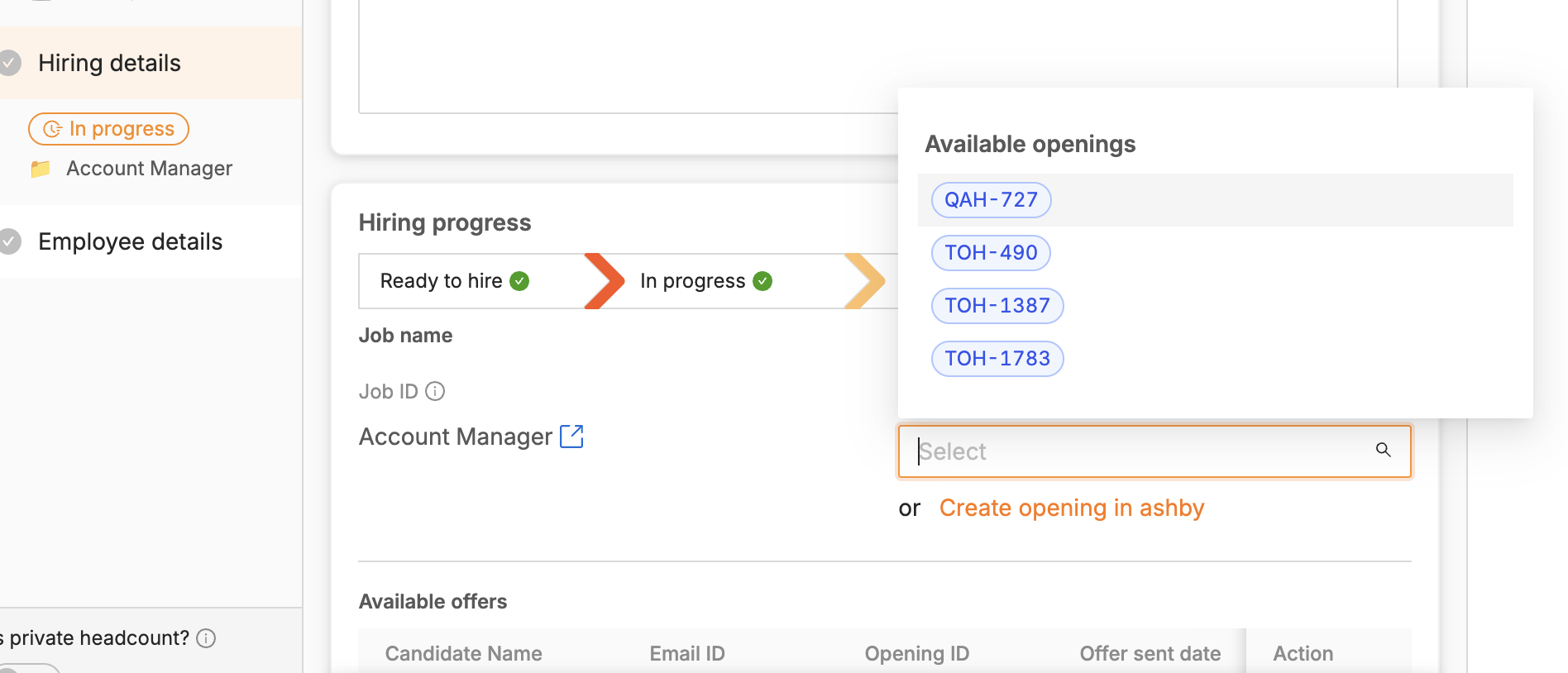
Select the opening ID. If one job has multiple openings, all openings display in the dropdown — choose the correct opening for this specific headcount.
Link multiple headcount from the Recruiting Workboard
Open the Recruiting Workboard and click a stage in the funnel to see headcount by hiring status. Use filters (for example, department) and search by job title to find the headcount you need to link.
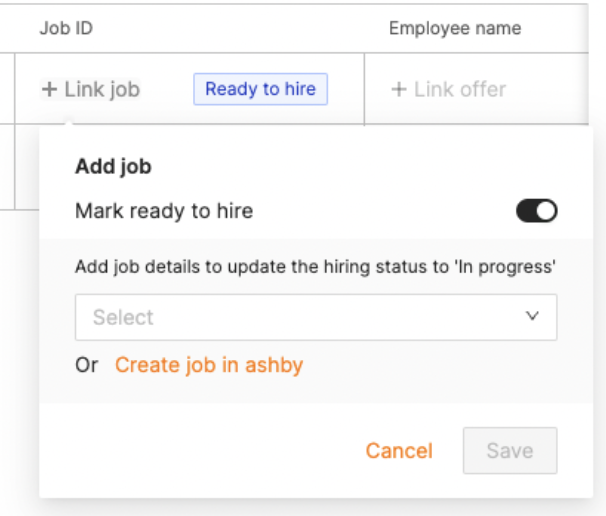
Click + Link job, search by ID or title, and link the job req to the headcount.
Select the opening ID.
Note: Once you link a job req, the headcount automatically moves to In Progress status.
What happens after linking
When the headcount is linked to a job and opening, TeamOhana detects when offers are sent and accepted in Ashby. The hiring status updates automatically in the Hiring details section, along with the offer details from Ashby — candidate name, offer compensation, and start date.
Tip: Offer updates sync in near real time (~30 minutes) when your Admin has configured the Ashby offer_updated and offer_deleted webhooks. Without webhooks, offer updates wait for the full sync cycle. See Integrating Ashby with TeamOhana.
Manually link an offer
If a headcount is not linked to an opening, offers must be linked manually once they are created. Link the offer from the Hiring details section of the headcount, or click + Link offer from the Recruiting Workboard.