Integrating Ashby with TeamOhana
Last updated: October 8, 2025
Ashby - How do I link my account?
Overview
To authenticate Ashby, you will need to provide an API key. This guide will walk you through finding or creating the API key within Ashby.
Instructions
Step 1: Create a new API key
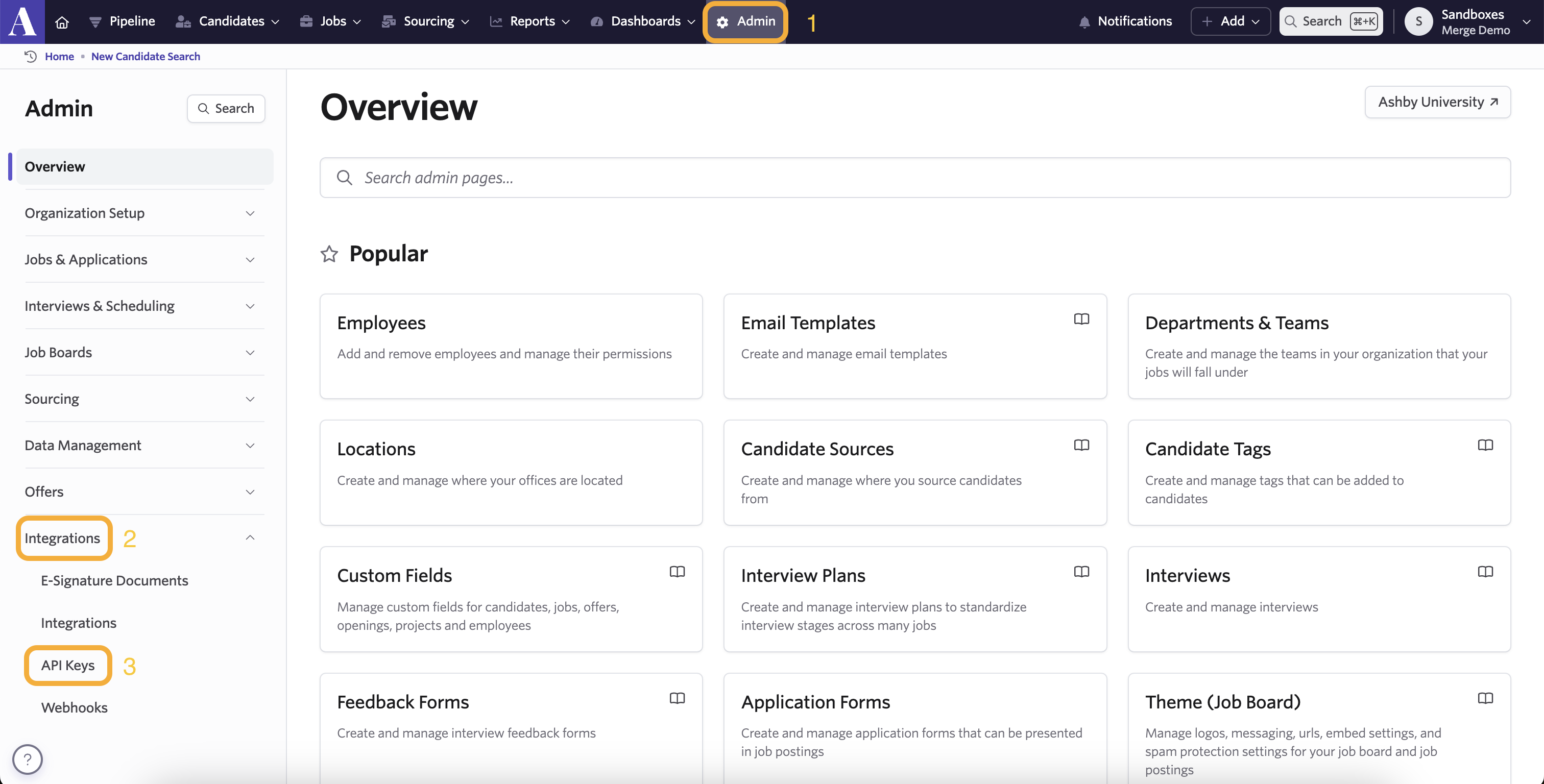
Sign in to Ashby and click Admin in the top navigation bar
Navigate to Integrations > API Keys
Click "+ New" in the upper right corner
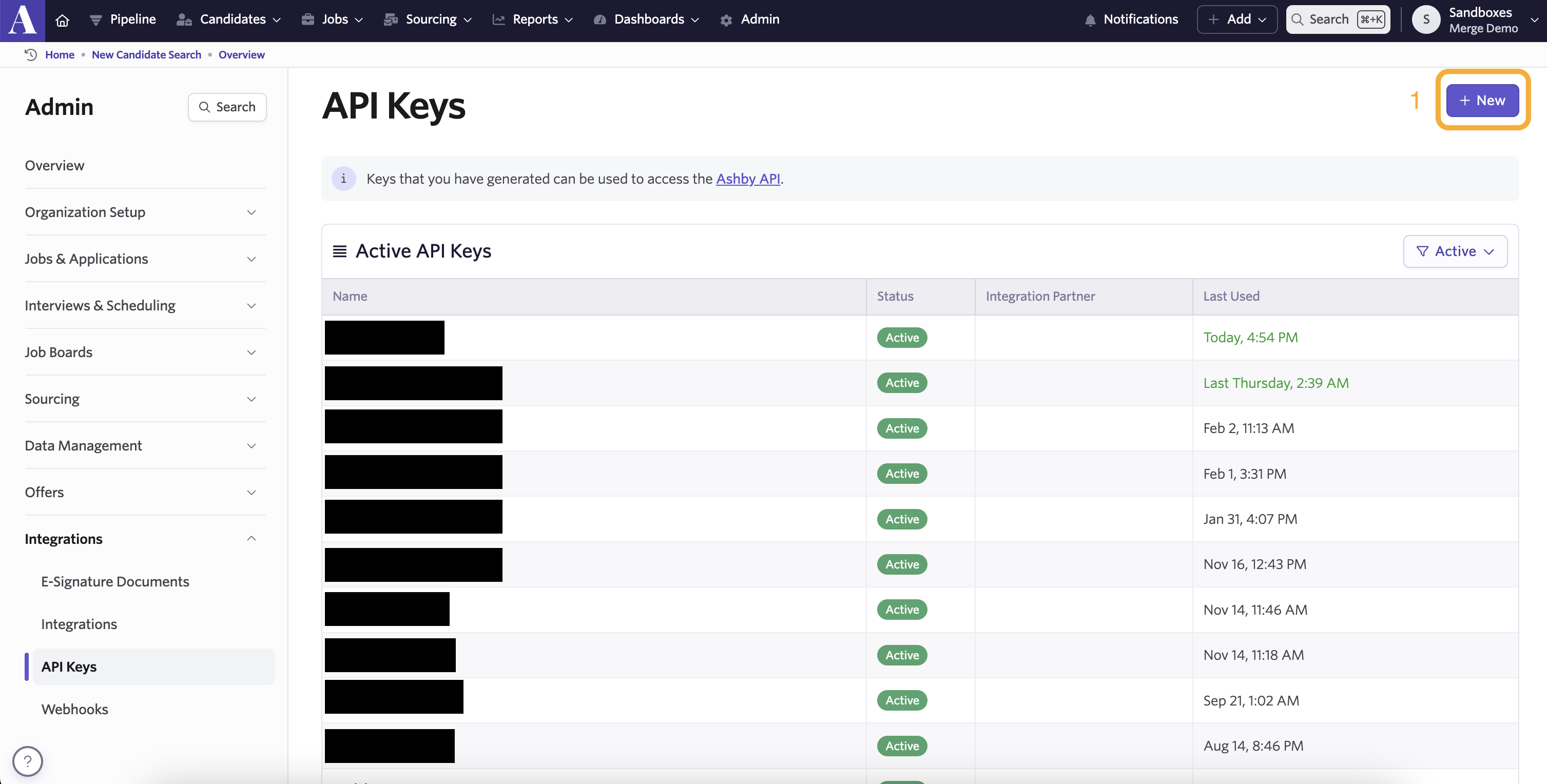
Add a name for the new API key, then click "Create API Key"
Grant the following permissions to your API key
Module | Read | Write |
Jobs | YES | YES |
Candidates | YES | YES |
Interviews | YES | |
Hiring Process Metadata | YES | YES |
Organization | YES | YES |
Offers | YES | |
Api Keys | YES |
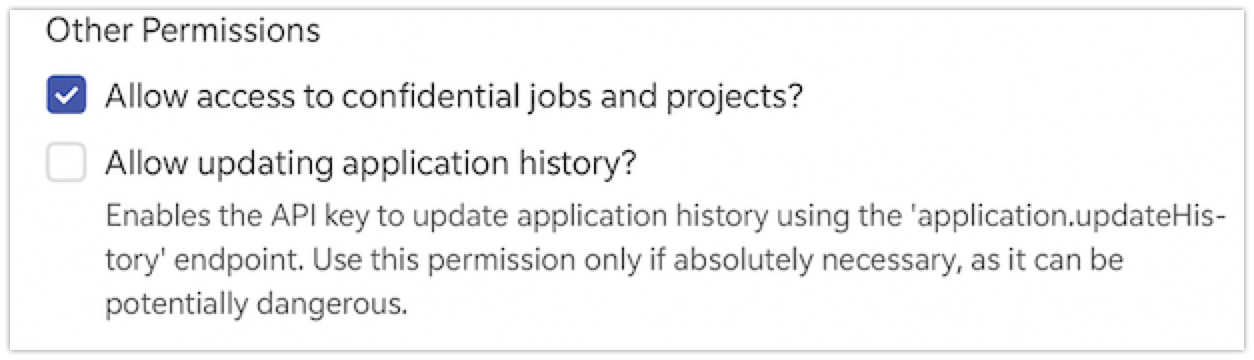
Select "Allow access to confidential jobs and projects?" if you are planning to utilize Private Headcount in TeamOhana. Without this permission, TeamOhana will not be able to pull in job or opening data tied to confidential roles, which may result in unreconciled headcount.
Step 2: Paste API Key in TeamOhana Integrations settings for Ashby connection.
Log in to TeamOhana
Go to Settings > Integrations > Link ATS
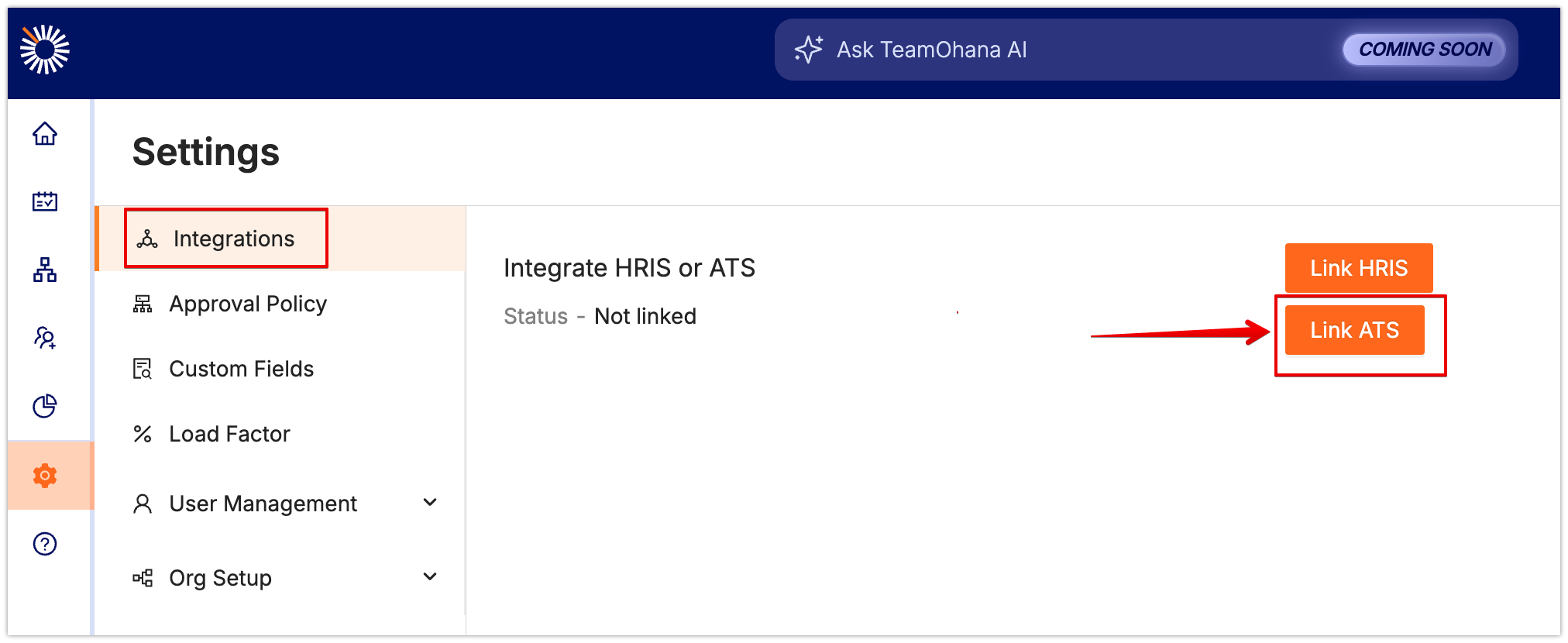
Select Ashby
Select I am an admin
Click Next
Enter your API key and click Next
You should see Success!
Click on Next and Finish.