Creating Jobs and Openings in Ashby
Last updated: July 27, 2026
Once a headcount is Ready to Hire, you can create the Ashby job req and opening directly from TeamOhana — the job is created in draft mode in Ashby, already linked to the headcount. This article is for Recruiters and Recruiting Leaders at organizations using the Ashby integration.
Overview
Creating jobs from TeamOhana keeps the headcount, job, opening, and offer connected automatically. Hiring status and offer details flow back into TeamOhana, so forecasts stay accurate and the hiring plan reflects real-time status for all stakeholders.
Important: If your organization uses the Ashby integration, avoid manually creating job reqs and openings in Ashby. Create them from TeamOhana so linking is automatic.
Prerequisites
The Ashby integration must be connected (see Integrating Ashby with TeamOhana)
Job templates must be configured in Ashby — job creation from TeamOhana requires them, and typically the department, office, and team fields
The headcount must be approved and marked Ready to Hire
How job reqs and openings work in Ashby
In Ashby, openings manage multiple open positions under the same job req — one candidate funnel, multiple seats. Create a separate job req whenever you want a separate candidate funnel.
Scenario 1: Hiring five Account Executives with the same job description and location → one job req with five openings, one per position.
Scenario 2: Hiring three Account Executives in the US and two in the EU → two job reqs (one with three US openings, one with two EU openings), giving you separate candidate funnels per region.
Create a new job req and opening
Use this workflow when the job req does not exist yet.
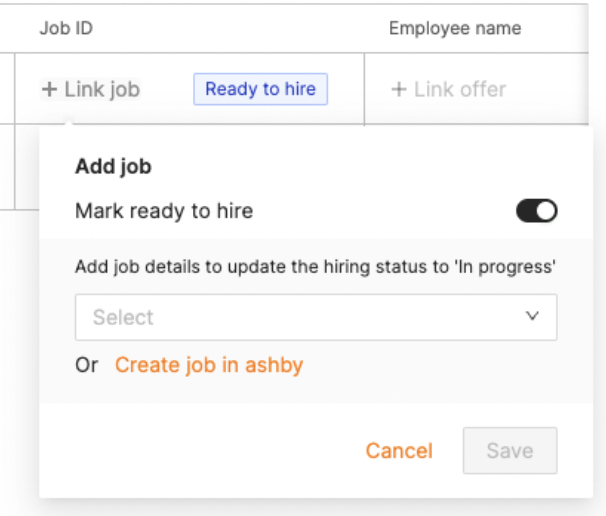
From the headcount details drawer or the Recruiting Workboard, click + Link job and select Create job in Ashby.
Review the prefilled details and edit as needed, then click Create job. The job is created in draft mode in Ashby.
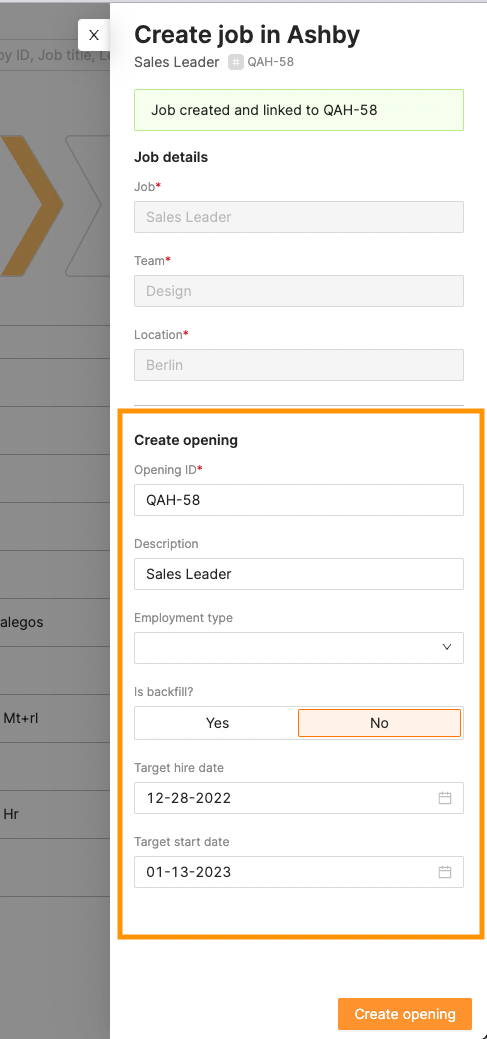
When prompted, create the opening. The opening is required for offers to auto-link from Ashby back to TeamOhana.
Fill out the required details and save. Then complete your normal workflow in Ashby to publish and post the job.
Tip: Create an opening for every job req, even when the req has only one open position. Openings are what enable automatic offer syncing.
Add an opening to an existing job req
Use this workflow for each additional position under a job req that already exists.
Click + Link job and select the existing job req from the dropdown.
After linking, click Create opening in Ashby.
Update the opening details in the drawer if needed, then click Create opening.
Save. Complete your workflow in Ashby to publish.
What happens next
The headcount moves to In Progress once the job and opening are linked.
Hiring status and offer details update automatically in TeamOhana as candidates progress in Ashby. (automatic updates require headcount to be linked to opening ID, and offer to be linked to same opening ID)
With Ashby webhooks configured, offer updates sync in near real time (~30-60 minutes); without webhooks, updates wait for the full sync cycle.