TeamOhana Computer Seat Management
Last updated: September 29, 2026
Seat Management lets you control which of your platform users have TeamOhana Computer access, without waiting on TeamOhana support to make the change on the backend. From one screen in Surface, you can enable or disable access, choose which pool a seat counts against, and move users between pools as your rollout evolves.
Prerequisites
Required role: Admin
How It Works
Accessing Seat Management
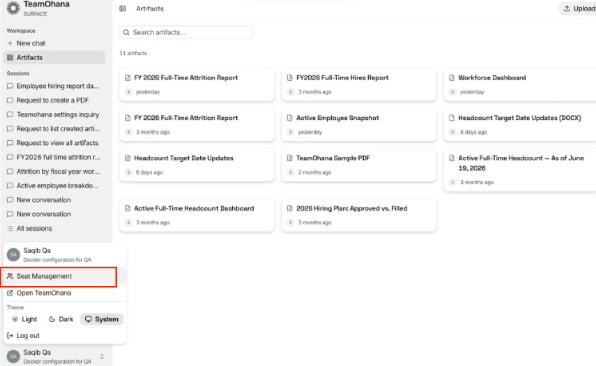
Log into TeamOhana, and navigate to TeamOhana Computer. From there, in the bottom left panel, you’ll see seat management.
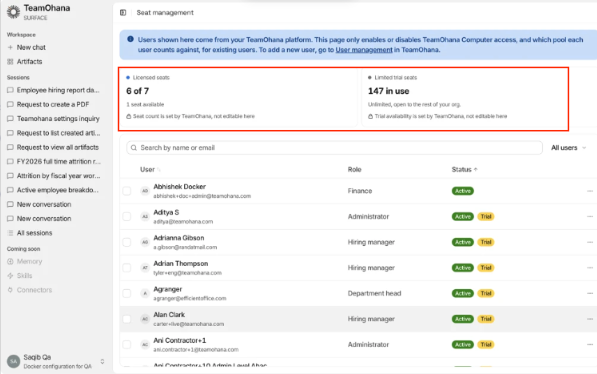
Every platform user appears in the Seat Management list along with their current TeamOhana Computer status: Enabled, Disabled, or Paused.
Enabling and Disabling Access
Use the toggle next to a user's name to grant or remove TeamOhana Computer access. Enabling a user grants them a seat right away. Disabling a user does not delete their record. Instead, it moves them into a Paused state.
Licensed vs. Limited Trial Pools
Every enabled seat counts against one of two pools:
Licensed: draws from your contracted seat count. Use this pool for users you plan to keep as permanent seat-holders.
Limited Trial: uncapped, and built for broader adoption. Use this pool to get more users into TeamOhana Computer before you commit additional contracted seats.
When you enable a user, choose which pool their seat should count against.
Moving Users Between Pools
Move a user from Licensed to Limited Trial, or the other way around, at any time from Seat Management. Moving a user between pools does not disable their access or interrupt anything they're doing. You do not need to disable and re-enable a user to change which pool they draw from.
Tip: Use the Limited Trial pool to test adoption with a broader group before you commit more contracted seats.
Bulk Actions
Select multiple users in Seat Management to enable, disable, or move them between pools in a single action. This is useful when you're onboarding a new team, offboarding a group of users, or reallocating seats after a reorg.
Paused State and the 30-Day Grace Period
When you disable a user, they move into a Paused state instead of being removed. Paused users have a 30-day grace period. If you re-enable a user within 30 days of pausing them, their full history and prior activity come back.