Connecting OpenAI Spend Data to TeamOhana: Instructions & FAQ
Last updated: September 28, 2026
Overview
Connecting OpenAI to AI Spend lets TeamOhana read your OpenAI billing and usage data so it shows up, attributed to people and agents, in your AI Spend dashboard. OpenAI sells two separate products, each billed and authenticated separately — OpenAI Platform API (for direct API/agent usage) and ChatGPT Enterprise (for employee seats, including Codex). Both connect from one place in TeamOhana: a single OpenAI card that opens one drawer with both products inside. You can connect one now and add the other later from the same card. Each product still needs its own admin key — a key from one product cannot read the other. None of these connections can read any conversations, prompts, files, or code.
If your team uses ChatGPT Business instead of Enterprise, it connects differently — see "ChatGPT Business (Team)" below.
Prerequisites
TeamOhana role and permission: Manage AI Providers permission (granted under Settings > Permissions > AI Spend Management). Admin and IT Admin have this by default.
Access in OpenAI: Creating an OpenAI Platform API admin key requires being an Organization Owner of your OpenAI Platform organization — only owners can create Admin keys. Creating a ChatGPT Enterprise admin key requires being a Workspace owner or Workspace admin (a global-admin role alone is not sufficient).
Which product(s) you have: If your company builds with the OpenAI API or runs AI agents, you have OpenAI Platform API. If employees use ChatGPT or Codex under a company account with an Admin Console at admin.openai.com, you have ChatGPT Enterprise. If your admin console instead lives at chatgpt.com/admin/billing with no "workspace" concept, you likely have ChatGPT Business instead (see below). Many companies have both Platform API and ChatGPT Enterprise — check both boxes in the drawer; TeamOhana connects them independently.
Setup Steps
Step 1 — Open the OpenAI drawer
In TeamOhana, go to Settings > Integrations.
Under AI Providers, click the OpenAI card.
In the Connect OpenAI drawer, check the box for each product you use: OpenAI Platform API and/or ChatGPT Enterprise. Checking a box opens that product's credentials section below.
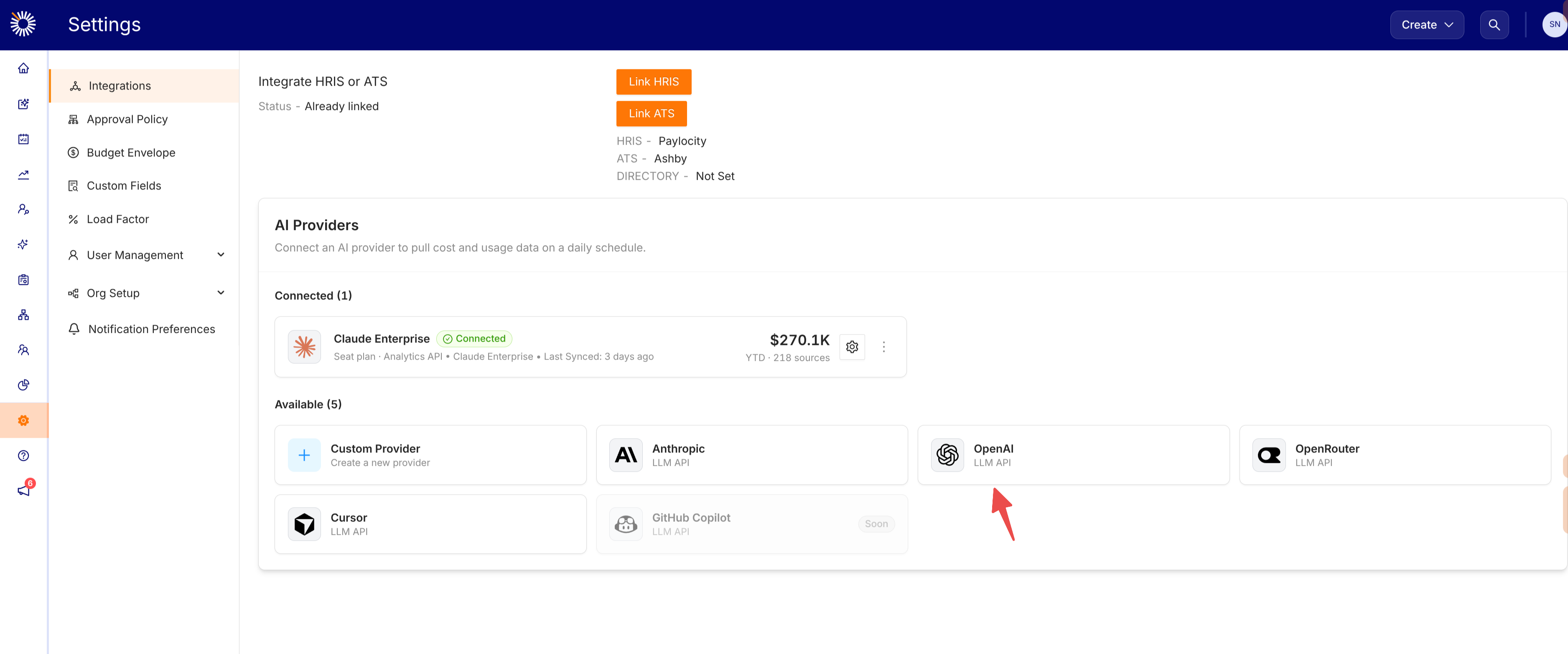
If you connect only one product today, the OpenAI card stays available afterward so you can come back and add the other one later — it will show the one you already connected as Connected.
Step 2 — OpenAI Platform API
Who can do this: an Organization Owner of your OpenAI Platform organization (only owners can create Admin keys).
Go to platform.openai.com > Settings > Organization > Admin keys.
Create a new admin key. Name it something you can audit later, e.g. teamohana-spend-readonly.
Under Permissions choose Read only. If you prefer Restricted, set exactly these two categories to Read and leave everything else at None:
Permission | Scope | Status | What it's for |
|---|---|---|---|
Usage API > Read | Required | Spend per project and API key. | |
Organization Administration > Read | Highly recommended | Names your projects and keys. Without it, spend shows as key_AGo86… instead of a project or key name. |
Set an expiration if offered — we recommend 12 months.
Create the key and copy it immediately; OpenAI shows it only once. It starts with sk-admin-.
Paste it into the Platform admin key field in the drawer.
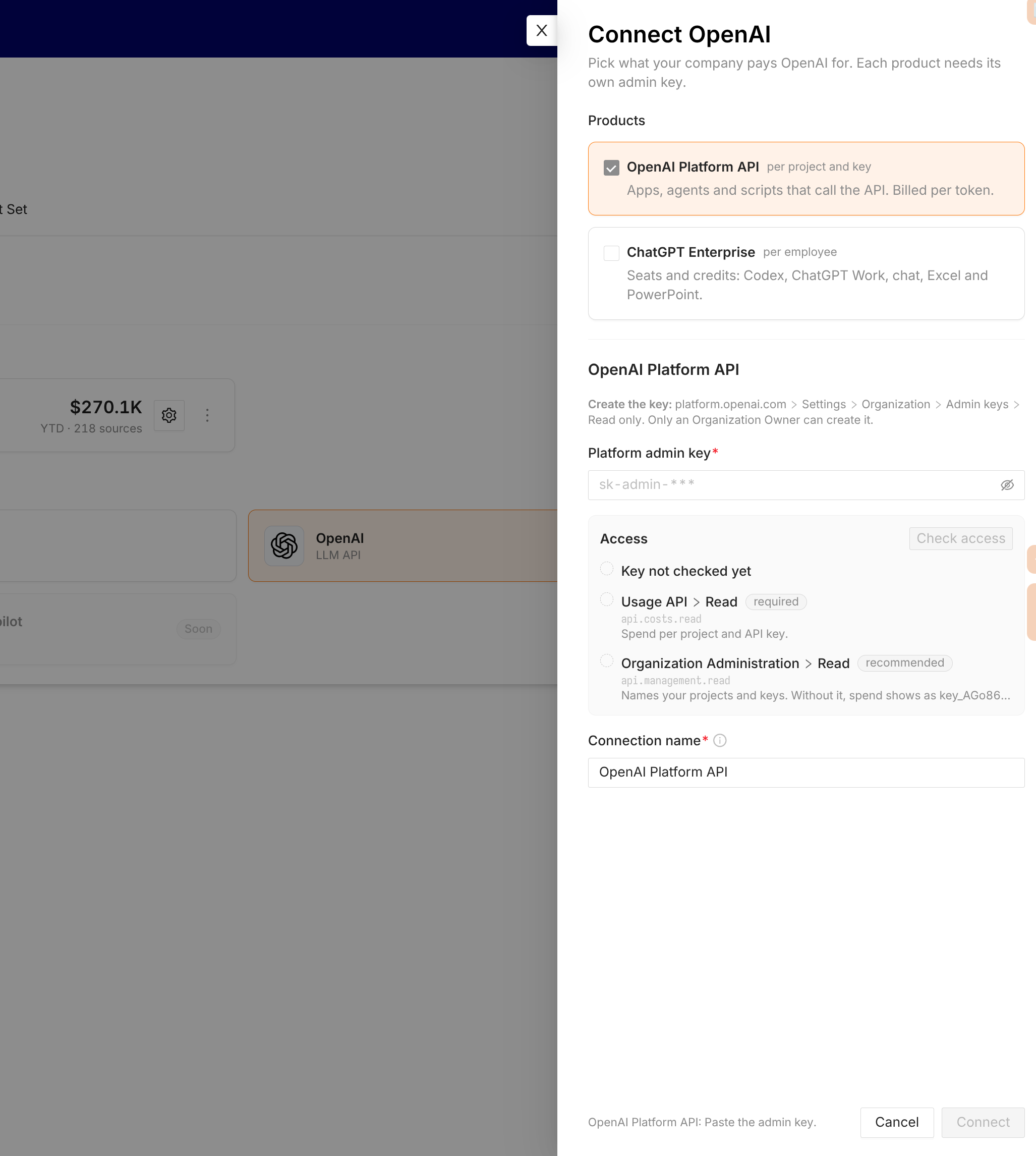
TeamOhana checks the key against OpenAI a moment after you finish pasting it — nothing is sent by email or Slack. Each permission row turns green (granted), amber (missing but optional), or red (missing and required) as the check completes. You can also click Check access any time, for example right after fixing a permission on OpenAI's side.
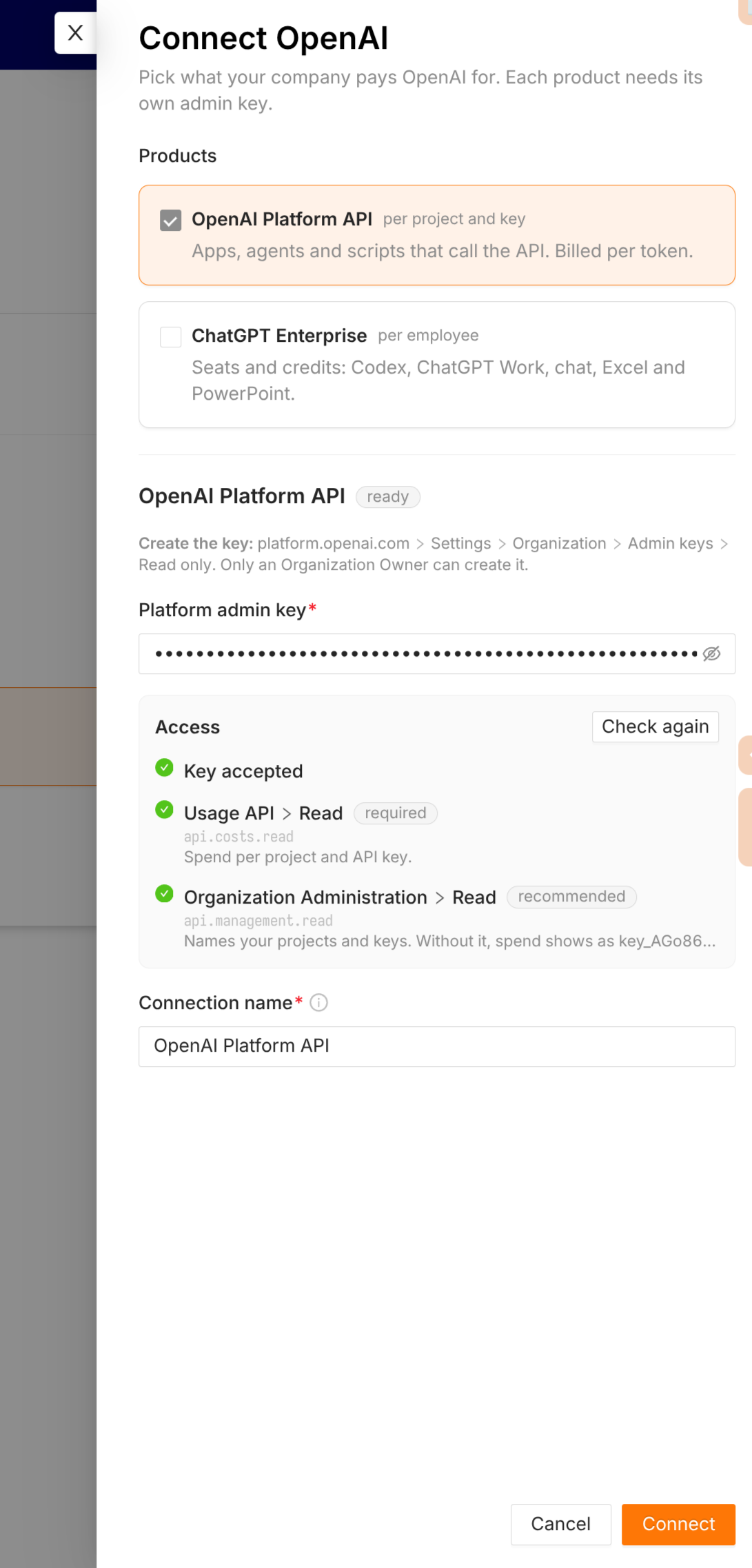
A key missing the required Usage API permission cannot be saved — the row turns red and the Connect button stays disabled until you fix it.
What we do with it: TeamOhana calls read-only reporting endpoints on a daily schedule — /v1/organization/costs (daily spend by project and API key), and /v1/organization/projects/…/api_keys (key names/owners only, to map spend to teams and agents — never key secrets, which OpenAI does not expose).
Step 3 — ChatGPT Enterprise
Who can do this: a Workspace owner or Workspace admin of your ChatGPT Enterprise workspace (a global-admin role alone does not give access to Admin keys).
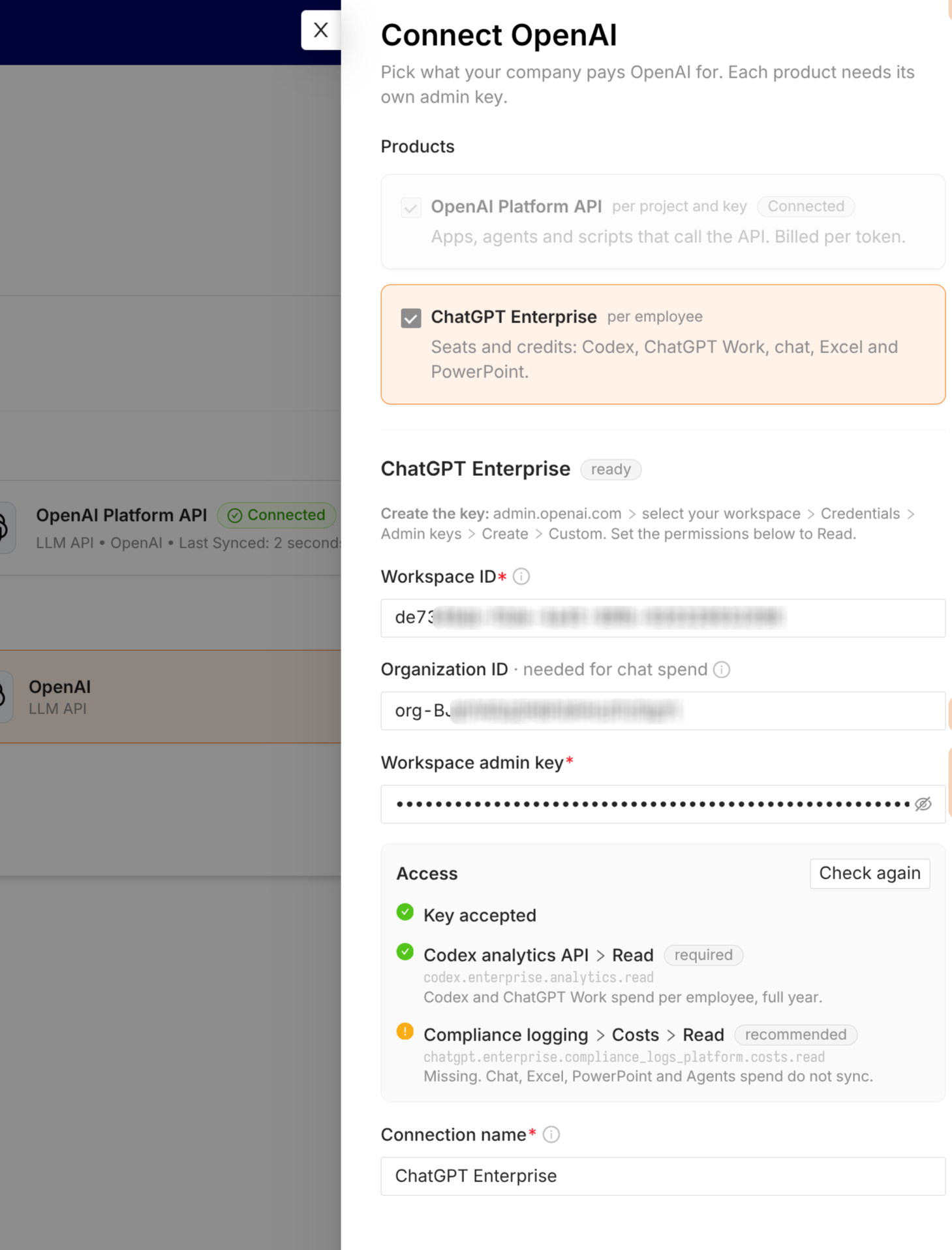
Go to admin.openai.com, select your workspace, then go to Credentials > Admin keys > Create > Custom.
Set the permissions below to Read; leave everything else at None:
Permission | Scope | Status | What it's for |
|---|---|---|---|
Codex analytics API > Read | Required | Codex and ChatGPT Work spend per employee, full year. | |
Compliance logging > Costs > Read | chatgpt.enterprise.compliance_logs_platform.costs.read | Recommended | Chat, Excel, PowerPoint and Agents spend. OpenAI keeps only 30 days of this feed — grant it now so history accrues, even though the per-employee chat view in your dashboard ships in a later release. |
Important: Codex analytics API is a different item from Codex logs, which sits next to it in the list — leave Codex logs at None. Don't enable Conversation messages or any other compliance-logging item beyond Costs — those return conversation content, which TeamOhana never asks for and cannot use.
Set an expiration if offered — we recommend 12 months.
Create the key and copy it immediately; OpenAI shows it only once.
Paste it into the Workspace admin key field in the drawer.
Fill in the two IDs the drawer asks for:
Workspace ID (required) — chatgpt.com/admin > Workspace settings > Workspace ID. A UUID such as de7348ab-f0de-4a45-89fb-630329052096.
Organization ID (optional, needed for chat spend) — platform.openai.com > Settings > Organization > General > Organization ID. Starts with org-. If you have no Platform account, leave it blank for now; you can add it later from the edit drawer once chat spend is available.
What we do with it:
Codex analytics — daily Codex usage: one row per employee per day with credits consumed, estimated dollar value, tokens, model, and client (CLI / IDE / cloud / ChatGPT Work). No content.
Costs — daily per-employee credit-consumption rows for chat, Excel/PowerPoint, Workspace Agents and Codex. No content.
Step 4 — Name the connection and connect
Under each product's section, give it a Connection name — a display name for this connection (useful if you ever connect a second workspace).
Click Connect (it reads Connect 2 products if you checked both boxes).
If Connect is disabled, the text next to it names exactly what's missing — for example "ChatGPT Enterprise: Add the Workspace ID" or "OpenAI Platform API: The key misses a required permission." Fix that item and the button enables automatically.
Both products now appear as connected cards on the Integrations page.
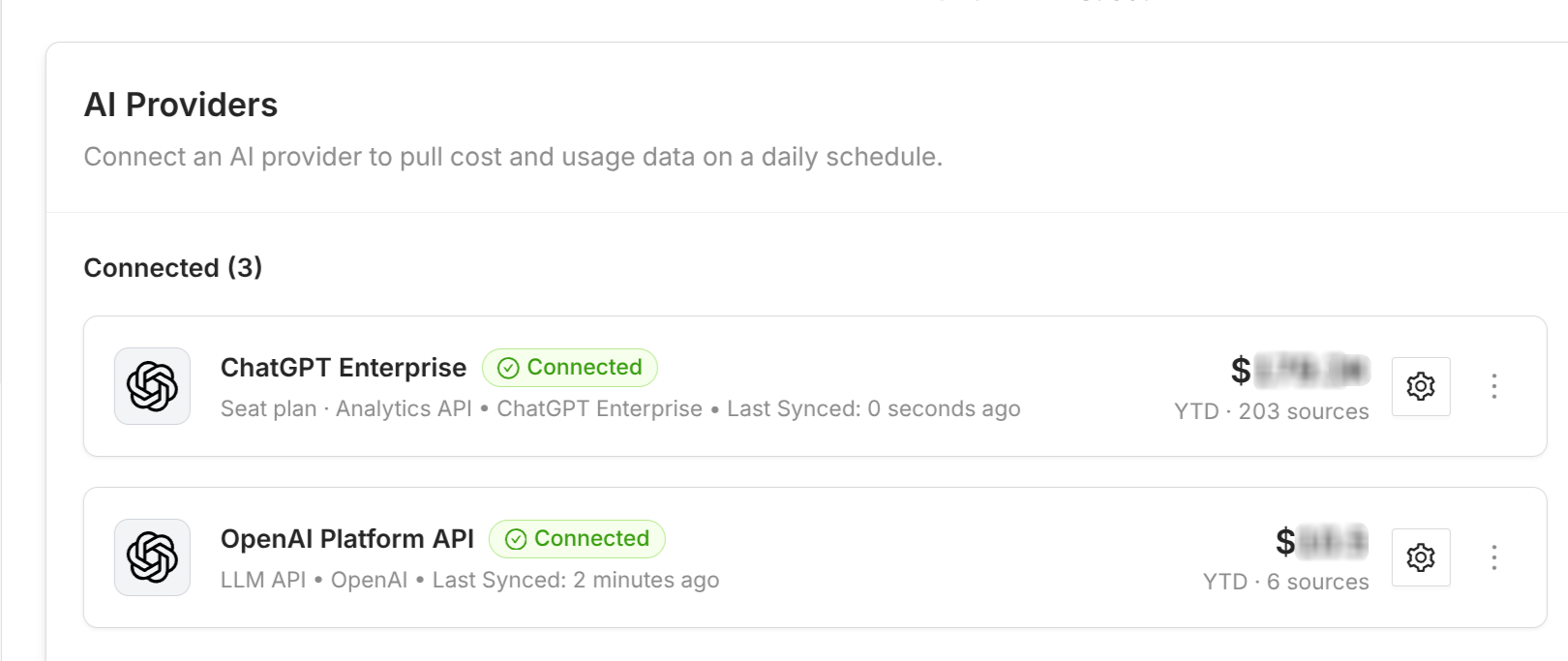
Managing your OpenAI connections
Click the gear icon on a connected card to open its edit drawer. From there you can:
Rename the connection.
Paste a new key (leave it blank to keep the current one) and re-check its access.
Update the Workspace ID or Organization ID for ChatGPT Enterprise.
Use the ⋯ menu on the card to sync now or disconnect.
ChatGPT Business (Team)
ChatGPT Business has no billing API, so it connects the same way as any other custom source: a CSV upload. See Connecting a Custom AI Provider to AI Spend (CSV Upload) for the full flow. In short:
Sign in at chatgpt.com and open Workspace settings > Billing.
Export usage and credit data for a date range.
Upload it as a Custom Provider named e.g. "ChatGPT Business" in Settings > Integrations.
Seat pricing (one-time, no key needed)
OpenAI does not expose your negotiated seat prices through any API. To compute fully-loaded per-person cost, share the following with your TeamOhana contact:
Standard ChatGPT seat price (e.g. $XX/user/month).
Codex seat price, if you use Codex seats.
Your credit purchase price / contract credit rate (so credit consumption can be converted to dollars), and your billing cycle (annual/monthly).
Permissions Reference (optional)
Credential | Required scopes | What it can read |
|---|---|---|
OpenAI Platform API admin key | api.costs.read (required), api.management.read (recommended) | Billing totals, token usage, project/API key names and owners. No content. |
ChatGPT Enterprise admin key | codex.enterprise.analytics.read (required), chatgpt.enterprise.compliance_logs_platform.costs.read (recommended) | Per-user Codex usage and credit/cost figures. No content — Conversation messages is never requested and the drawer never asks for it. |
Troubleshooting
What does it mean when a permission row is amber instead of red? Amber means the permission is recommended, not required — the connection still works and spend still lands in your dashboard, but with less detail. For example, without Organization Administration > Read, OpenAI spend still totals correctly, but individual API keys show as key_AGo86… instead of a name. Red means a required permission is missing, and the connection cannot be saved until it's added.
Do I need to send you the keys? No. You paste each key directly into the Connect OpenAI drawer — it's validated live against OpenAI and stored encrypted. It never travels by email or Slack, and TeamOhana staff never see it in transit.
Why does the drawer ask for two separate keys? OpenAI runs Platform API and ChatGPT Enterprise as separate products with separate billing and credentials. A credential for one cannot read the other — OpenAI states that Platform organization keys do not provide access to ChatGPT workspace analytics — so full visibility needs one connection per product, which is why they're two checkboxes in one drawer rather than one combined key.
Why two permissions on the ChatGPT Enterprise key? OpenAI publishes Codex usage and ChatGPT credit usage through two different APIs, each behind its own permission. Codex analytics does not include chat usage, and the Costs feed is the only place chat, Excel/PowerPoint and Workspace Agent spend appears. Admin-key permissions are set per feature, so both fit on one key.
Can these keys read our conversations, prompts, files, or code? No. The Platform Admin key has no endpoints that return message or prompt content — only billing totals, token counts, and key/project/member metadata; we ask for Read only, so it cannot change settings. The Codex analytics permission returns per-user usage counters, credits and model names — not prompts or code. The Costs permission returns billing rows only; it's one narrow item inside OpenAI's compliance-logging permissions. The item that does read content — Conversation messages — is a separate permission that only a workspace owner can grant, and we explicitly ask you not to grant it (the drawer never asks for it).
Can the Platform Admin key be used to create new inference API keys? Only with write access, which is why we ask for Read only. A read-only Admin key cannot create keys or service accounts, cannot manage members, and cannot run inference — OpenAI blocks Admin keys from all non-administration endpoints.
What could the read-only Platform key do in the worst case? Very little — it can read organization metadata and usage/cost reports and nothing else. It cannot spend money, create credentials, or change any setting. The practical worst case of a leak is exposure of billing/usage metadata, and you can revoke it instantly.
Is the ChatGPT Enterprise key safe? Yes. Both permissions are reporting-only, returning usage and credit analytics per user, product, and model. They cannot read conversations, change spend limits, or manage members, and Admin keys cannot be used for model inference at all.
Why does the per-API-key breakdown only start on a certain date? OpenAI's Costs API can only split Platform spend by API key from a fixed date that OpenAI sets per organization. Before that date, spend is attributed per project only. Totals are complete either way; only the granularity of older months differs. The sync discovers the date automatically on every run.
How do you protect the keys? Keys are stored encrypted at rest, never logged, never stored in plaintext, and never leave TeamOhana's backend. Each key is used by a single daily batch job that calls only the reporting endpoints listed above; egress is limited to OpenAI's API hosts (api.openai.com, api.chatgpt.com). We ask you to create named, read-only, dedicated credentials with an expiration date where supported, so you can audit access as a distinct identity and revoke it independently at any moment.
What personal data do you receive? Per-user rows include the member's name, work email, and usage/cost (or credit) figures, used solely to attribute AI spend to people and teams in your dashboard. This is governed by the Data Processing Agreement already in force between TeamOhana and your organization; the data is never used for anything other than your own reporting and never shared.
Can we revoke access at any time? Yes, instantly and unilaterally. OpenAI Platform: Settings > Organization > Admin keys > delete teamohana-spend-readonly. ChatGPT Enterprise: admin.openai.com > Credentials > Admin keys > revoke teamohana-chatgpt-readonly. ChatGPT Business: stop the scheduled export in Workspace settings. Revocation only stops future syncs — historical dashboard data remains.
Does this affect our users, rate limits, or seat count? No. Reporting APIs are separate from inference and seat management. The daily batch reads metadata only — it doesn't consume credits, count against inference rate limits, or change seats or spend limits.
Is any of this data used to train models? Not on TeamOhana's side — only billing/usage metadata is read, never content. OpenAI's own training policy for ChatGPT Enterprise/Business content is between the customer and OpenAI and is unaffected by this integration; Enterprise content is not used to train models by default.