AI Spend Management Overview
Last updated: September 22, 2026
AI Spend gives you a single place to view your organization's entire AI spend and attribute it to specific employees, agents, and departments. It's rolling out to TeamOhana customers now, with broader availability coming soon.
AI spend today typically lands in your books as generic SaaS spend, spread across providers with no link back to the people or automations actually generating it. AI Spend closes that gap. It connects to your AI providers through read-only billing and usage APIs, attributes each dollar of spend to an employee or to an agent (a shared product or workflow, such as a support chatbot or coding assistant), and tracks that spend against a forecast — the same way you already track other workforce costs in TeamOhana.
AI Spend is made up of four areas:
Dashboard
AI Spend Classifier
AI Providers
Employee AI Ledger
You'll find it from the left navigation under AI Spend.
Prerequisites
Role and permissions: Admin and IT Admin roles have access by default, with the following permissions: View All (respects ABAC), Manage Agents & Spend Classification, and Manage AI Providers.
Granting access to other roles: Go to Settings > Permissions > AI Spend Management to extend access. View access is controlled by four hierarchical tiers — View Own, View Reporting Line, View All, and View All (Unrestricted) — where turning on a higher tier automatically enables the tiers below it. The first three tiers respect ABAC; View All (Unrestricted) overrides ABAC. Manage Agents & Spend Classification and Manage AI Providers are separate, independent permissions not tied to a view tier.
Setup: At least one AI provider (or a custom spend file) must be connected before any spend data appears.
Note: This release does not show employee compensation anywhere in AI Spend. Compensation visibility is coming with future releases and will continue to be controlled by the existing View Employee Compensation permission, ABAC, and org-level manage permissions — not by the AI Spend permissions described above, which only control who can see AI spend dollar amounts.
How It Works
Connecting your AI providers
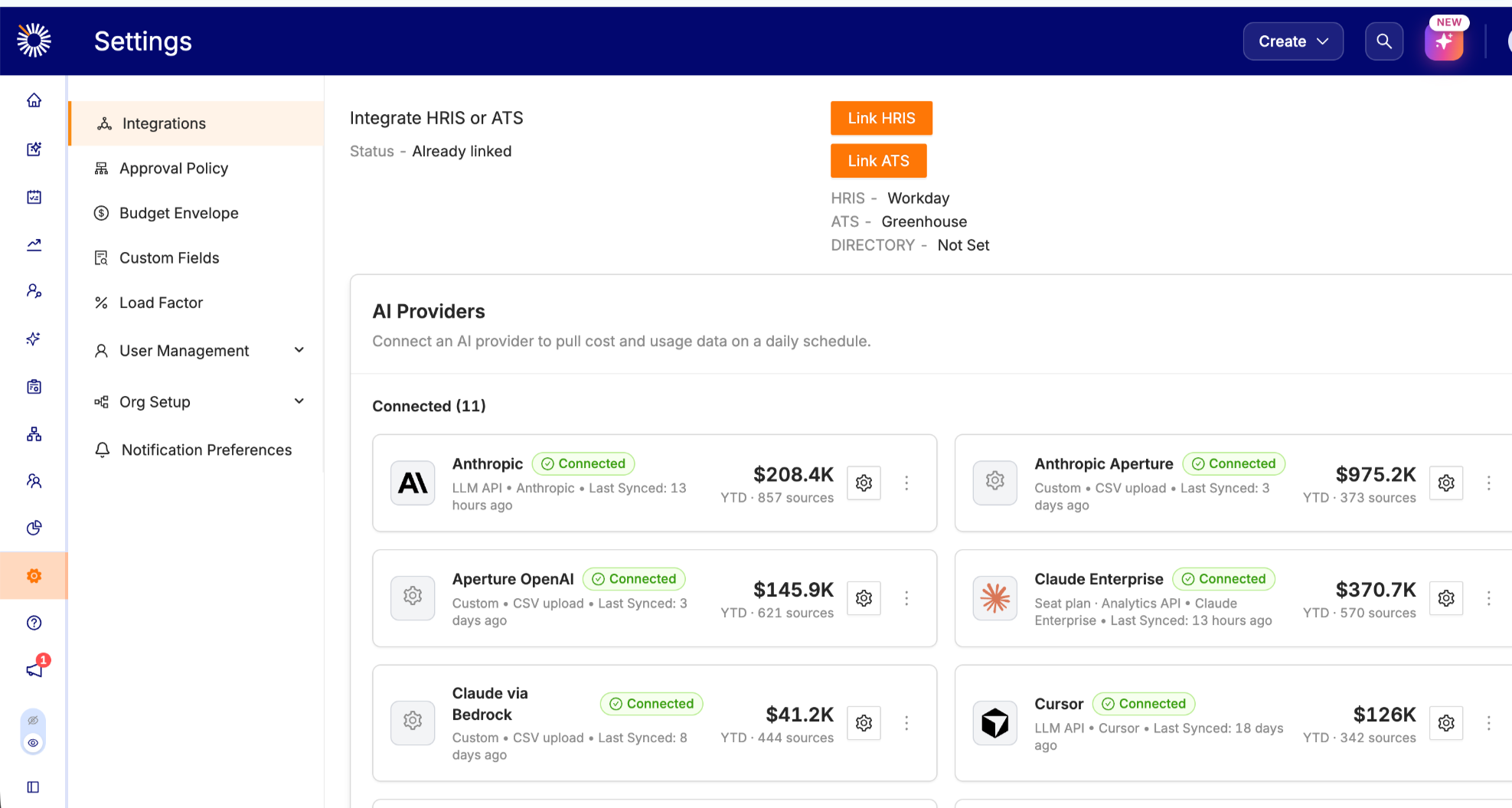
From the left nav, go to Settings > Integration to connect your AI providers.
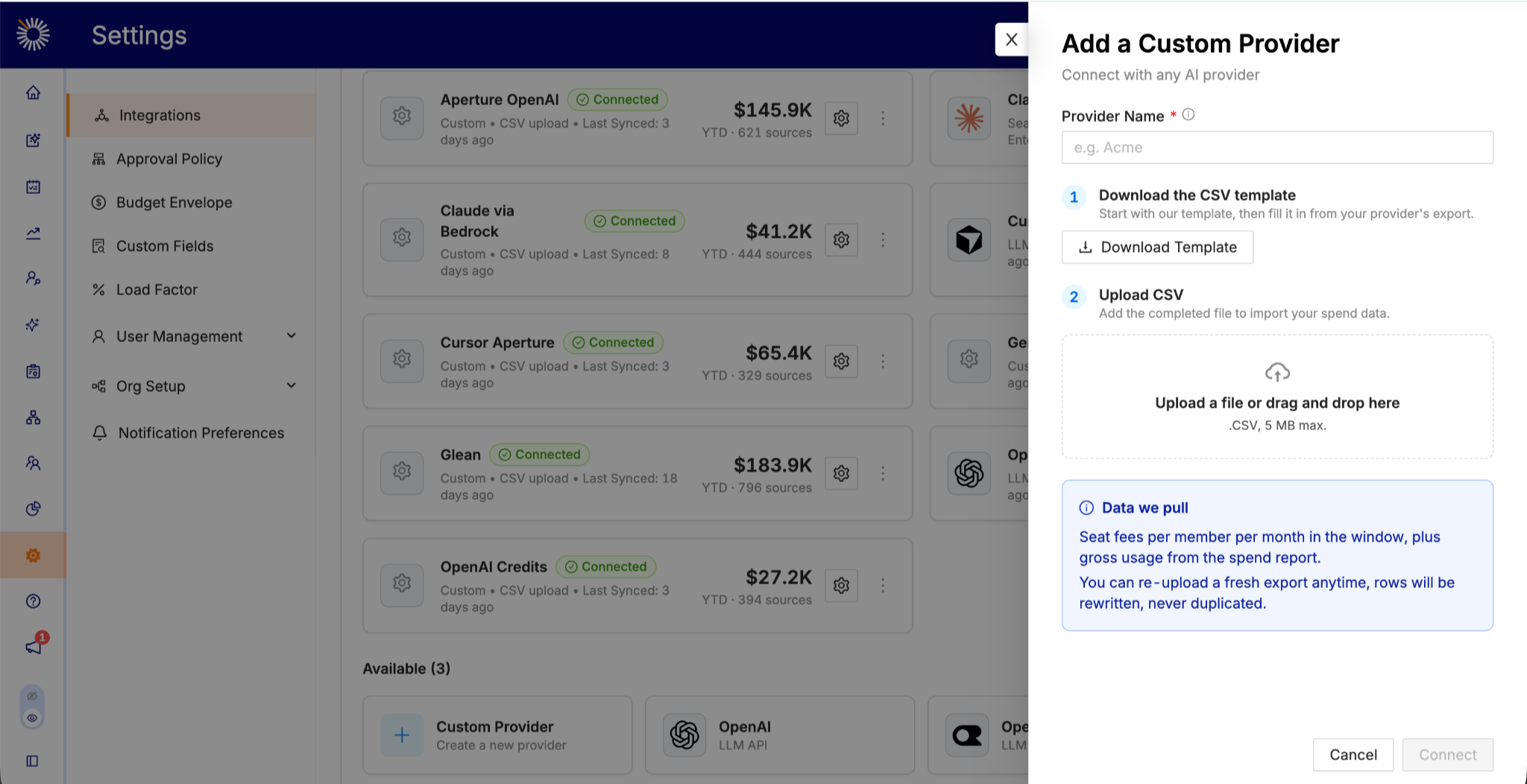
If a provider doesn't offer a supported connection, you can add it as a Custom Provider and upload spend data by CSV using the provided template. Custom providers require someone to re-upload the file periodically, since there is no automated sync.
Note: Every key or credential you provide is read-only. TeamOhana reads billing and usage data only — never prompts, completions, conversations, or code. This runs under the Data Processing Agreement your company has already signed with TeamOhana and TeamOhana's SOC 2 Type II certification, so no new security review is required.
Note: Some providers act as gateways in front of other providers (for example, a routing or proxy service sitting in front of a foundation model provider). If you connect both a gateway and the underlying provider directly, the same spend can appear twice. Pick whichever connection gives you the more detailed breakdown, and disable the other to avoid double-counting.
Setup for a single provider typically takes no more than 20 minutes. Each provider has its own detailed connection guide with exact steps, required keys, and permission scopes
Classifying spend
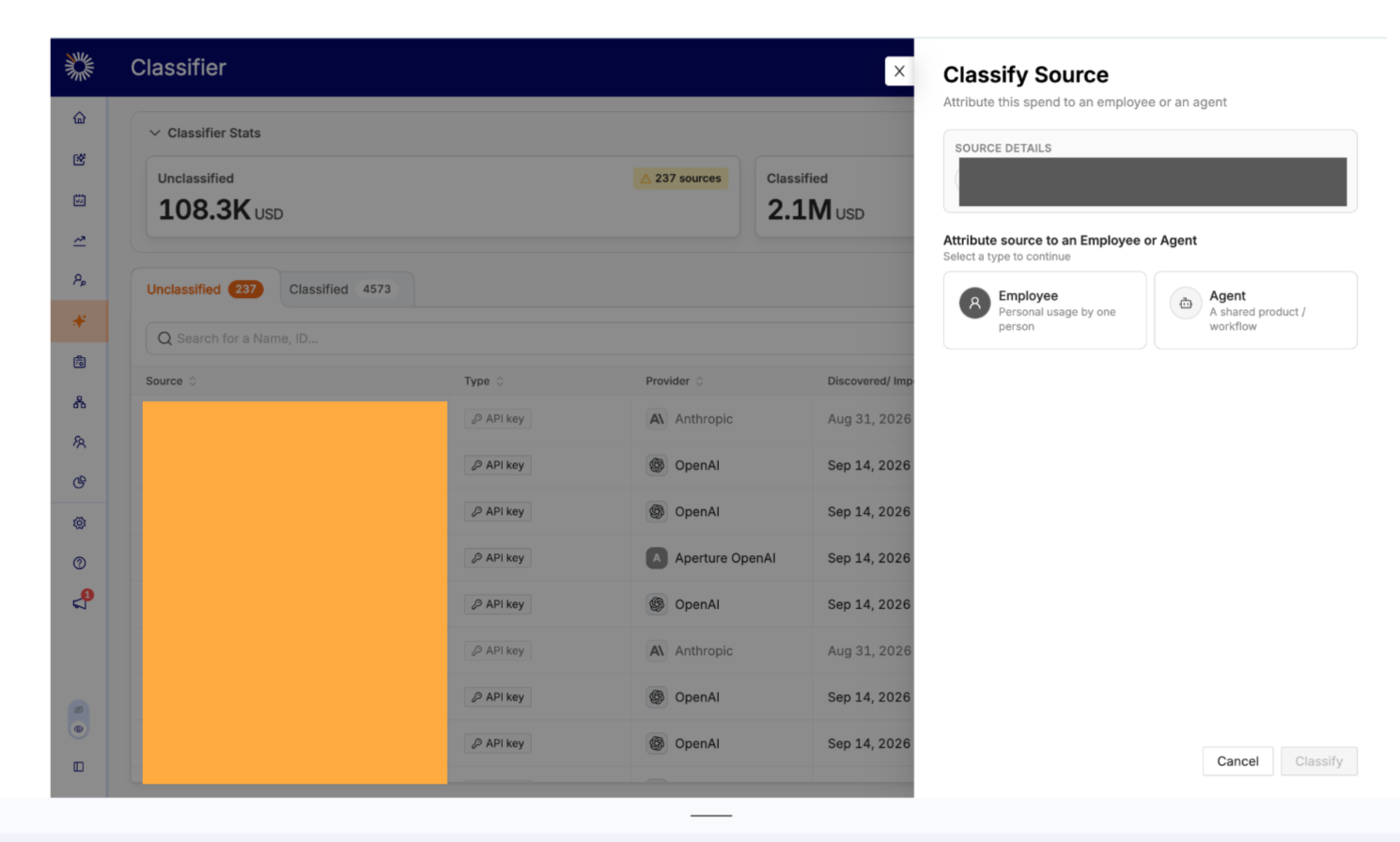
Once a provider is connected, its spend lands in the AI Spend Classifier. Think of the Classifier as the unclaimed tab for AI spend: most spend is automatically claimed when TeamOhana finds an exact email or name match to an existing employee.
Any spend that isn't auto-claimed stays unclassified until someone with the Manage Agents & Spend Classification permission assigns it. You can assign spend to:
An employee, when the spend is clearly personal usage by one person
An agent, when the spend comes from a shared product or automated workflow (for example, a support chatbot or a coding assistant) — an agent rolls up to an owning employee and a department
The goal is to get unattributed spend as close to zero as possible, so every dollar of AI spend has someone accountable for it.
Tracking spend in the dashboard
Classified spend flows into the Dashboard, where you can see:
Year-to-date spend, an end-of-year forecast, and the latest month's spend
Spend attribution — how much is tied to employees, how much to agents, and how much is still unattributed
A monthly spend trend
Breakdowns by department, provider, and employee
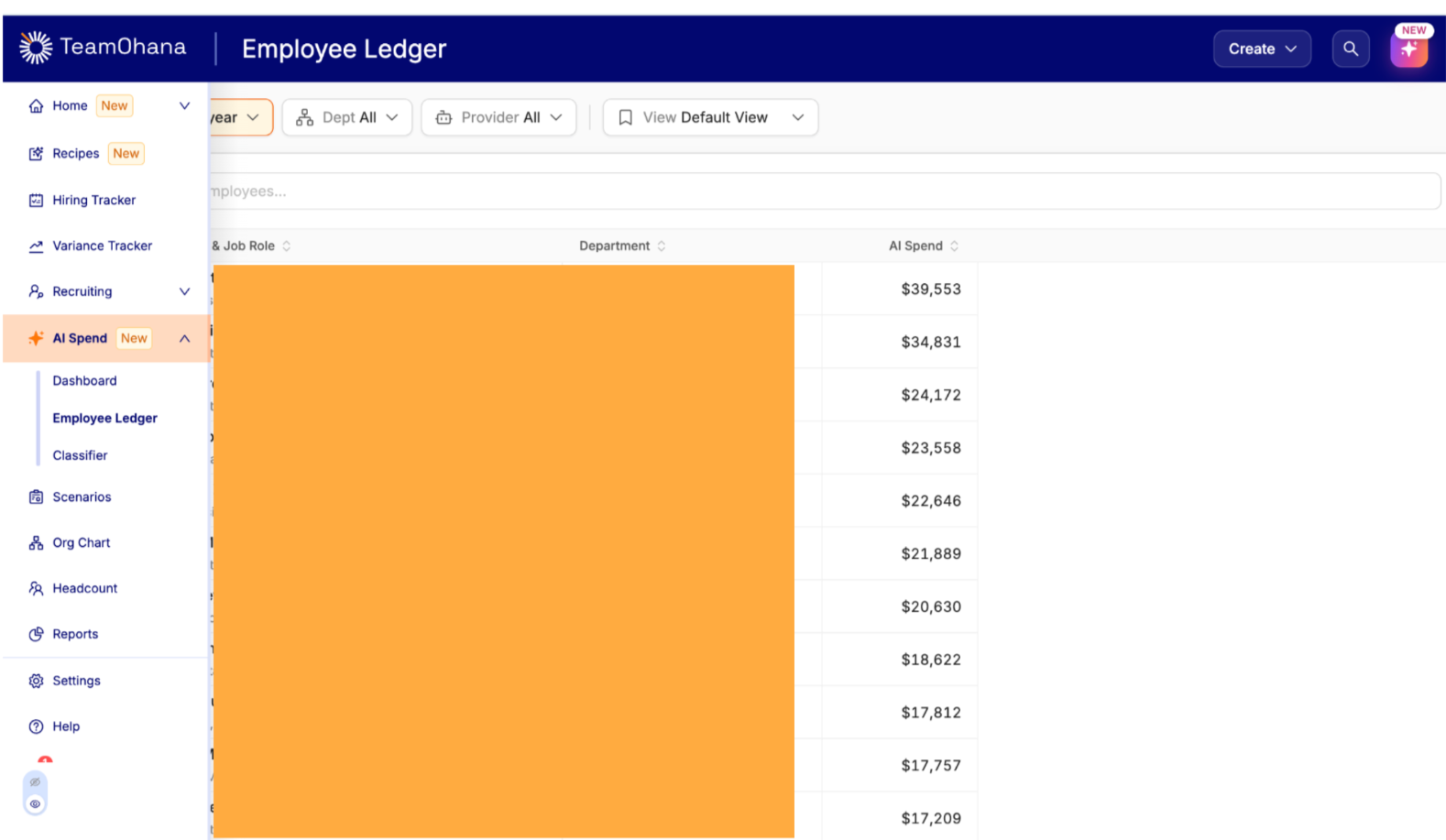
Click into any employee in the Employee AI Ledger to see their individual spend sources, average monthly spend, and which models they use over time — useful for spotting an expensive model being used for routine work.
The forecast is based on each employee's trailing three-month spend growth rate, rolled up to department and org level. Because it reflects actual trend rather than a fixed target, it's common for the forecast to run ahead of whatever number was originally budgeted, especially as AI usage continues to grow.
What's coming next
An enhanced version of the Employee AI Ledger
Effective AI Workforce
Use Cases
IT Admin: Connects and manages AI provider integrations, and classifies unattributed spend sources.
Admin: Oversees AI spend across the org, manages agents and classification, and manages provider integrations.
Division/Department Leader (with granted access): Reviews AI spend attributed to their team to understand who is using AI tools and how much it costs.