Manage Role Permissions: Permission Guide
Last updated: August 12, 2026
Manage individual permissions for all user roles in TeamOhana.
From Settings click User Roles. Select the role you want to update the permissions for from the list.
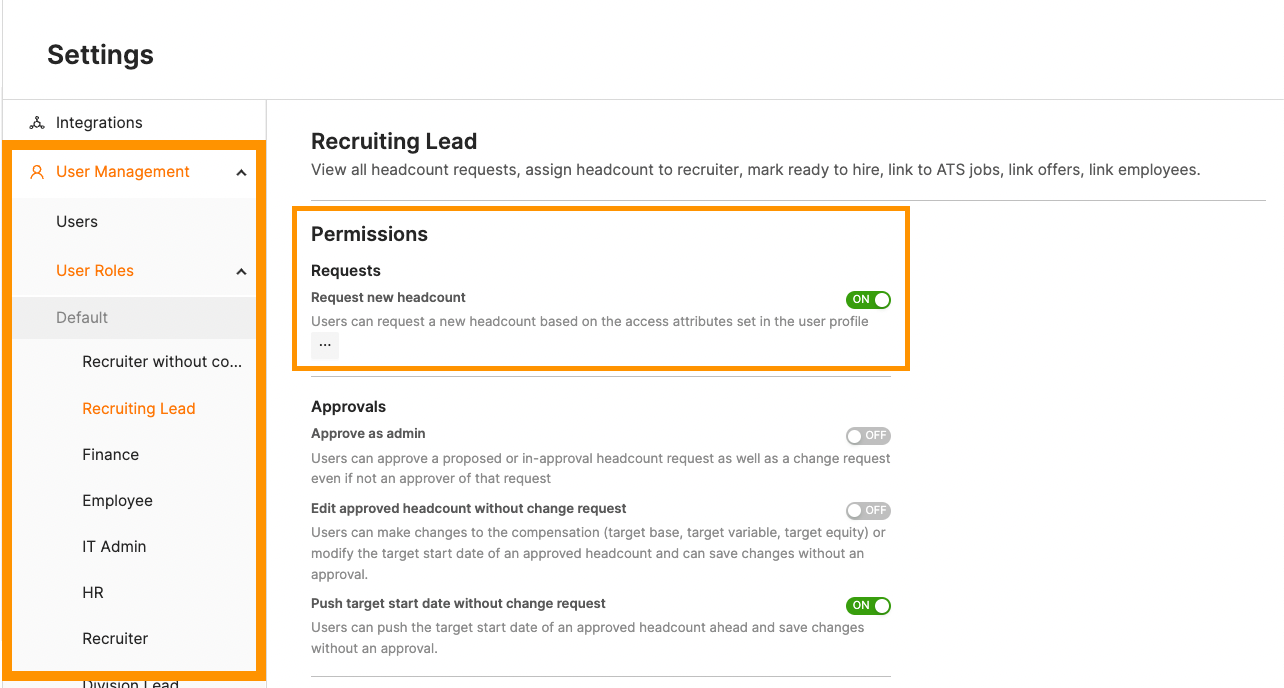
Toggle off/on the permissions as need. Permissions will apply to all users with the role assigned to their user profile.
User Permissions Guide
Requests
● Request new headcount
Users can initiate a request for a new headcount based on the access attributes set in
their user profile and role. This initiates the staffing process and ensures all requests
flow into the company’s approval system for review.
○ *Without the “Request approval” permission enabled in addition to “Request new
headcount” – users will only be able to create a Draft request, but not submit for
approval. Users have the option to add in collaborators or tag admins for
assistance in filling out headcount requests, or submit for approval on their
behalf.
○ *Users with “Request new headcount” permission disabled will not be able to
start a draft request, but could be added as a collaborator to submit request if
“Request approval” is enabled.
● Mark as private
Users can mark a headcount as private. This is useful for confidential or sensitive hiring
situations, such as leadership changes, replacements, or strategic hires that should not
be widely visible.
○ Private headcounts lock access to ONLY the creator, requester, collaborators,
and assignees (i.e assigned recruiter, reporting manager). Admins do not get
default access unless they are the creator, requester, collaborator, or an
assignee.
○ Marking a headcount as private before submitting for approval, this will trigger the
request to go to your configured approval policy designated for private
headcounts.
■ Private headcount approvers will only see the headcount once it is their
turn for approval, and will be added as default collaborators after
approving to maintain visibility.
■ If headcount was marked as private after approvals, approvers are not
listed as default collaborators and locks access to only requester,
collaborators, and assignees.
Approvals
● Approve as admin
Users can approve a draft or in-approval request – even if they are not the designated
approver. This gives admins or designated user roles the authority to override, expedite,
or resolve bottlenecks in the approval process, *whether they choose to approve on
behalf of the current approver(s) or on behalf of all approvers.
● Edit approved headcount without change request
Users can adjust compensation details (base, variable, equity), job details that impact
budget forecast (department, level, location), or modify the target start date for an
approved headcount without triggering a change approval request.
● Push target start date without change request
Users can delay the target start date (creating a reduction in the FY impact) of an
approved headcount without requiring approval. This helps managers adapt plans when
projects are postponed or hiring timelines shift.
● Request approval
Users can submit a draft request for approval. This moves the draft into the approval
process and ensures proper sign-off before being reviewed by approvers.
○ *Users that have this permission turned off, but “Request new headcount” turned
on, will only be able to create a draft request.
○ *Users with “Request new headcount” permission disabled will not be able to
start a draft request, but could be added as a collaborator to submit request if
“Request approval” is enabled.
Manage Headcount
● Manage all
Based on access granted for department(s), level(s), location(s) and job role(s), users
will have visibility to ALL TBH headcount and in-seat employees within their scope.
Users will be able to view and edit TBH headcount details. Typically granted to admins,
finance, HR or operations leaders, recruiting leads, and those who need visibility beyond
their reporting line.
○ *Manage all is dependent on the users’ role and profile on which departments
they have access to. This permission does not override designated department
access.
○ *Users will be able to edit TBH headcount details that do not relate to budget
forecast impact – including but not limited to: title, justification, priority, enabled
headcount custom fields.
○ *Users will be able to edit and/or submit changes for approval related to budget
forecast impact dependent on enabled permissions within the Requests and
Approvals section – including but not limited to: department, level, location, start
date, compensation.
● Manage reporting line
Based on access granted for department(s), level(s), location(s) and job role(s), users will have visibility ONLY within their reporting line, including downline, TBH headcount
and in-seat employees within their scope.
○ Manage reporting line is dependent on the users’ role and profile on which departments they have access to. This permission does not override designated department access. Users will be able to view and edit TBH headcount details. This ensures managers are accountable for their own teams while keeping access appropriately limited. Typically granted to Hiring Managers, Directors,
and/or other management level users.
■ If a user has a reporting/downline that spans across multiple departments
- you must edit their user profile to include each department or they will
not see their full reporting line.
○ *Users will be able to edit TBH headcount details that do not relate to budget
forecast impact – including but not limited to: title, justification, priority, enabled
headcount custom fields.
○ *Users will be able to edit and/or submit changes for approval related to budget
forecast impact dependent on enabled permissions within the Requests and
Approvals section – including but not limited to: department, level, location, start
date, compensation.
● Manage assigned
Based on access granted for department(s), level(s), location(s) and job role(s), users
can view and manage only those headcounts assigned to them (as recruiter, reporting
manager, or assignee/collaborator). This keeps focus narrow, allowing individuals to
manage only the roles they’re directly responsible for. Typically granted to recruiters,
coordinators, and/or other IC level users.
○ *Manage assigned is dependent on the users’ role and profile on which
departments they have access to. This permission does not override designated
department access.
■ If a user is assigned a headcount outside of their department access, they
will not be able to access.
○ *Users will be able to edit TBH headcount details that do not relate to budget
forecast impact – including but not limited to: title, justification, priority, enabled
headcount custom fields.
○ *Users will be able to edit and/or submit changes for approval related to budget
forecast impact dependent on enabled permissions within the Requests and
Approvals section – including but not limited to: department, level, location, start
date, compensation.
● Manage headcount with an employee linked
Users can edit TBH headcount details for closed headcounts (those already filled by an
employee). This allows teams to keep records accurate even after hiring is complete.
● Headcount reporting to headcount
Users can assign one TBH headcount as a reporting manager to another TBH
headcount. This supports proper org chart structure and helps visualize growing team
hierarchies.
● Assign hiring manager
Users can designate a hiring manager to a headcount. This ensures accountability for
decision-making and candidate evaluation.
● Assign recruiter
Users can assign a recruiter to a headcount. This formalizes recruiting responsibility and
ensures ownership of the hiring process.
Archive and Delete Headcount
● Archive headcount
Users can archive TBH headcounts. Archiving is useful for historical record-keeping
without cluttering active plans, and removing paused headcounts from forecast impact.
When unarchiving headcount(s), it will send the headcount back through approvals
before being re-added to plan.
● Delete headcount
Users can permanently delete archived headcounts. Deletion should be used carefully,
as it removes the record entirely.
Compensation
● Manage headcount compensation
Users can view and edit TBH headcount compensation. This ensures accurate
alignment of pay ranges with hiring needs, and provides visibility toward target
compensation goals during hiring stages.
○ *Users will only see TBH headcount compensation based on access granted for
department(s), level(s), location(s), job role(s) AND provisioned settings under
the Manage Headcount section.
● View employee compensation
Users can view-only employee compensation. This provides transparency into pay data
while limiting edit rights, as your HRIS serves as the source of truth. TeamOhana does
not grant access or ability to change any employee record field.
○ *Users will only see employee compensation based on access granted for
department(s), level(s), location(s), job role(s) AND provisioned settings under
the Manage Headcount section.
●View Compensation Summary
Users will only have access to view aggregated compensation data within the top-level cost summary cards.
○ While this permission can be enabled independently, for users with both employee and headcount compensation permissions, it is enforced to ensure a consistent experience when accessing top-level stats.
○ *If you have not enabled one or both of TBH or employee compensation, allowing a user to view compensation summary will remove the line by line compensation data. However, please be mindful that for smaller teams — a user could attempt to filter down their view to try to determine a specific compensation.
Budgets
*These settings are dependent on if your plan includes the Variance Tracker module.
*Please note — Users that need to apply an established budget envelope to the Variance Tracker or Scenarios, they need to have several of the following permissions enabled including FULL department or division access (dependent on budget envelope scoped to either): View headcount budget, View Budget FY Impact, and (opt.) Access Variance tracker.
● Manage budget envelope
Users can create and adjust budget envelopes, mark budgets as “Active,” and set
primary for forecasting. This ensures financial planning stays current and aligned with
hiring. We advise this to be only enabled for users that have access to all
Departments and all compensation - typically: Admins and Finance.
○ Creating a Total Budget or New Hire budget envelope using the Budget Envelope
feature via settings page allows users to create an envelope to allocate and
distribute limits per Department or Division.
● View headcount budget
Users with this permission, combined with Manage Headcount Compensation, can see
budget fields in the Hiring Plan module. This helps them understand financial
implications while planning.
○ Budget fields, budget compensation and budget start date, capture the initial
approved comp and start date values.
■ Target fields, target compensation and target start date, are used to
capture the most accurate forecasting updates. Target fields are not controlled by "View headcount budget".
● Edit headcount budget
Users can edit budget details in the “Budget details” tab of a TBH headcount.
○ Budget details, budget compensation and budget start date, capture the initial
approved comp and start date values. These fields are typically only needed for
visibility for users that need to understand TBH variance reporting (recording how
initial approved data had variance occur between budget details vs
target/actuals). These users are typically Admins, Finance, SLT, Department
Heads, Division Leads, and/or those who run financial forecasting reports.
● View Budget FY impact
Users can view the “Budget FY Impact” columns in the Variance Track and Scenarios. This helps them understand total estimated cost to company based on Budget fields w/ the set load factor applicable to the TBH headcount.
○ Budget FY Impact would show the prorated total compensation, assumed based
on budget start date and budget compensation values, with the applicable load
factor.
Hiring
● Access hiring tracker
Users can view the Hiring Tracker module. This gives visibility into progress, headcount details, and more overall hiring health + data metrics. Typically access given to all roles involved in headcount planning, management, and recruiting operations – i.e admins, finance, department heads, hiring managers, recruiting leads.
● Access recruiting workboard
Users can access the Recruiting Workboard module. This provides a more consolidated view of the Hiring Tracker that focuses on recruiting workflows, particularly: hiring stages, job / opening ID, and hiring team assignments. Typically access given to roles focused in primarily recruiting workflows – i.e recruiting leads, recruiters, sourcers/coordinators, and admins.
● Mark as ready to hire
Users can mark a TBH headcount as “Ready to hire.” This signals that the approved
headcount is ready to begin the recruiting process and will alert assigned users that the
headcount has moved into the next stage. Once marked ready to hire, the headcount will
allow a user to link to an existing req from their ATS, *create a new req from TeamOhana, or manually provide ATS/req details.
○ *Creating a req from TeamOhana that pushes into your ATS is only available for
integrations with Greenhouse, Ashby, and Lever at this time.
● Link job
Users can link a job to a headcount, and also link an offer if not automatically linked.
This ensures the headcount and recruiting process are connected. Once a headcount is
linked, the headcount stage will move to “In Progress”.
● Create job in ATS
Users can create a job in the ATS directly from the Hiring Details of a headcount or from
the Recruiting Workboard ledger view. This streamlines the transition from planning to
recruiting, moving headcount stage to “In Progress”.
○ *This feature is only applicable for integrations with Greenhouse, Ashby, and
Lever at this time.
Scenario
*These settings are dependent on if your plan includes the Scenario module. We advise
“Create ‘modify plan’ type scenario” and “Create ‘new plan’ type scenario” permissions
to be ONLY enabled for users that have access to all Departments and all compensation -
typically: Admins, Finance, and HR. Owners and editors of scenarios can invite other users to be collaborators. Scenarios provide the option of 4 different collaborator invites: Editor, Limited Editor, Viewer, and Limited Viewer. Limited-based invites would allow their access scope permissions (user role settings and user profile) to be respected, while Editor and Viewer invites will override the invitees scoped permissions. Limited viewer/viewer invites will allow the invitees to have read-only and comment privileges.
● Create ‘modify plan’ type scenario
Users can create a scenario with the plan type “Modify plan.” This allows them to test
adjustments to an existing hiring plan before submitting the bulk of their adjustments for approval via scenario request.
● Create ‘new plan’ type scenario
Users can create a scenario with the plan type “New plan.” This is used for building
hiring plans from scratch.
● Request approval
Users can send a scenario for approval. This ensures leadership review before changes
are finalized.
○ Once a scenario has been approved, the scenario will remain idle in the
approved state until the scenario owner or editor selects “Merge” in the top right
of the scenario. Once completed, merging pushes all changes to be live in your
hiring plan.
○ If a user edits any details within an approved scenario, the scenario will revert
back to draft mode and will need to go through approval once more before
merging.
● Merge scenario
Users can merge an approved scenario, updating the hiring plan with the scenario’s
changes. This moves planning adjustments into execution.
● Allow individual requests inside scenario
Users can request approval for parts of a scenario, rather than the whole plan. This
gives flexibility when only certain changes need immediate approval. *User must have request approval permission enabled as well.
Comp Cycle
*This setting is dependent on if your plan includes the Comp Cycle module. We advise this permission to be ONLY enabled for users that have access to all Departments and all
compensation - typically: Admins, Finance, and HR.
● Create comp cycle
Users can create a compensation cycle as comp cycle admins. This allows them to
launch and manage structured pay review processes.
Dashboard
● Access Organization Dashboard
Users with this permission will have access to the Organization Dashboard under Home. Data analytics and task alerts will only be present based on the user role access limits.
● View Inbox
Users can view the Inbox section.
● Access Recruiting Dashboard
Users with this permission will have access to the Recruiting Dashboard under Recruiting. Recruiting Dashboard will display analytics associated to the Recruiting Workboard module. Data present in this module will only display based on the user role access limits.
● Access Recipes
Grants access to the Recipes section in the left navigation. Home page insights are pulled from recipes and appear only when recipes are enabled for the user.
Reporting
● Access reports
Users can access the Reports module. Specific report visibility is controlled by additional permissions, allowing tailored access. Typically enabled for users that want a detailed report breaking down headcount and employee data and analytics in regards to items like effective headcount costs, effective headcount, and ending headcount variance – i.e, admins, finance, operations, and HRBPs.
● View Predicted Forecast
Users with this permission can view predictions for headcount forecast, attrition and target hires.
Headcount Ledger & Org Chart
● Access headcount ledger
Users can access the Headcount module. This provides a ledger view of starting headcount, current headcount, upcoming hires, recent terminations, and forecast (based on current active employees, upcoming terms, and approved headcount).
○ *Users will only see data relevant to their granted access for department(s), level(s), location(s), job role(s) AND provisioned settings under the Manage Headcount section.
● Access Org Chart
Users can access the Org Chart page. This helps visualize current team structures, reporting relationships, and approved TBH headcount (and their current hiring stage). This is typically enabled for all roles.
○ *Users will be able to see their full organization, while only being able to view sensitive employee information and TBH headcounts based on granted access for department(s), level(s), location(s), job role(s) AND provisioned settings under the Manage Headcount section.
■ For employees outside of their granted access, users will only see basic job details, including but not limited to: Job Title, Division/Department, and start date.
● Add to team
Users can add employees to an existing team from the Headcount module or Org Chart module. This helps keep organizational structures current, and provides reporting capabilities within the Reports module as a way to group headcount and employees either across departments or as a 3rd sub-hierarchy level. Typically enabled for admin, HR, hiring manager, finance, operations, and/or manager level roles.
● Add to initiative
Users can assign employees to an initiative from the Headcount module or Org Chart module. This supports cross-functional projects and programs, and provides reporting capabilities within the Reports module as a way to group headcount and employees. Typically enabled for admin, HR, hiring manager, finance, operations, and/or manager level roles.
● Reconcile Employees
Users can access the Reconciliation widget and link employees to headcount to close a headcount or claim an employee. This is highly recommended feature to enable for any user that is maintaining data and headcount hygiene in your system.
● Link employee
Users can link an employee record to a TBH headcount to reconcile the headcount or claim an employee. This ties the hiring record to the actual filled role.
● Internal transfer
Users can initiate the internal transfer of an employee from the Headcount module or Org Chart module. This supports employee mobility within the company, and is only used as a manual workflow to reconcile when an active employee is moving into a new role that was listed as an approved headcount on your hiring plan. Typically admin, HR, recOps, and hiring managers have this permission enabled.
○ *This process is only serving as a way to reconcile a TBH headcount as an current employee record would not automatically link to your open headcount. Only net new hires will enter TeamOhana as an unclaimed employee record that looks to auto-reconcile to a TBH headcount based on name match from its linked offer.
○ Changes made in your HRIS, as in changing an employee’s title or any action that is not directly related to filling an approved headcount in your hiring plan, will
automatically update their employee details in TeamOhana during your next HRIS sync.
Employee Actions
*Terminations done within TeamOhana only remain within TeamOhana. Your HRIS is the source of truth and we do not update your HRIS records. Terminations within TeamOhana serve as a way to provide proactive planning, accelerated accurate forecast updating, and/or kick off internal termination workflows. If an employee has been marked as terminated from only within TeamOhana, but their employee record still shows them as active or misaligned termination date - TeamOhana will flag this as a needed reconciliation under the Employee Changes section in Headcount module.
These permissions are typically enabled for admins, finance, HRBP/HR, division leads, department heads, directors, operations, and other management roles.
● Manage all terminations
Users can create, edit, and archive all terminations within their access scope.
● Initiate termination
Users can create and edit termination requests for employees in their scope. This allows managers to initiate offboarding when needed.
● View termination
Users can view termination records according to their access. This ensures transparency without giving edit rights.
Settings
*This section covers primarily admin-like capabilities and should be reviewed carefully. These permissions help admins provide configuration capabilities without needing to give someone full admin access.
● Invite users
Users can invite others from the User Management page in Settings. This enables new team members to access the platform.
● Manage users
Users can invite, edit profiles, mute/unmute notifications, or deactivate accounts from User Management. This centralizes account control for admins.
● Access sensitive fields
Users can view custom fields that have been created and marked as sensitive. This should be limited to trusted roles due to data sensitivity.
● Manage third-party integrations
Users can set up integrations with HRIS or ATS from the Integrations page. This ensures smooth connectivity across systems.
○ *This should only be touched during onboarding or during a system transition with the assistance of a technical TeamOhana member.
● Edit approval policy
Users can view and edit approval policies. This controls how requests move through the approval workflow.
● Manage custom fields
Users can create and manage custom fields. This allows flexibility to capture unique business data.
○ Custom fields have 3 options: Headcount, Offer, and Employee.
■ Headcount custom fields are easily customizable to enhance your TBH headcount details – from either adding additional fields in the request form, providing more granular detail for hiring members, and/or as additional picklist for filtering. Customers can set this up on their own
■ Offer and Employee custom fields involve field mapping on the backend to provide additional read-only visibility in TeamOhana to either pull new offer fields or HRIS employee fields. *Users must work with a technical TeamOhana member to set these up.
● Manage load factor
Users can configure and manage load factor settings. This helps adjust workforce planning calculations. Typically an added admin permission for Finance users.
● Manage org setup
Users can create and manage Departments, Teams, and Initiatives. This supports organizational structure setup and maintenance.
● Manage hiring plan
Users can create and manage hiring plans. This permission is central to workforce planning and strategic headcount management.
● Manage all notification preferences
Users with this permission can manage recipients for specific notifications.
For help creating a custom role, reach out to support@teamohana.com