Scenarios - Budgeting and Termination Workflows
Last updated: September 21, 2026

Scenarios are a powerful, private and secure way to visualize fiscal and organizational changes at your company by emulating any potential new headcount or terminations in order to see the associated cost increase or savings.
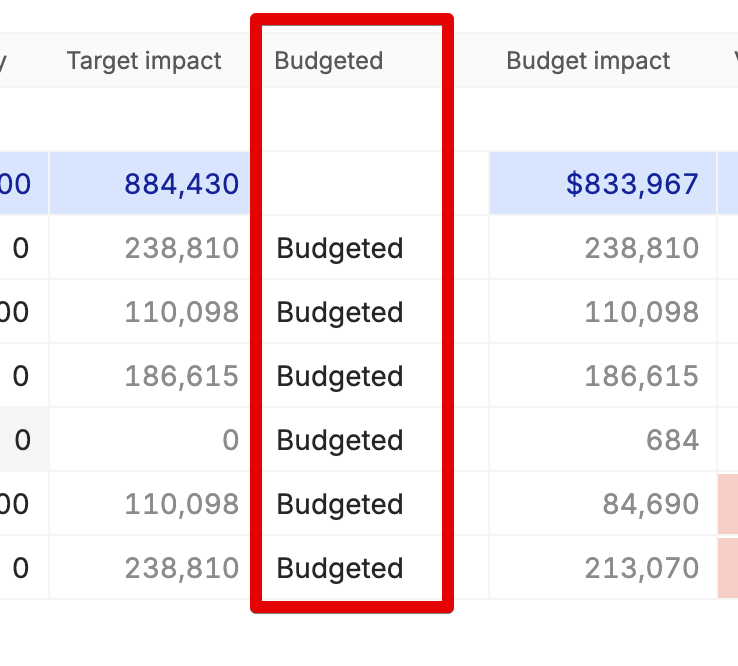
Understanding the Budgeted Column
The "Budgeted" column in Scenarios serves different purposes depending on the plan type:
In new plans, all headcount should be marked as "Budgeted" as they are part of the original planning.
In modify plans, the Budgeted column can help distinguish incremental headcount that wasn't part of the original plan. In these cases, additions to the plan should be marked as "Not budgeted" (aka, incremental headcount outside of the planned budget). Not budgeted headcount will report a cost variance to your plan.
Termination Process in Scenarios
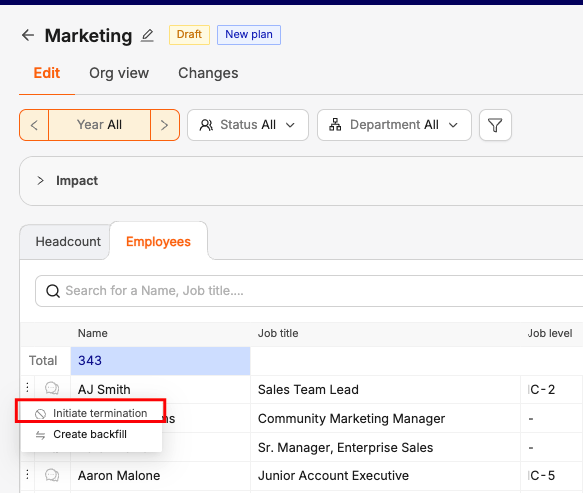
When initiating a termination within a Scenario, there are a few things to keep in mind:
The action remains contained within TeamOhana (particularly only within this scenario until merged) and does not flow to your HRIS.
The system displays immediate cost savings from the proposed termination.
Upon scenario approval and merger, the termination is recorded in TeamOhana only.
Final reconciliation occurs once your HRIS is updated with the actual termination date.
Note: System integration with your HRIS is designed to maintain data integrity through reconciliation rather than direct real-time updates. If your HRIS presents the employee as active, even beyond flagged termination in the platform, TeamOhana will flag that a reconciliation is needed (either action to be done within your HRIS or remove flag in platform).
Reporting Manager Assignment
When adding a new headcount request to your scenario, the current functionality for reporting manager is as follows:
Default assignment is set to the person adding the headcount.
Admins can view and select from all managers in the organization.
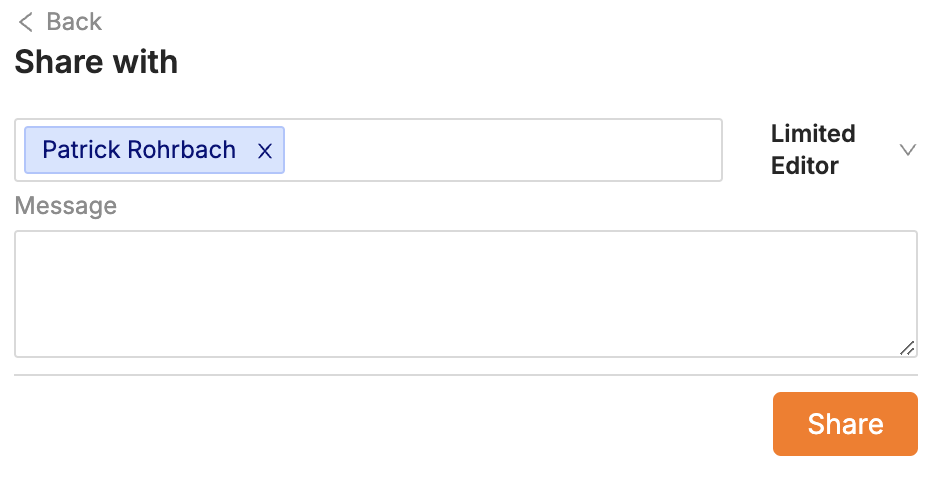
Limited Editors invited to collaborate in your Scenario can only view and select managers from their assigned department.
Best Practices
Always mark headcount as "Budgeted" in new plan Scenarios.
For role redundancy and budget re-allocation, use the termination feature to reflect cost savings before adding new positions.
When creating new headcount, you can invite the reporting manager to collaborate as a limited editor and they will have access to their direct report positions within the same scenario.
Please utilize "Limited" Collaborator roles (Limited Editor, Limited Viewer) so your collaborators are being added to your scenario with access respecting their user role abac. Adding users as an Editor or Viewer will override their set role abac access and could potentially expose sensitive information outside their scope.