Load Factor Configuration Guide
Last updated: August 20, 2026
Overview
Load factor is the percentage TeamOhana adds on top of compensation to reflect what an employee actually costs the company: benefits, payroll taxes, and overhead. You configure it as a list of rules, and TeamOhana applies the first rule an employee or headcount matches.
This article is for Finance and Admin users with the Manage load factor permission.
Prerequisites
The Manage load factor permission, typically an added permission for Finance users
Access to all departments and all compensation, since rules apply organization-wide
Where load factor shows up
Once configured, load factor feeds every cost calculation in the platform:
Fully loaded cost for current employees, calculated from their HRIS compensation
To Be Hired (TBH) cost for approved but unfilled headcount, calculated from budgeted compensation
Budget FY Impact columns in Budgets & Forecast
Variance tracking and budget envelope sizing
The same factor applies to current employees and TBH headcount. That consistency is what makes plan-versus-actual comparisons meaningful.
How rule order works
This is the part that catches people out, so it is worth understanding before you create anything.
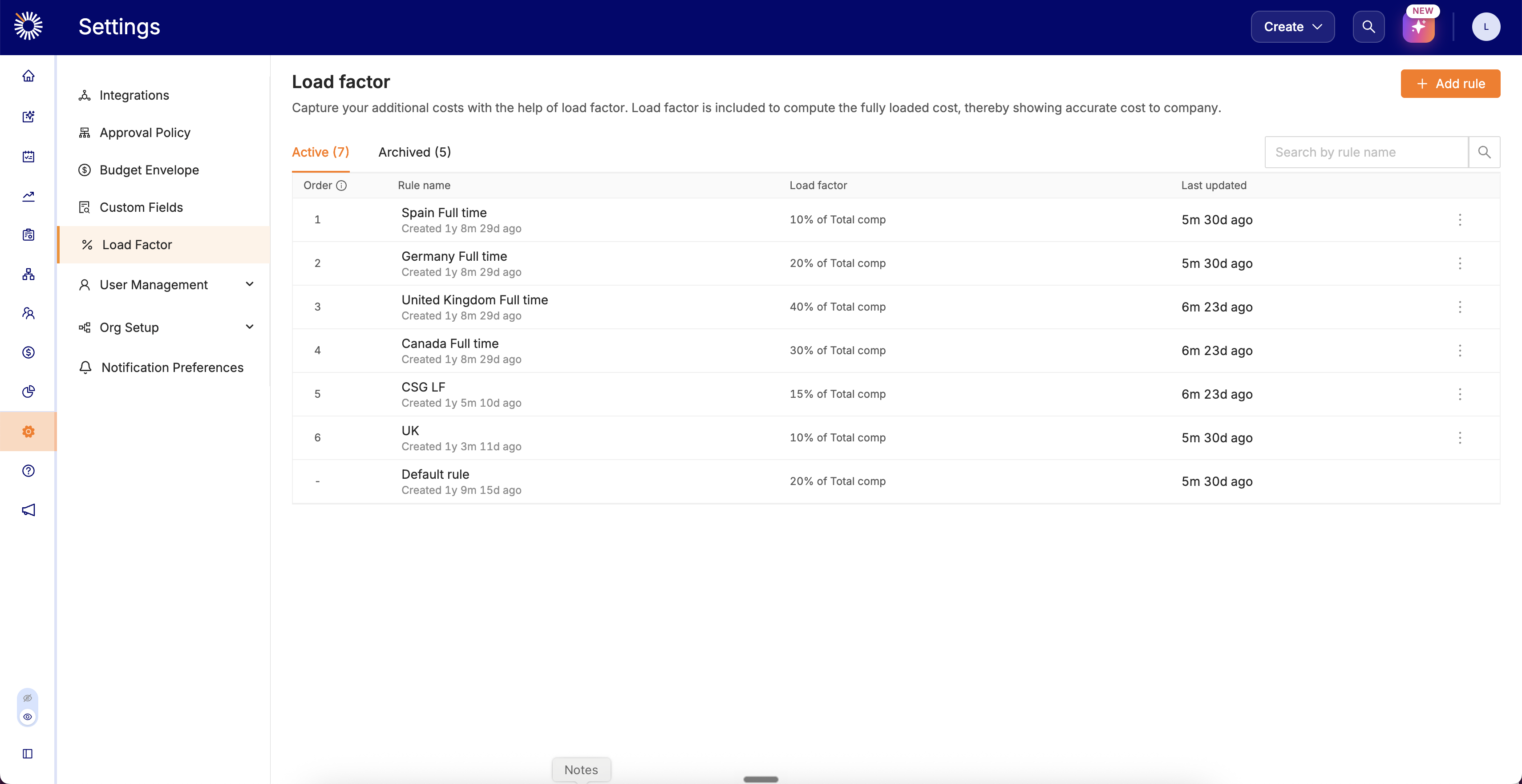
Rules sit in a numbered list on the Load factor page. TeamOhana reads the list top to bottom and applies the first rule whose criteria the employee or headcount matches. It then stops. A record is never matched by two rules and the percentages never stack.
The Default rule sits at the bottom with no order number. It catches anything that matched nothing above it.
Important: A broad rule placed above a narrow one will swallow it. If "United Kingdom, all employee types" sits at order 3 and "United Kingdom, full time" sits at order 6, the rule at 6 never fires, because every record it would have matched was already claimed at 3. Order your rules narrowest first, broadest last.
Creating a rule
Go to Settings > Load Factor and click Add rule.
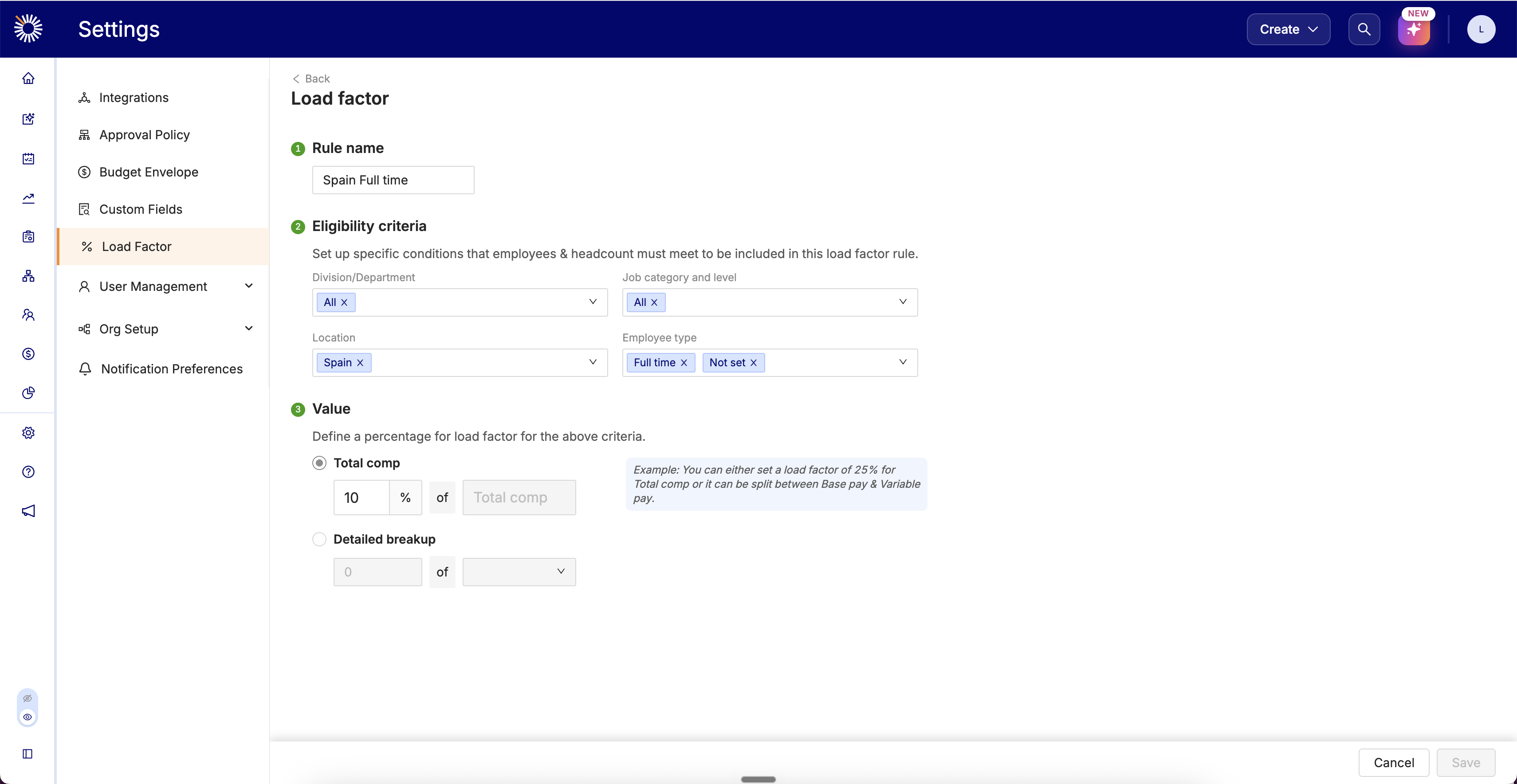
1. Name the rule
Use a name that states the criteria, not the value. "Spain Full time" tells the next person what the rule catches. "CSG LF" does not, and percentages change more often than criteria do.
2. Set eligibility criteria
Four fields define which employees and headcount the rule applies to. Each accepts multiple values, and each accepts All.
Division/Department
Job category and level
Location
Employee type
Leaving a field set to All means it does not narrow the rule. A rule with Location set to Spain and everything else set to All catches every Spanish employee regardless of department or level.
Important: Employee type includes a Not set value for records where the type has not come across from your HRIS. If you select only Full time, anyone with a blank employee type falls through to the next matching rule or to the default. Include Not set alongside Full time unless you have a reason to treat those records differently.
3. Define the value
Choose one of two ways to express the percentage.
Total comp applies a single percentage to the whole compensation figure. A rule set to 10% of Total comp adds 10% on top of base, bonus, and commission combined. Use this when your loading assumption does not vary by pay component.
Detailed breakup applies separate percentages to individual components. The dropdown offers Base pay, Commission, and Bonus, and Add more lets you stack a line per component. Use this when the components carry different burdens, which is common where benefits and payroll taxes attach to base pay but not to variable pay.
Screenshot: the Value step with Detailed breakup selected and the Base pay, Commission, and Bonus dropdown open
Click Save when the rule is complete.
A worked example
An employee in Spain, full time, with $100,000 base and $20,000 bonus.
Under a Total comp rule at 10%, TeamOhana loads the full $120,000 by 10%, adding $12,000. Fully loaded cost is $132,000.
Under a Detailed breakup rule at 25% of base pay and 10% of bonus, it loads each component separately: $25,000 on base plus $2,000 on bonus, adding $27,000. Fully loaded cost is $147,000.
Same employee, same compensation, materially different forecast. Which structure you pick matters as much as the percentage you enter.
Managing existing rules
The Load factor page has two tabs. Active rules are in force. Archived rules are switched off but kept.
Use the search field to find a rule by name. The list also shows when each rule was created and last updated, which is useful when you are auditing what changed between planning cycles.
Archive a rule rather than removing it when you stop needing it. The record of what you were loading and when is worth keeping for an audit trail.
Best practices
Order narrowest to broadest. Every rule should be reachable, and the only way to guarantee that is to let specific rules match before general ones.
Keep a sensible default. The Default rule catches everything your explicit rules miss, including new locations and departments added after you last reviewed this page. A default set too low quietly understates cost for anything unaccounted for.
Review annually with Finance and HR. Benefits costs and tax treatment move. Validate the percentages against what employees actually cost and write down the assumptions behind each rule.
Watch international rules in particular. Statutory employer costs vary widely by country, which is why location tends to be the criterion that does the most work in a load factor list.