Home Page Preferences
Last updated: May 7, 2026
Overview
Home page preferences let you customize the Home page so it shows only the headcount data that matters to you. Apply filters once and they stay applied across refreshes, sessions, and logins until you change them.
This feature is available to all TeamOhana users.
How It Works
Home page preferences are filters that scope the Home page view to a specific slice of your organization's headcount data. Once set, they persist as your default view every time you return to the Home page.
Available Filters
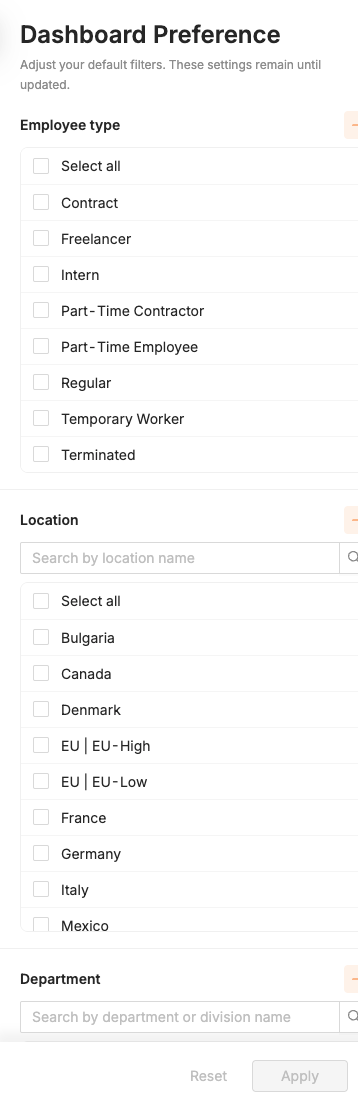
You can filter the Home page by:
Employee type — narrow the view to a specific employee classification
Location — focus on headcount tied to a specific budget/pay zone
Division / Department — limit the view to one or more parts of the organization
Filters can be combined. For example, you can view only Full-Time headcount in the Engineering division based in New York.
Why Preferences Persist
Unlike one-time filters that reset after a refresh, Home page preferences are saved to your user profile. That means:
Filters stay applied across sessions
Filters remain after a page refresh
Filters carry over when you log out and log back in, including from a different device
Your preferences won't change until you update them.
Setting Your Preferences
Navigate to the Home page.
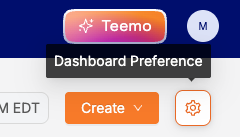
Open the filter controls at the top of the page.
Select values for Employee type, Location, and/or Division / Department.
Apply the filters. The Home page updates immediately and your selections are saved as your default view.
Updating or Clearing Preferences
To change your view, return to the filter controls and adjust your selections. To see all headcount again, clear the filters. Either action updates your saved preferences immediately.
Use Cases
Division/Department Leaders — set the Home page to your division so every visit opens to the data you own.
Finance partners — filter to a specific location to track headcount activity tied to a budget envelope.
HR/People Ops — focus on a single employee type (e.g., Full-Time) when tracking lifecycle activity.
Tip: If you cover multiple divisions or locations, set preferences to the slice you check most often. You can always clear them when you need the full view.