Connect Greenhouse to TeamOhana
Last updated: September 16, 2026
Overview
Connect your Greenhouse account to TeamOhana to enable your ATS integration.
This guide walks you through connecting Greenhouse to TeamOhana using the Greenhouse Harvest V3 integration flow.
Before you begin
Make sure you have:
Greenhouse Site Admin access.
Access to the Greenhouse account you want to connect to TeamOhana.
Permission to authorize third-party integrations in Greenhouse.
Important: The Greenhouse authorization must be completed by a Greenhouse administrator. If you don't have Site Admin access, ask your Greenhouse administrator to complete these steps.
Instructions
Log in to TeamOhana.
Go to Settings → Integrations → Link ATS
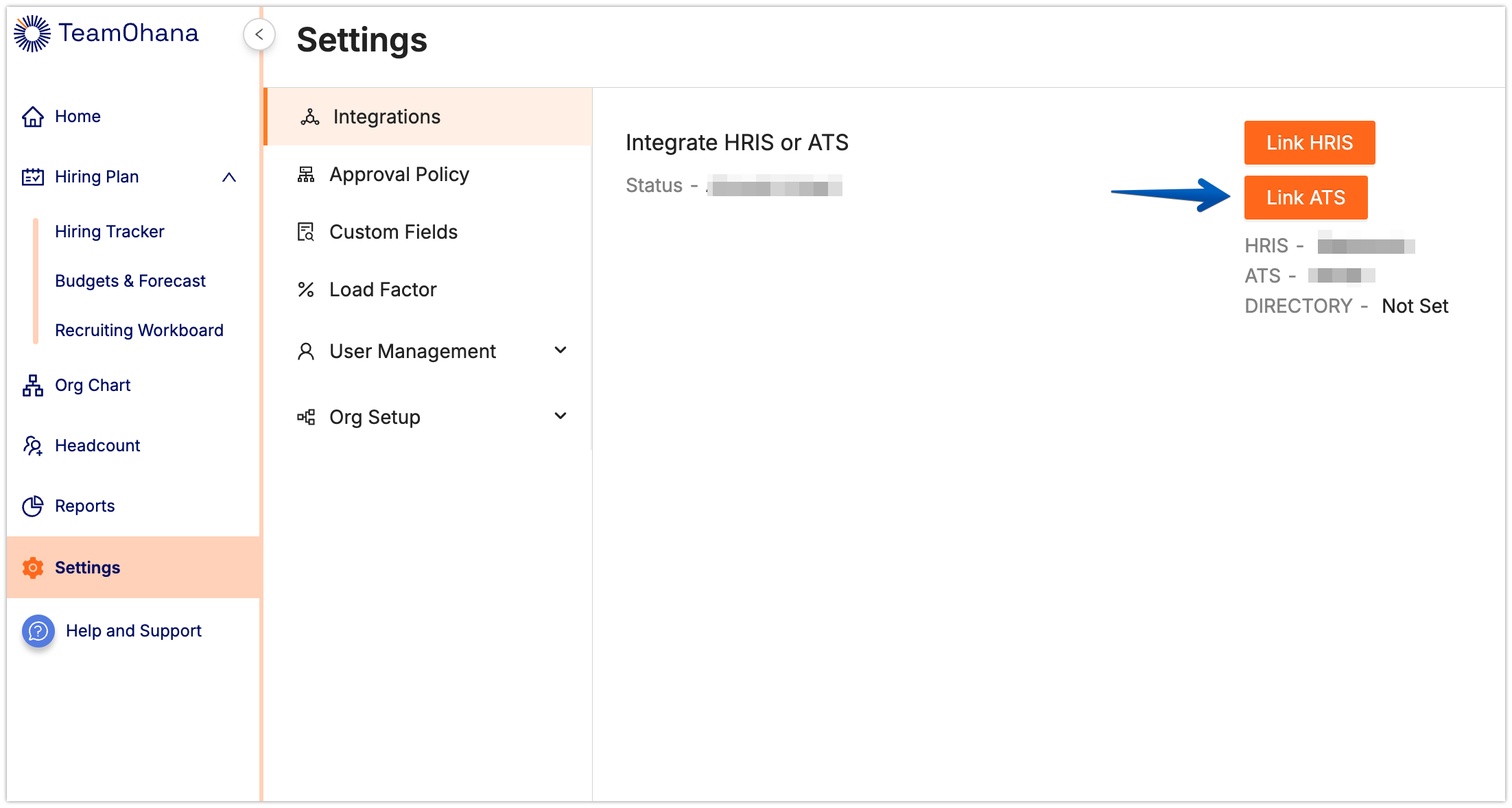
Select Greenhouse from the available ATS integrations.
Select “Use my credentials (recommended)”
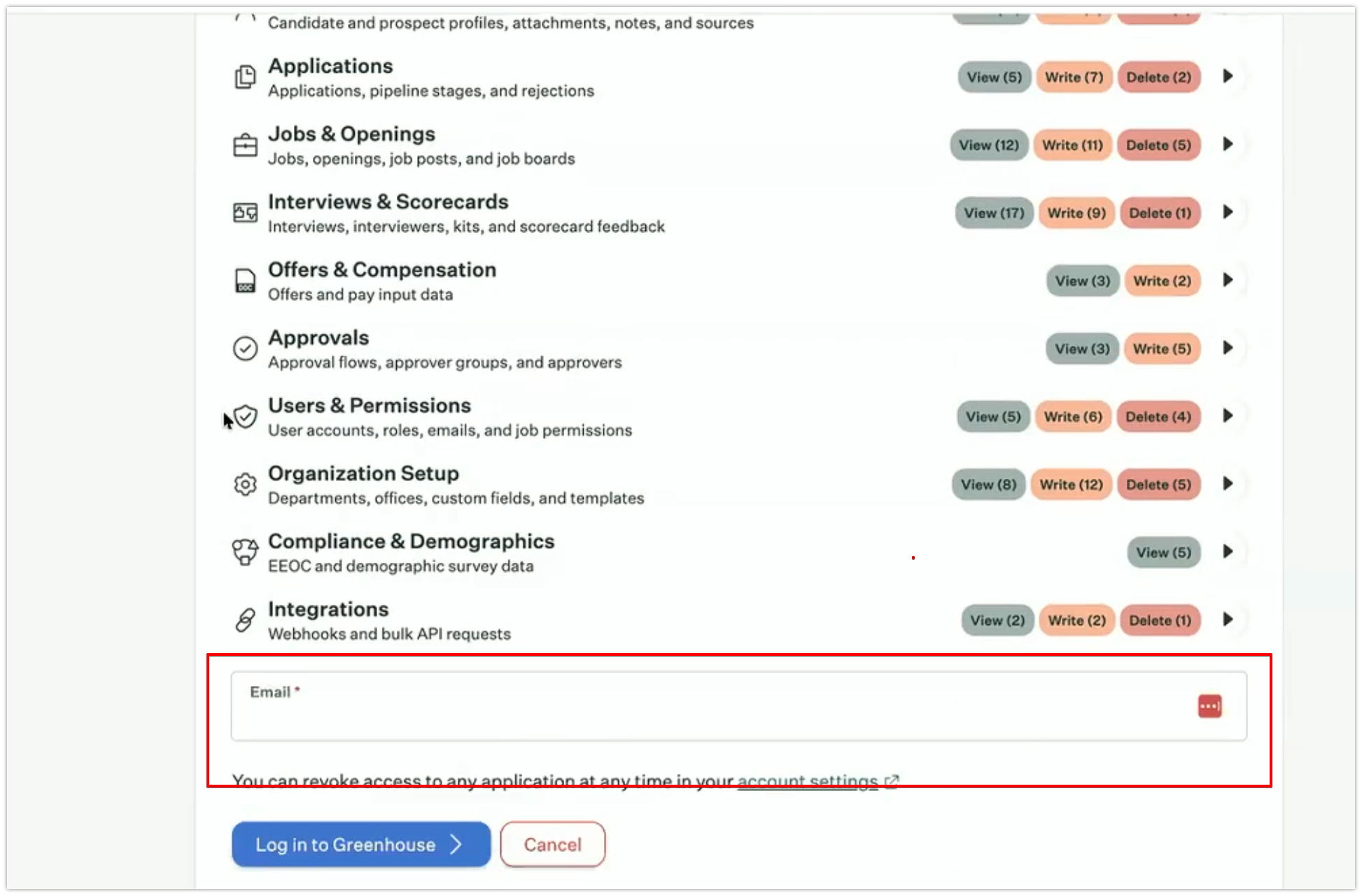
You will be redirected to the Greenhouse authentication page.
Scroll to the bottom of the page and enter your email address as the GH Site Admin.
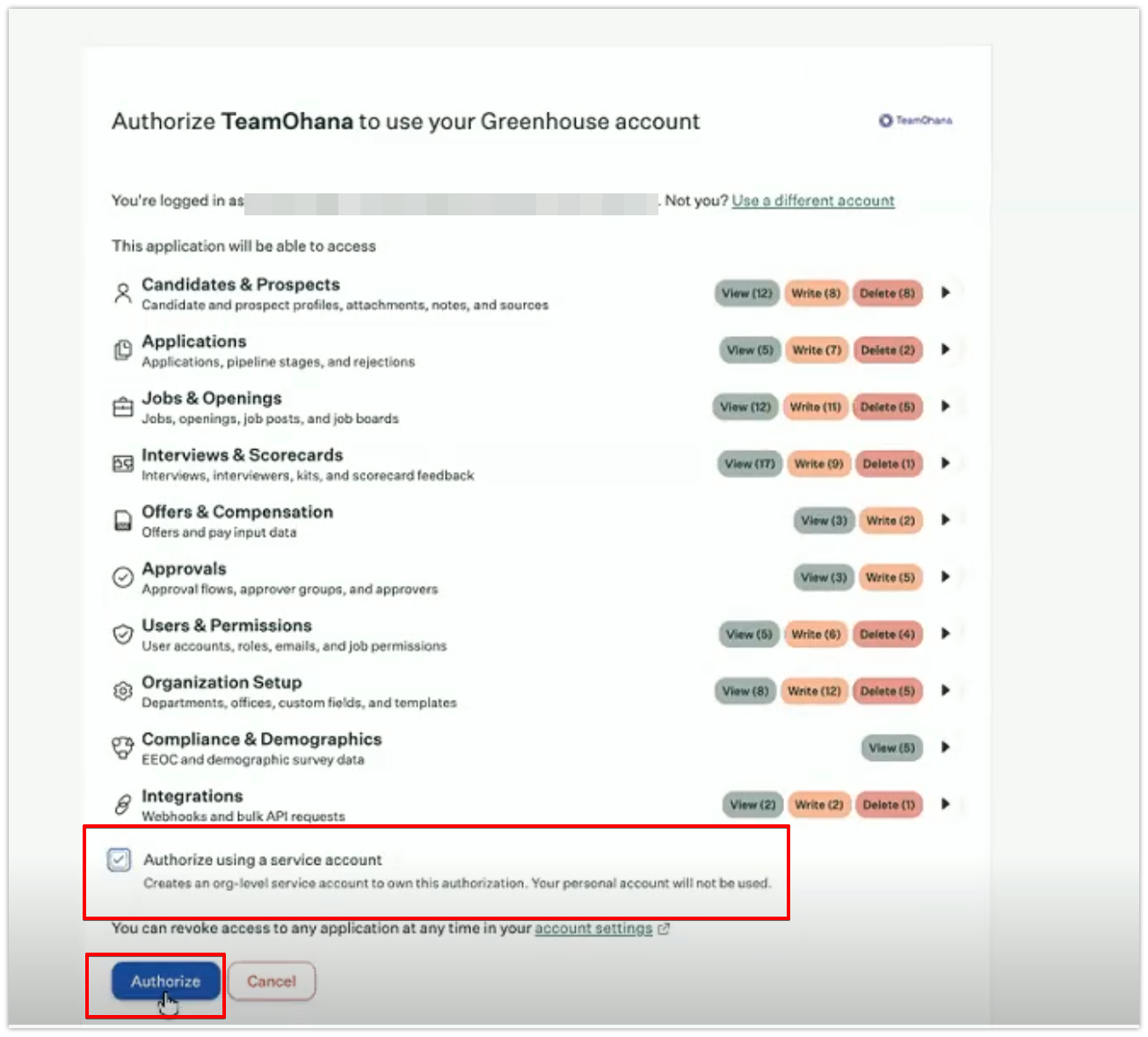
After signing in, Greenhouse will ask you to authorize TeamOhana to access your Greenhouse account.
Scroll to the bottom of the page and:
Select Authorize using a service account.
Click Authorize.
Once authorization is complete, your Greenhouse connection will be established.
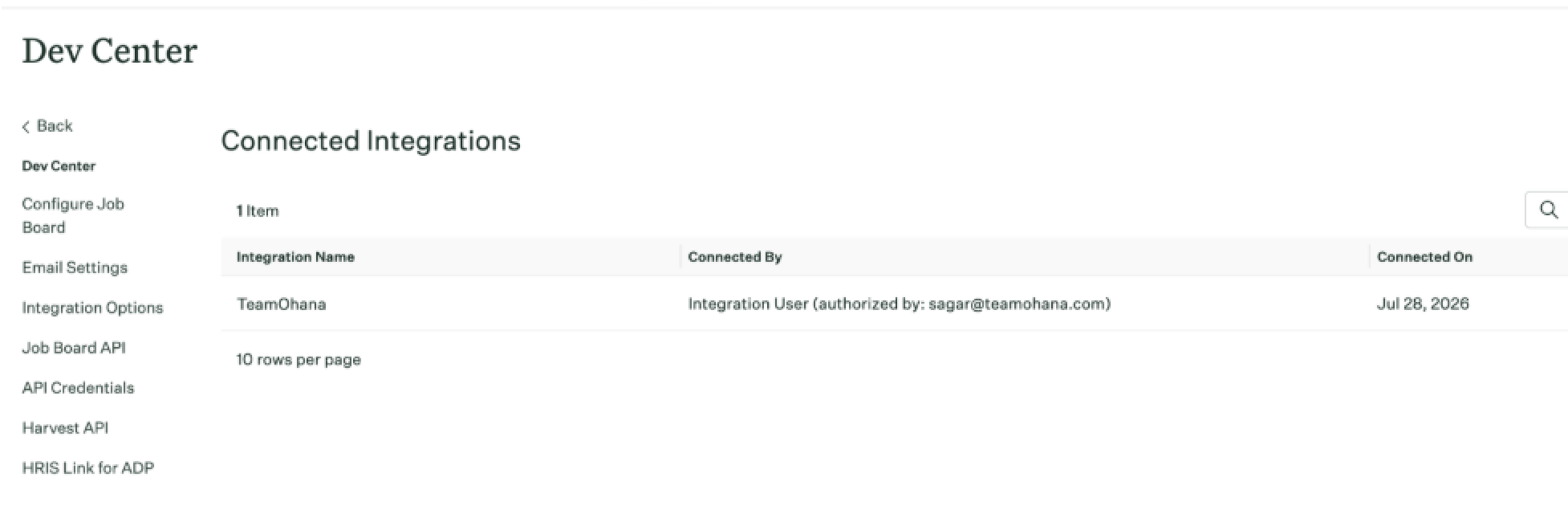
To verify the connection in Greenhouse, go to:
Dev Center → Connected Integrations
You should see TeamOhana listed as a connected integration.
Need help?
If you encounter an error while connecting Greenhouse or need assistance with the integration, contact your Implementation Manager or support@teamohana.com and include a screenshot of the error you're seeing.