Creating Jobs and Openings in Greenhouse
Last updated: September 21, 2026
Overview
Once a headcount is ready to hire, TeamOhana can create jobs and openings in Greenhouse. This ensures the hiring status and offer details are updated in TeamOhana. Budgets and forecasts will be accurate and the hiring plan status is available in real-time for all stakeholders.
How job reqs and openings work in Greenhouse
In Greenhouse, openings are used to manage multiple open positions for the same job, i.e. you're hiring three engineers and the job description and details are the same for these three open positions.
Creating a new job is recommended whenever you want a separate candidate funnel. Ask you Greenhouse rep for more details or review their help center section on the topic.
Use case 1: New job req and new opening
If this is a brand new job and the first opening for this job req, you'll be creating a job req and opening from TeamOhana.
From headcount details or the Recruiting Workboard click + Link job and select create job in Greenhouse.
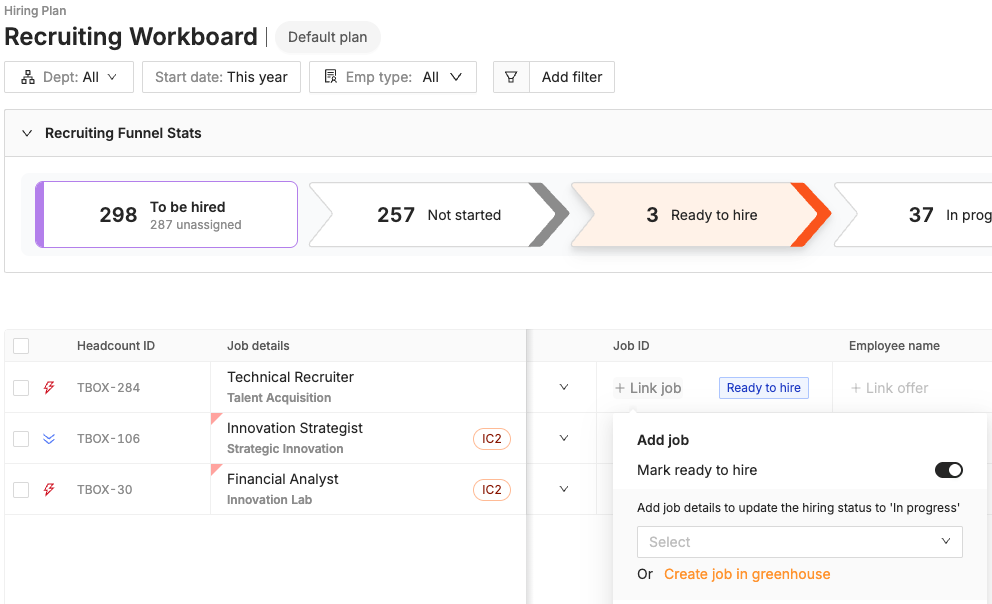
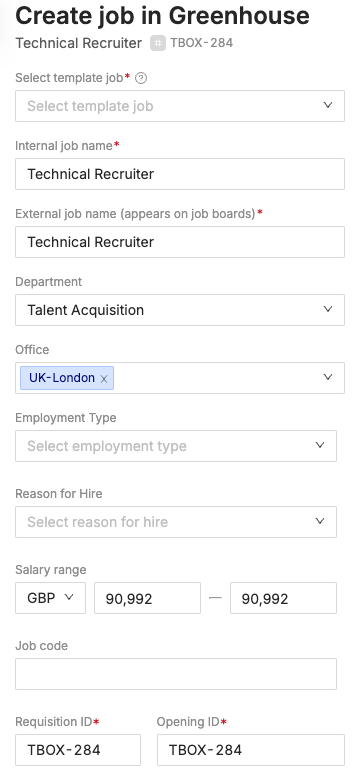
In the first dropdown menu in the drawer that appears, you'll select the appropriate job template from Greenhouse. The Internal and External job name fields will autopopulate based on the job details from the headcount in TeamOhana.
The Department and Office dropdown fields will show you options that pull directly from your Greenhouse account.
The field for Requisition ID and Opening ID pulls TeamOhana's Headcount ID by default, which enables seamless tracking between Greenhouse and TeamOhana across all open headcount.
When you click Create job, the job and opening will be created and opened in Greenhouse.
Note: It is a best practice to create an opening for every job req, even if the job has only one open position.
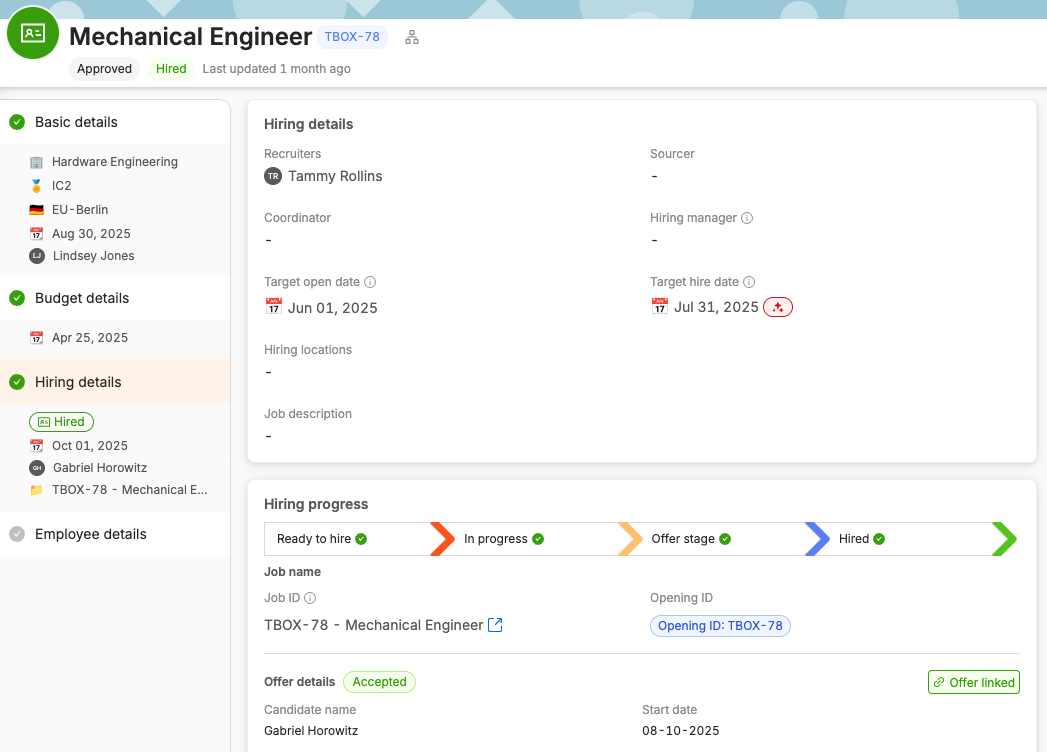
From this point forward, because the job and opening have been linked to the headcount, the hiring status and offer status will be automatically updated in TeamOhana.
Use case 2: Adding a new opening to an existing job
If you have an existing evergreen role for which you need to create a new opening, you can run this workflow directly from TeamOhana.
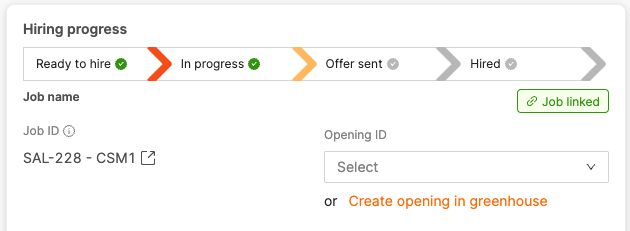
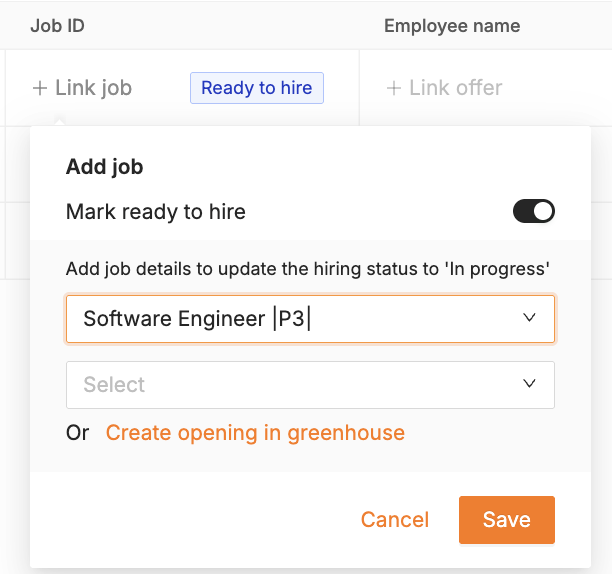
From headcount details or the Recruiting Workboard click + Link job. Once you link the job to the headcount, you will see that there are no openings available. From here, select create opening in Greenhouse.
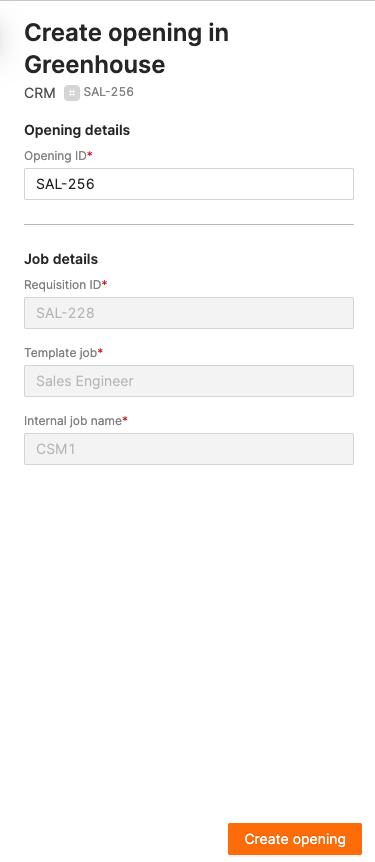
Just like when you are creating a new job in Greenhouse, a drawer will open on the right side of your screen, but this time you will simply need to confirm the Opening ID and click Create opening. The Requisition ID, Template job, and internal job name will all be autofilled and locked based on the job details in Greenhouse.
From this point forward, because the job and opening have been linked to the headcount, the hiring status and offer status will be automatically updated in TeamOhana.
You can link the opening from the Recruiting Workboard table view or from the hiring details section on headcount details drawer.