Integrating BambooHR with TeamOhana
Last updated: May 6, 2026
This article walks through how to connect BambooHR to TeamOhana so that employee records, department structure, and termination data sync automatically. This guide is intended for BambooHR Admins who are setting up or managing the TeamOhana HRIS integration.
Overview
Once connected, TeamOhana syncs employee records, organizational structure (division and department), and terminations from BambooHR on a rolling basis. New or updated records may take up to 90 minutes to appear in TeamOhana after a change is made in BambooHR.
Setup requires a BambooHR Admin account and takes only a few minutes to complete via OAuth authentication.
Prerequisites
TeamOhana role: Admin or IT Admin
BambooHR role: Full Admin
A BambooHR Admin user available to authenticate the connection
Connect BambooHR to TeamOhana via OAuth
TeamOhana uses OAuth to connect to BambooHR — no API keys need to be generated manually.
Note: The BambooHR Admin completing the OAuth flow must be actively logged in to BambooHR in the same browser session before proceeding.
Step 1: Locate Your BambooHR Subdomain
When prompted during setup, you will need to enter your BambooHR subdomain. This is the portion of your BambooHR URL that comes before .bamboohr.com. For example, if your organization accesses BambooHR at acme.bamboohr.com, your subdomain is acme.
Step 2: Complete the OAuth Connection in TeamOhana
In TeamOhana, navigate to Settings > Integrations > Link HRIS
Locate BambooHR under the HRIS section.
Click on Use my credentials (recommended)
Select I am an admin > Next.
When prompted, enter your BambooHR subdomain and click Continue.
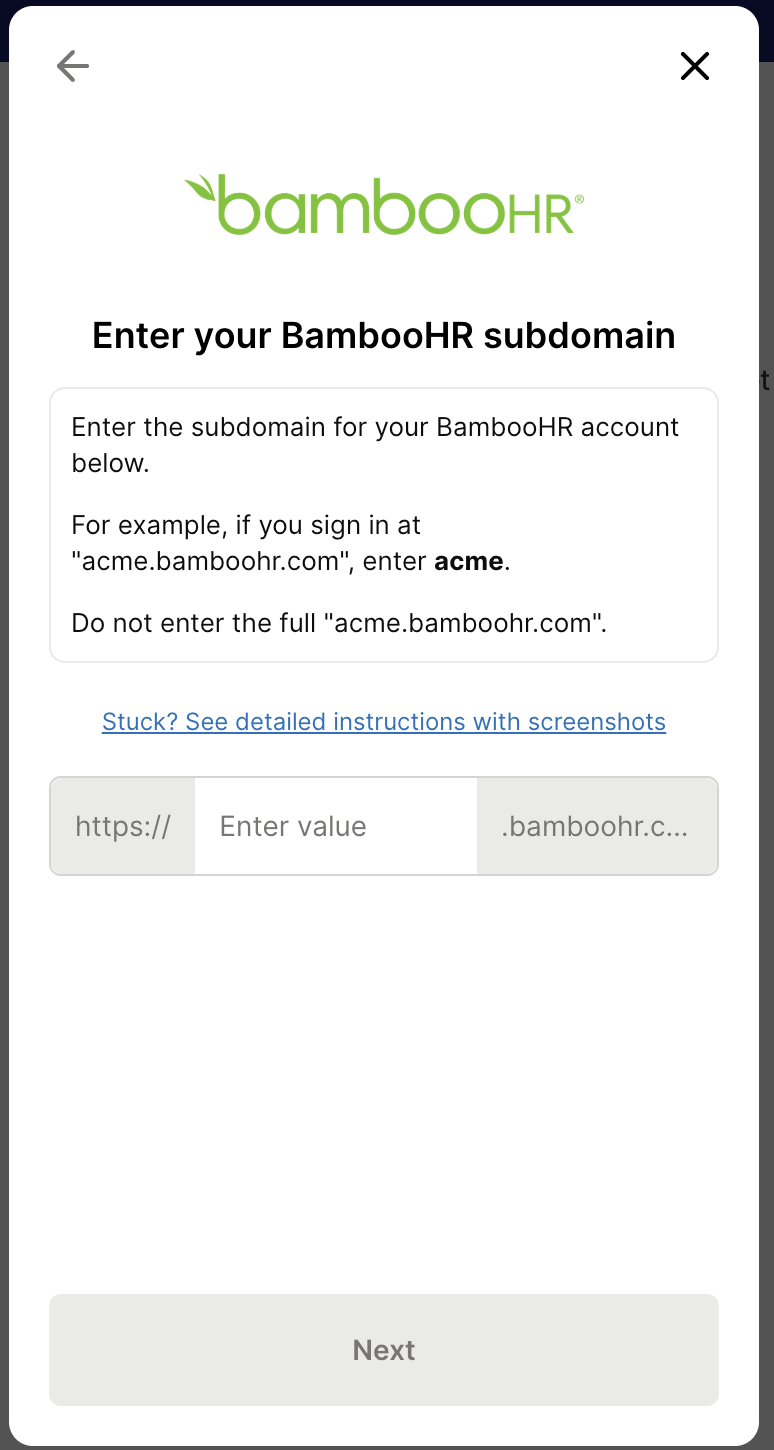
You will be redirected to a BambooHR login screen. Sign in as the dedicated integration user.
BambooHR will ask you to authorize access. Review the permissions and click Allow.
Once authorized, you will be redirected back to TeamOhana. The integration status will show as Connected.
Important: The OAuth connection authenticates as the BambooHR user who completes the flow. That user must have Full Admin access to ensure all required employee data is accessible to TeamOhana.
What Syncs from BambooHR
Once connected, TeamOhana pulls the following data from BambooHR on a rolling sync (approximately every 30 minutes, with up to 90 minutes end-to-end latency):
Employee records (name, email, start date, employment status)
Department and division structure
Organizational changes (department transfers reflected in the next sync)
Termination status and departures
Note: Email address is the unique identifier used to match BambooHR employee records to headcount in TeamOhana. If an employee's work email changes in BambooHR, TeamOhana will treat the updated record as a new employee. Contact your TeamOhana Admin if you encounter duplicate employee records.