How do I disable approval rules in TeamOhana?
Last updated: April 21, 2026
Context
You may need to disable certain approval rules in TeamOhana if you decide not to use approvals for specific processes like internal transfers or terminations. When viewing all approval rules at once, the disable option may not be visible.
Answer
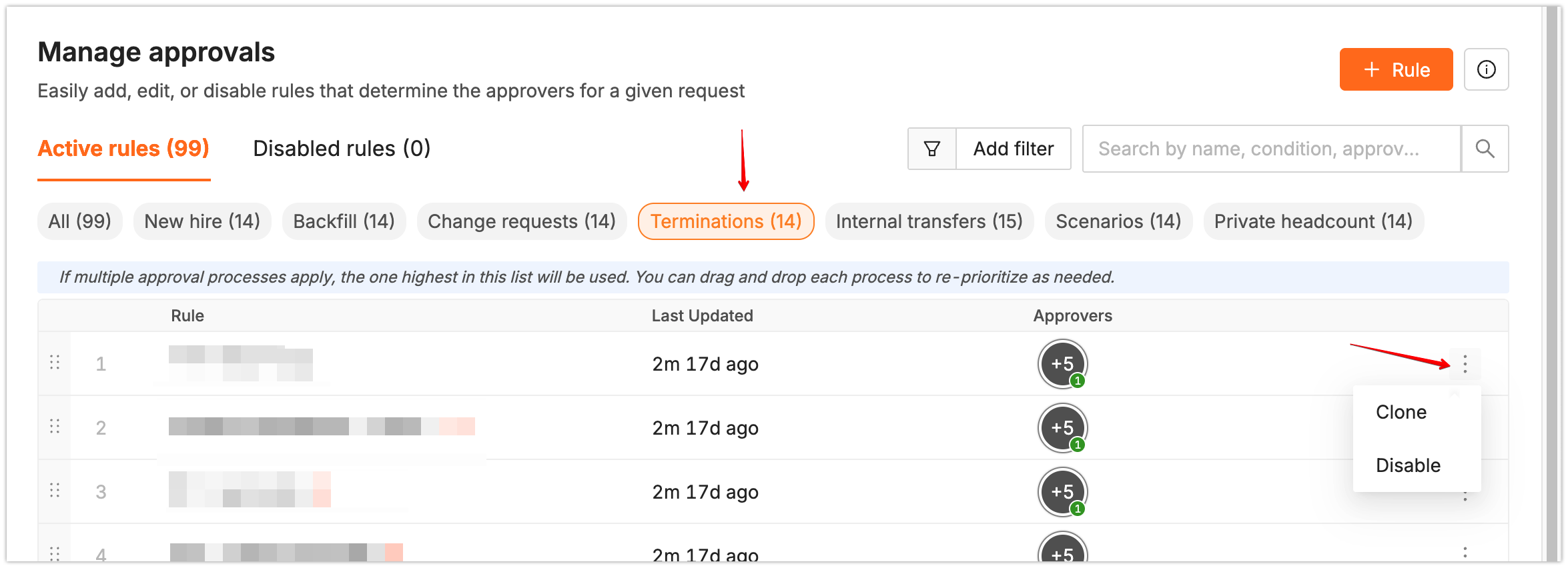
To disable approval rules in TeamOhana, you need to navigate to the specific approval type first rather than viewing all rules together.
Follow these steps:
Go to the Manage Approvals section
Click on the specific approval type you want to modify (e.g., "Terminations", "Internal Transfers")
Locate the rule you want to disable
Click on the three-dot menu next to the rule
Select the "Disable" option
Important: The disable option will not be visible if you're viewing "All" approval types. You must select the specific approval category first to see the disable option.