Approval Policy (Notifiers)
Last updated: July 6, 2026
Overview
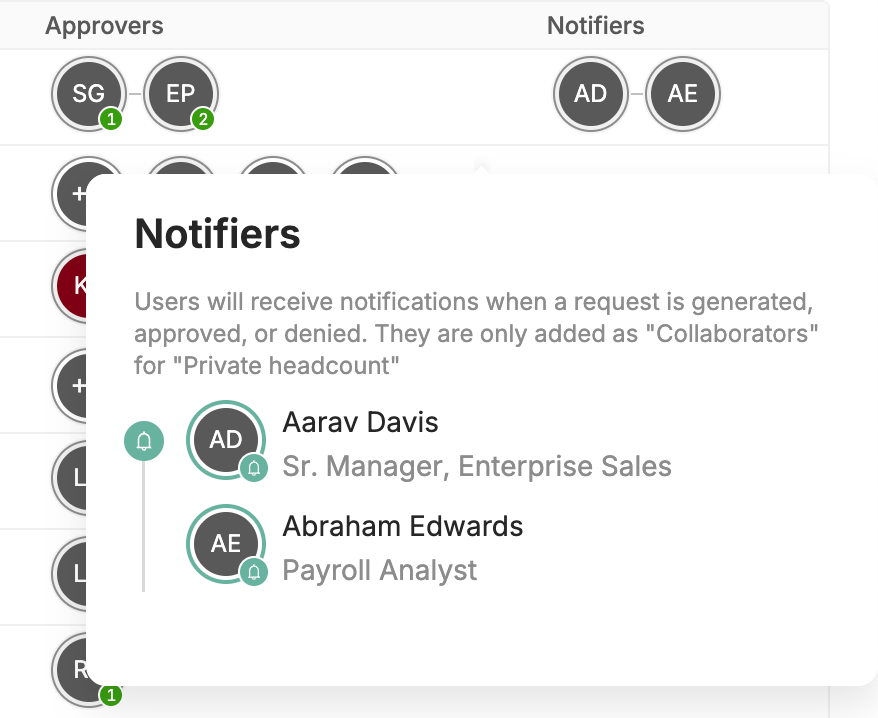
Notifiers are FYI-only recipients you can designate within an Approval Policy rule. When a headcount request, scenario, internal transfer, termination, or change request is created, approved, or denied, TeamOhana automatically sends an email and Slack notification to every Notifier configured for that rule — no approval action is required from them.
Note: Notifiers receive visibility into requests without being part of the approval chain. They cannot approve or block a request.
Prerequisites
At least one Approval Policy rule must already exist, or you are creating a new one
All intended Notifiers must be active users in TeamOhana
How Notifiers Work
Notifiers are configured as part of Step 4 of the Rule Builder, after you define conditions and set the approval chain. Any user added as a Notifier is automatically added as a Collaborator on the associated private headcount or scenario. This means when they receive a notification and click the link, the relevant record opens directly for them — they do not need to be separately granted access.
Notifications are sent via both email and Slack on three events only:
Request Created — when the headcount request or related record is submitted for approval
Request Approved — when the request receives final approval
Request Denied — when the request is denied at any point in the chain
Note: Notifiers do not receive notifications for intermediate approval steps — only for the three events above. If a denial reason is provided by the approver, that reason is included in the denial notification.
Setting Up Notifiers on a Rule
Navigate to Settings > Approval Policy.
Click an existing rule to open it, or click Create Rule to start a new one.
Complete Steps 1–3 of the Rule Builder (Request Type, Conditions, and Approval Chain).
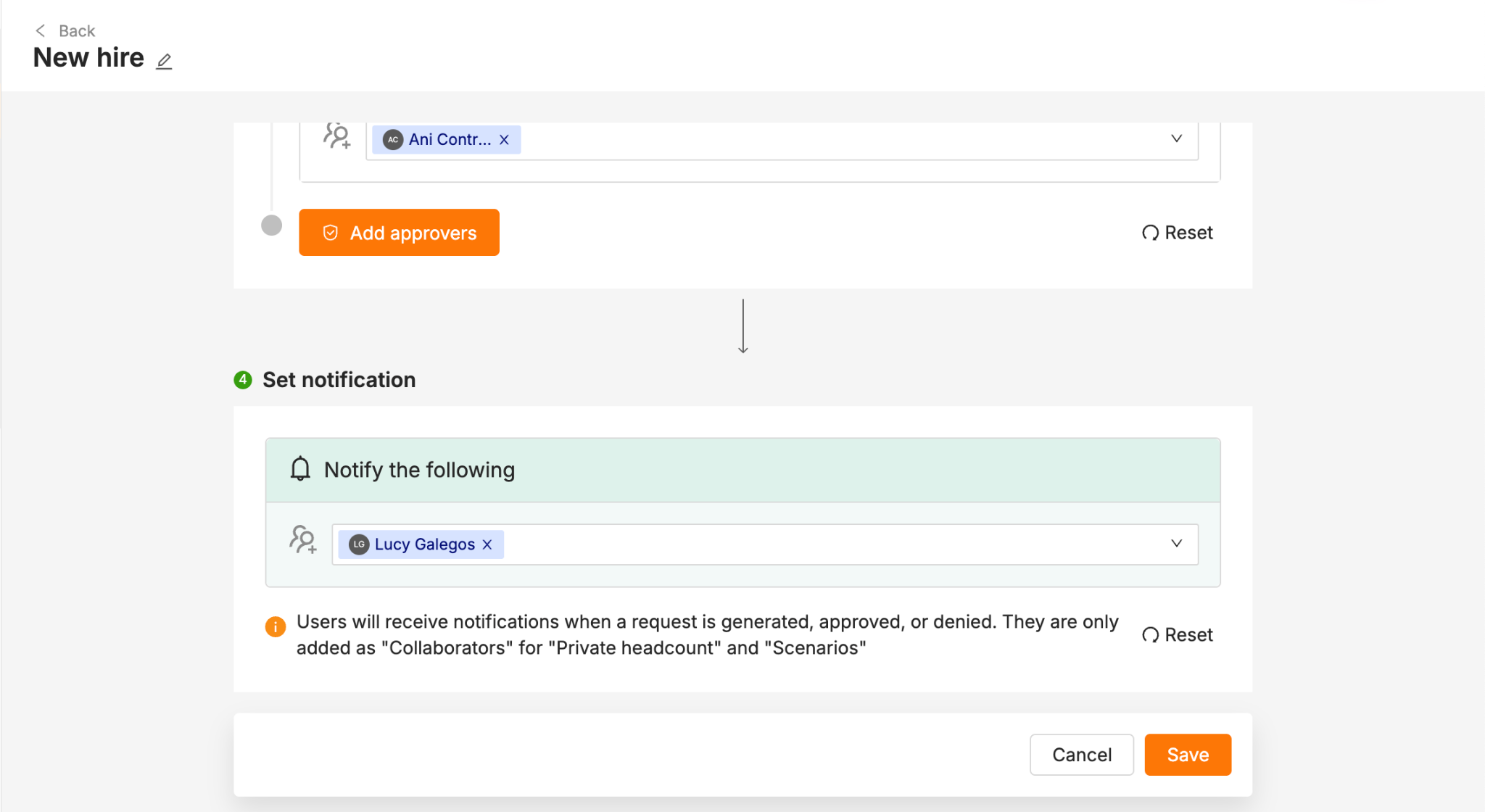
In Step 4: Set Notification, click into the Notify the following stakeholders field and search for the users you want to add as Notifiers.
Select each recipient. They will appear as tags in the field. Remove any tag by clicking the × next to their name.
Click Save to apply the rule.
Note: Adding Notifiers is optional. A rule can be saved without any Notifiers configured. If you choose not to add Notifiers, the approval chain functions normally and no FYI notifications are sent to additional stakeholders.
Screenshot: Step 4 of the Rule Builder showing the Notify the following stakeholders field with example user tags
Supported Request Types and Link Destinations
Notifications are supported across all request types. The link in each notification takes the Notifier directly to the relevant record in TeamOhana:
Request Type | Object Name | Link Opens |
New Hire / Backfill / Private Headcount | Headcount | Headcount page |
Scenario | Scenario | Scenario page |
Internal Transfer | Employee Action | Employee Profile |
Termination | Employee Action | Employee Profile |
Change Request | Change Request | Headcount page |
Frequently Asked Questions
Can a Notifier also be an approver on the same rule?
No, a user cannot be both a Notifier and an Approver on the same rule. The system enforces mutual exclusivity between the two roles:
If a user is already set as an Approver, they won't appear in the Notifiers dropdown at all.
If a user is already set as a Notifier, they will appear in the Approver dropdown — but selecting them as an Approver silently removes them from Notifiers
Do Notifiers receive notifications for every approval step?
No. Notifiers only receive notifications when a request is created, when it reaches final approval, or when it is denied. They do not receive notifications for intermediate approval steps.
What happens to Notifiers if a rule is cloned?
When a rule is cloned, all Notifier assignments carry over to the cloned rule verbatim. You can modify them in Step 4 before saving the new rule.
Are Notifiers required to complete rule setup?
No. Step 4 is optional. You can save an Approval Policy rule without adding any Notifiers. The approval chain will function normally regardless of whether Notifiers are configured.