Workday - How to Create a Calculated Field?
Last updated: July 9, 2025
In the following steps, we have examples on how to create a calculated field on the "Worker" business object.
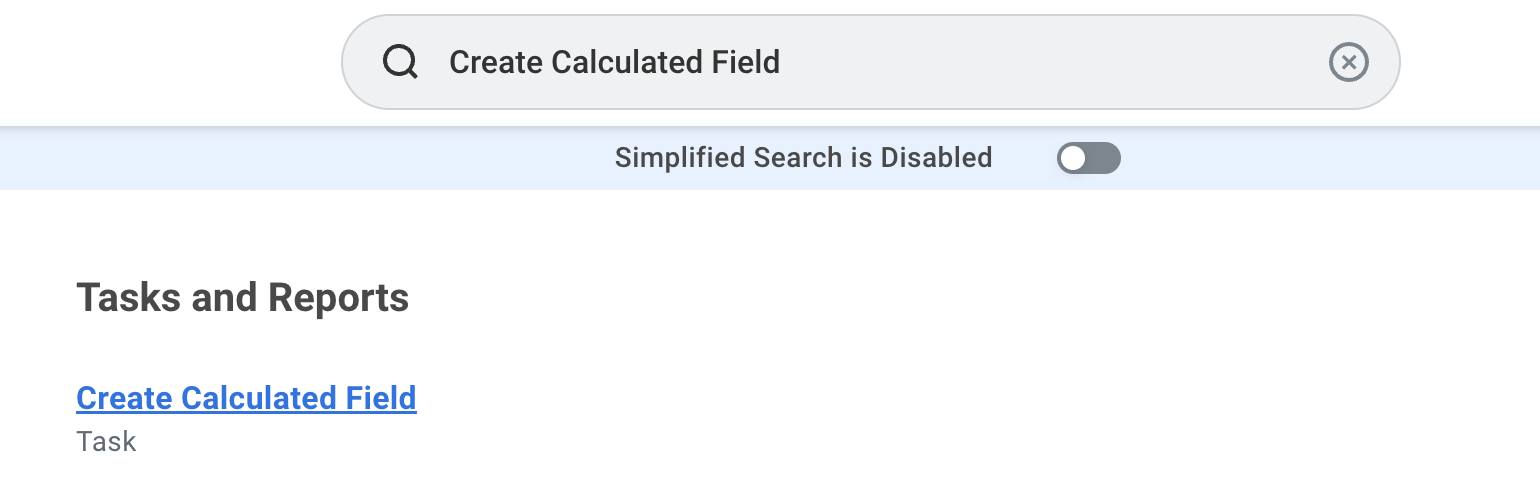
Step 1: Search "Create Calculated Field"
Step 2: Define the Calculated Field Properties
Fill out a relevant Field Name, select a Business Object like "Worker" or "Job Requisition", and select an appropriate Function.
Worker example:
Field Name: Enter "CF_Worker_Full_Time"
Business Object: Select "Worker"
Function: Select "True/False Condition"
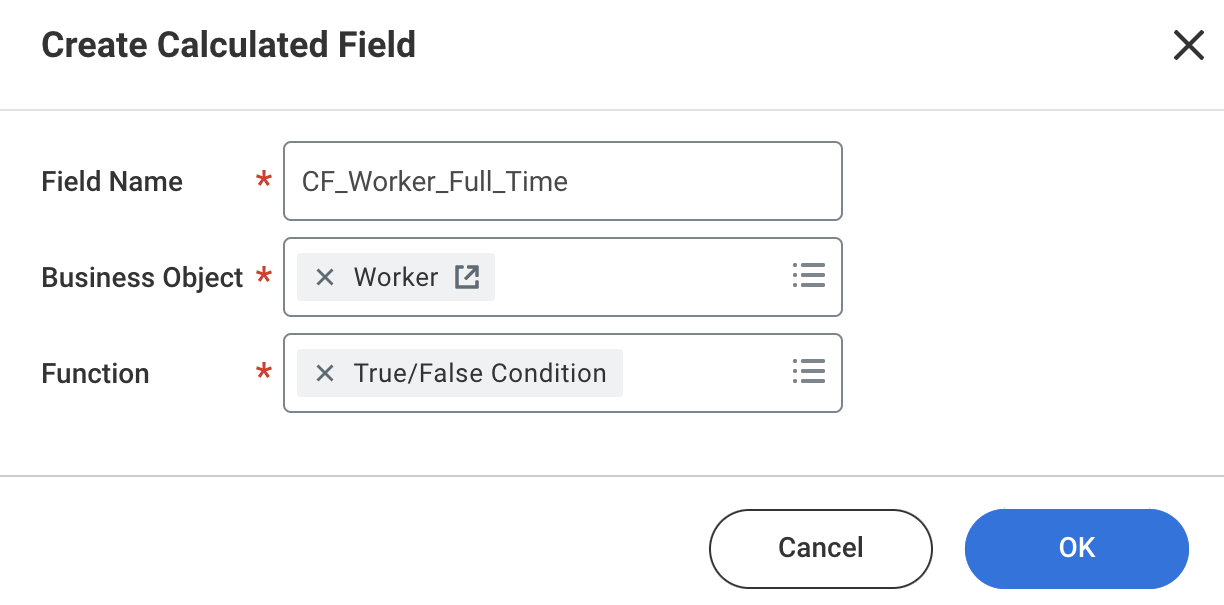
Select OK to proceed.
Step 3: Configure the Function
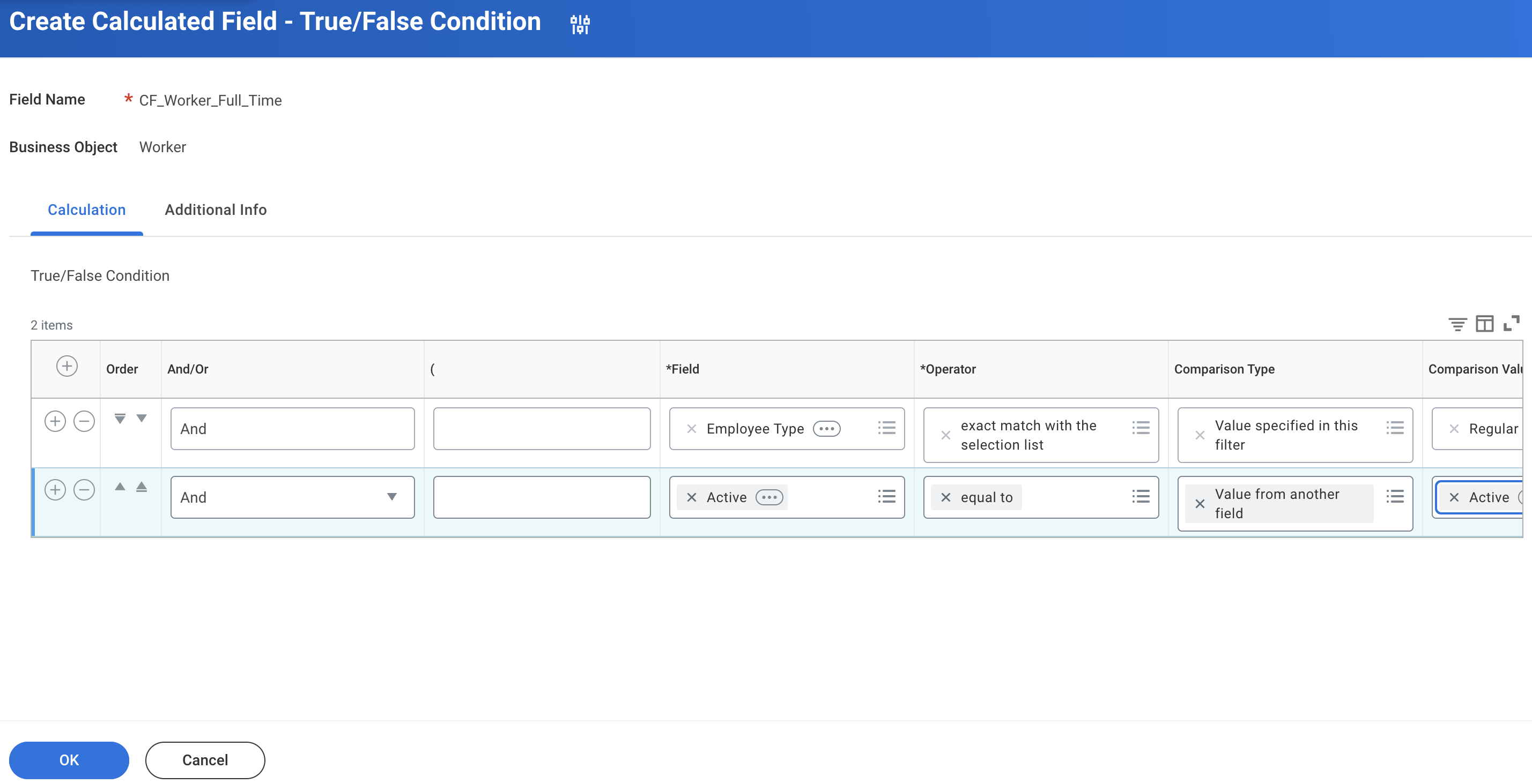
Set up the relevant inputs (e.g., start date, end date, conditions, look up values, return values, etc) for your selected function type.
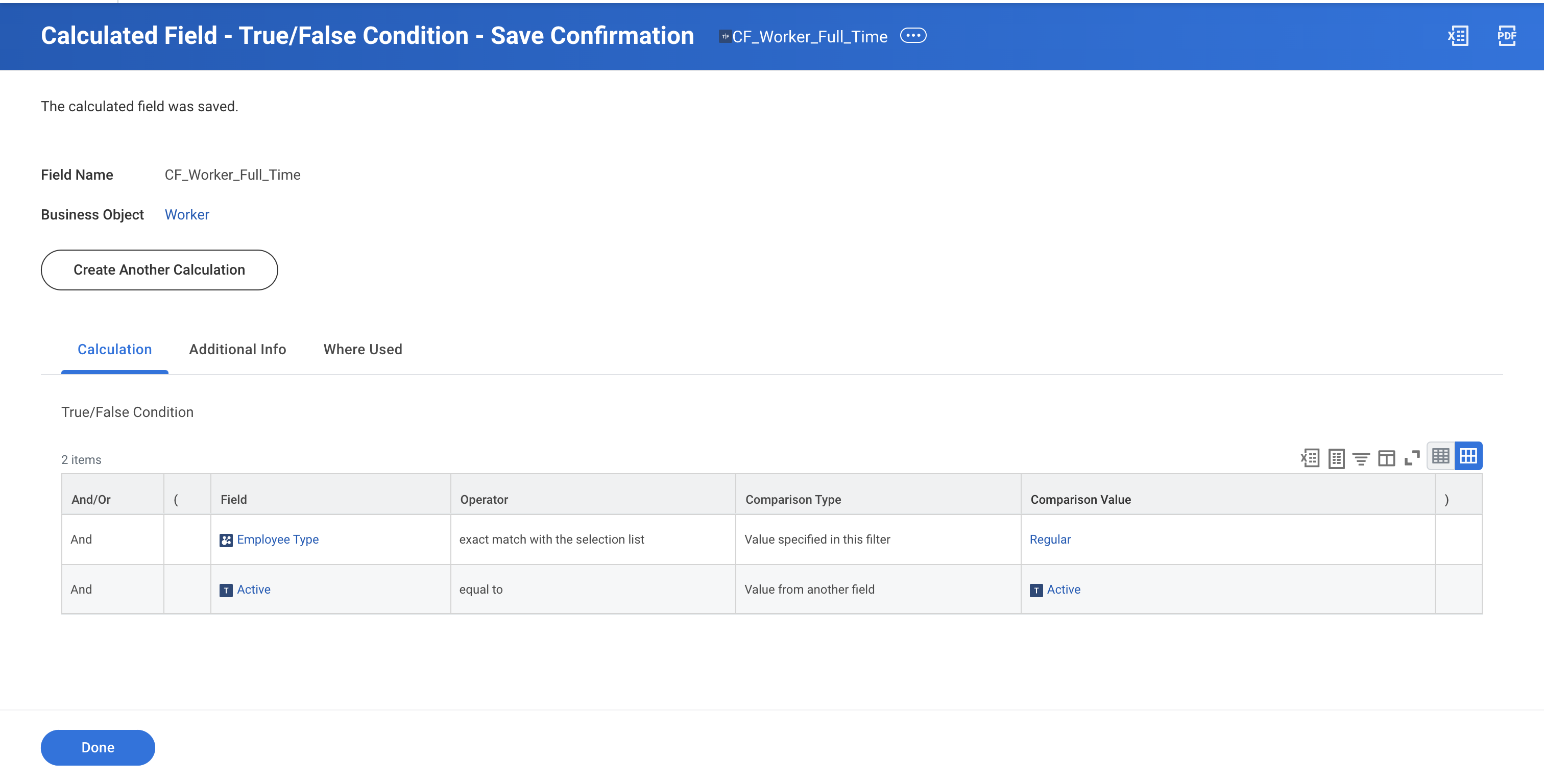
In our Worker example, the True / False Condition will be based on the Employee Type and Active fields.
Step 3: Click Done on the Confirmation Screen