TeamOhana Recipes
Last updated: April 10, 2026
Recipes are curated, ready-to-run workforce analytics views built on top of Teemo, TeamOhana's AI Workforce Analyst. Instead of composing a new question every time you need a specific analysis, Recipes give you a library of pre-built and saved views that run against your live data with a single click.
The Recipes experience is designed for teams that need recurring analytics without the overhead of exploratory querying — a Finance leader who reviews the same compensation views each month, a Recruiting leader tracking hiring velocity every week, or an HR team monitoring attrition trends. Recipes shift the workflow from exploration to consistent, dashboard-like reporting.
Recipes are accessible to all TeamOhana users. Users with Teemo access can interact with a Recipe's Deep Dive view and explore further with Teemo chat. Users without Teemo access can browse the Discover page, view sample outputs, and request Teemo access directly.
Key Concepts
Discover Page — The library of all available Recipes. Browse curated Recipes from TeamOhana, preview what each one shows, and add the ones relevant to your role to your personal view.
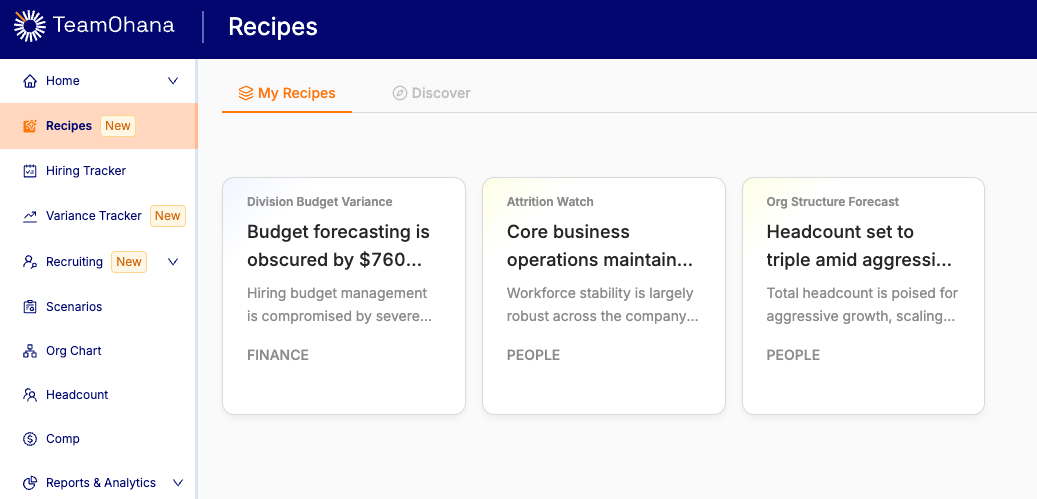
My Recipes — Your saved collection of Recipes. The Recipes you have added appear here as persistent, ready-to-run views.
Deep Dive — The detailed view for a single Recipe. Shows the full output — tables, charts, and AI-generated insights — and provides a Teemo chat interface for follow-up questions. Requires Teemo access.
Getting Started with Recipes
Accessing Recipes
Navigate to Recipes in the main TeamOhana navigation. If you do not see it, contact your Admin — access may need to be enabled for your account.
You will land on your My Recipes page. This will capture all the recipes you've added from the Discover page.
To browse additional Recipes, click Discover at the top of the page.
Adding a Recipe from Discover
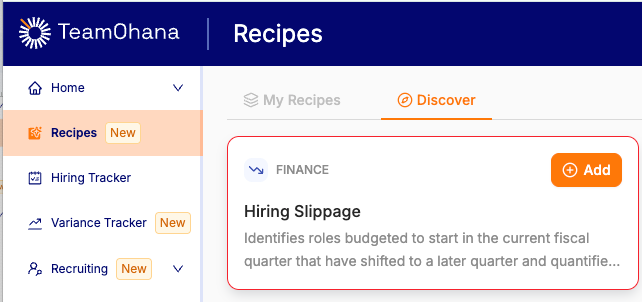
On the Discover page, browse the library of available Recipes. Each card shows the Recipe name, a brief description of what it surfaces, and a sample output preview.
Click a Recipe card to open the preview drawer, which shows more detail about what the Recipe covers and what data it uses.
Click Add to save the Recipe to your My Recipes page.
The Recipe will now appear in My Recipes and is ready to run against your live data.
Note: When you first access Discover without having added any Recipes, the page displays sample output data so you can evaluate what each Recipe will show before adding it. Once you add a Recipe, it runs against your real account data.
Running a Recipe
From My Recipes, locate the Recipe you want to run.
Click Run. Teemo executes the Recipe query against your current live data.
Results appear in the Recipe's view — as tables, charts, or both — depending on the Recipe type.
To explore further, click into the Recipe to open the Deep Dive view, where you can interact with Teemo directly to ask follow-up questions about the output.
Note: Every time you run a Recipe, it queries your live TeamOhana data. Results always reflect the current state of your headcount plan, HRIS, and hiring pipeline — not a cached snapshot.
Available Recipes
Initial Recipes are available in the TeamOhana library. You will land on your My Recipes page. This will capture all the recipes you've added from the Discover page. To see a list of our initial recipes, navigate to the Discover page and preview. Once you add them to your My Recipes, they will live on that page.
Note: The Recipes library is updated over time. New Recipes are added to the Discover page as they become available. Check Discover periodically for additions relevant to your role.
Deep Dive: Exploring a Recipe with Teemo
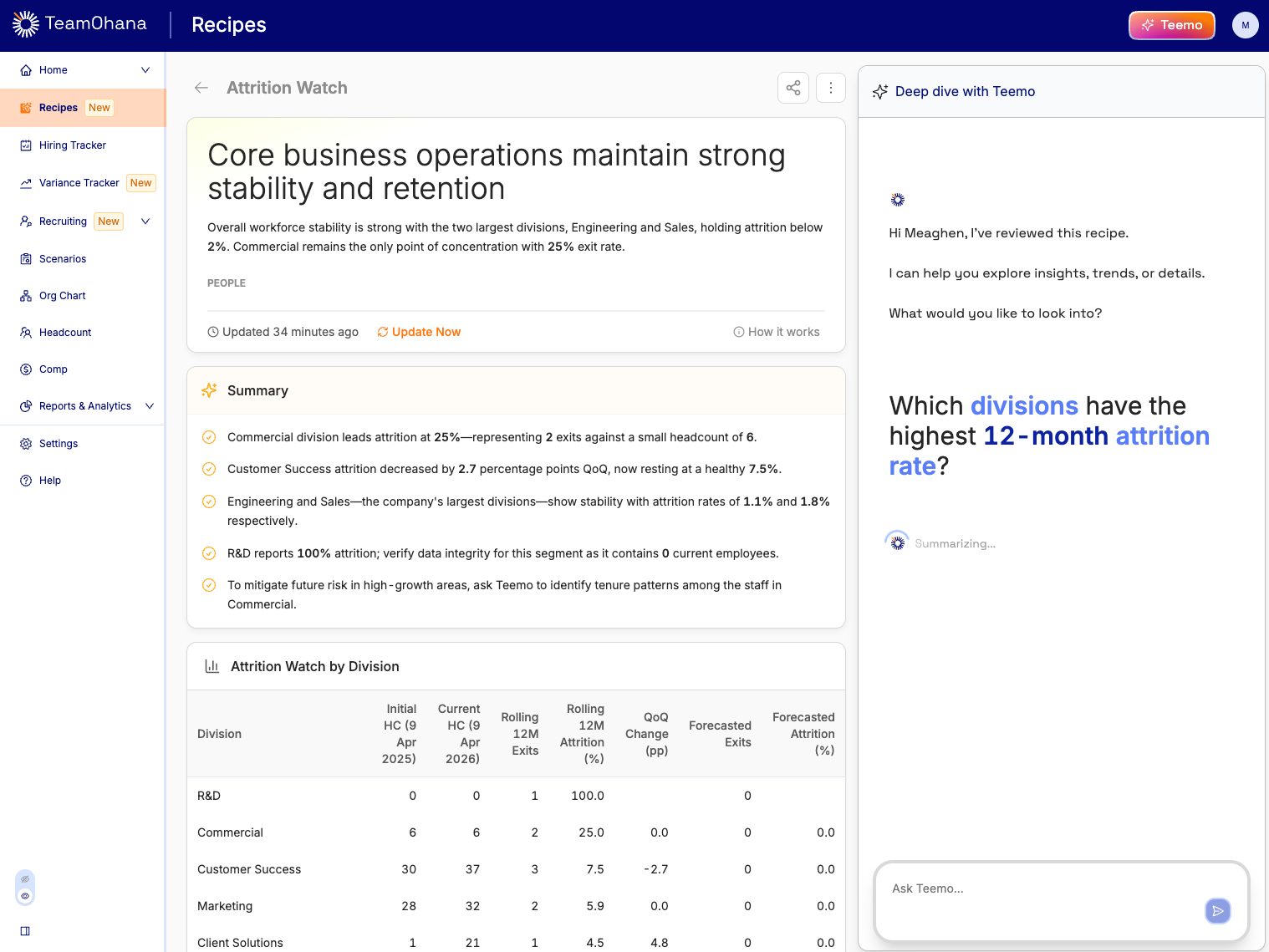
Each Recipe has a Deep Dive page — the full detailed view of a Recipe's output, paired with a Teemo chat interface for follow-up analysis. Deep Dive requires Teemo access.
In the Deep Dive view, you can:
Review the full Recipe output — tables, charts, and AI-generated narrative insights
Ask Teemo follow-up questions scoped to the Recipe's data, such as "Break the Department Level Mix down by location" or "Which department has the highest proportion of senior ICs?"
Explore related questions that go beyond the Recipe's default scope, using Teemo's full natural language capability
Tip: Deep Dive is where you get the most from Recipes. Use the initial Recipe output to identify what you want to explore, then use the Teemo chat to dig deeper without starting a new session from scratch.
Recipes Without Teemo Access
You do not need Teemo access to use Recipes. Users without Teemo access can:
Access the Discover page and preview all available Recipes using sample output data
View the four pre-added Recipes in My Recipes
See a blurred summary view in Deep Dive, with a Request Teemo Access button to ask your Admin for full access
Users with Teemo access can add Recipes, run them against live data, and use the full Deep Dive experience with Teemo chat.
Note: To request Teemo access, click Request Teemo Access on any Deep Dive page, or contact your TeamOhana Admin directly.
Removing a Recipe
In My Recipes, locate the Recipe you want to remove.
Click Remove (or the remove icon, depending on your view).
The Recipe is removed from your My Recipes list. It remains available in Discover and can be re-added at any time.
Note: Removing a Recipe from My Recipes does not delete it from Discover. It is always available to re-add.