Assigning headcount as a current employee's reporting manager
Last updated: April 23, 2025
TeamOhana's Org Chart allows end users to update the reporting manager for a current employee to a headcount, despite that the role has not been filled yet.
How to set headcount as a reporting manager:
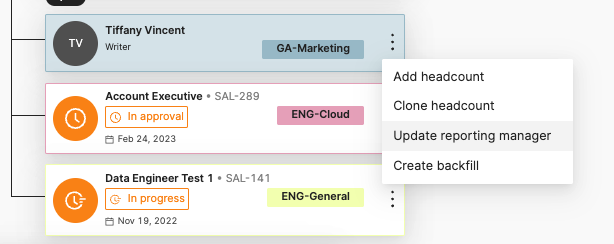
Navigate to the Org Chart and locate the employee for whom you are going to update the reporting manager. In this demo, we'll use Tiffany Vincent. Click the three dots on the employee card and select "Update reporting manager."
The menu that appears will allow you to either scroll to find the headcount who will serve as this employee's reporting manager, or search for the headcount in a search bar if you know the headcount ID.
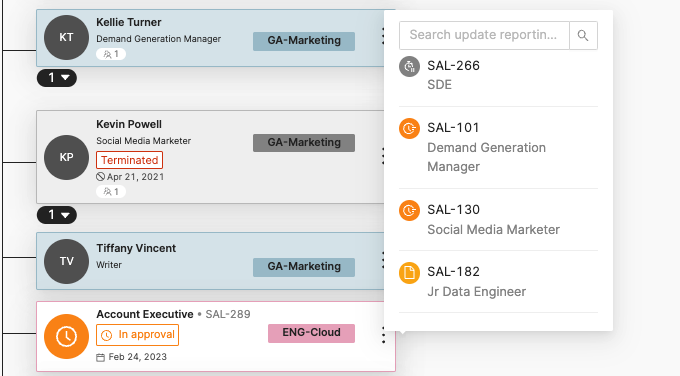
Once the appropriate headcount is selected (in this case, SAL-101), Tiffany will move to a different position on the Org Chart to fall under her new manager, SAL-101.

Hovering over the star beneath her name, you'll see that her acting manager is listed as Trent Walsh. Currently, the acting manager will default to the employee's division leader.
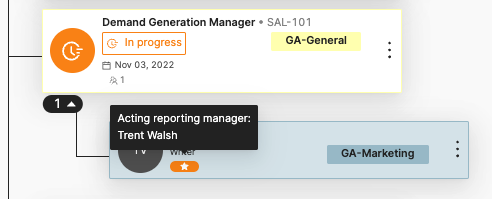
Once this headcount is hired against and the new employee is added to the HRIS, the card will automatically update with the new employee's name and details. However, Tiffany's manager will not automatically update to the new employee's name in your HRIS, so please ensure that that update is made manually.