Budget envelopes
Last updated: September 30, 2026
TeamOhana's budget envelope feature enables Finance teams to set parameters around which hiring managers and department leaders can build and execute on their hiring plans and merit cycles.
Creating budget envelopes
A new budget envelope can be created under Settings > Budget Envelope. Note that this page will only be accessible to users with the "Manage budget envelope" permission.
To create a new budget, you will be required to enter a budget name, and assign it to a fiscal year. At this time, budgets cannot be created for quarters.
Building your total budget envelope
You can build your budget envelope on the following:
Budget cost: You can enter either an FY budget, or Annual budget, which is the total headcount cost budgeted for the whole organization
Budget cap: If your organization has an ending headcount number, or a 'not-to-exceed' number of people to end the year with, you can also enter this
Budgets can have both costs and headcount cap entered, so you can manage budget at both levels.
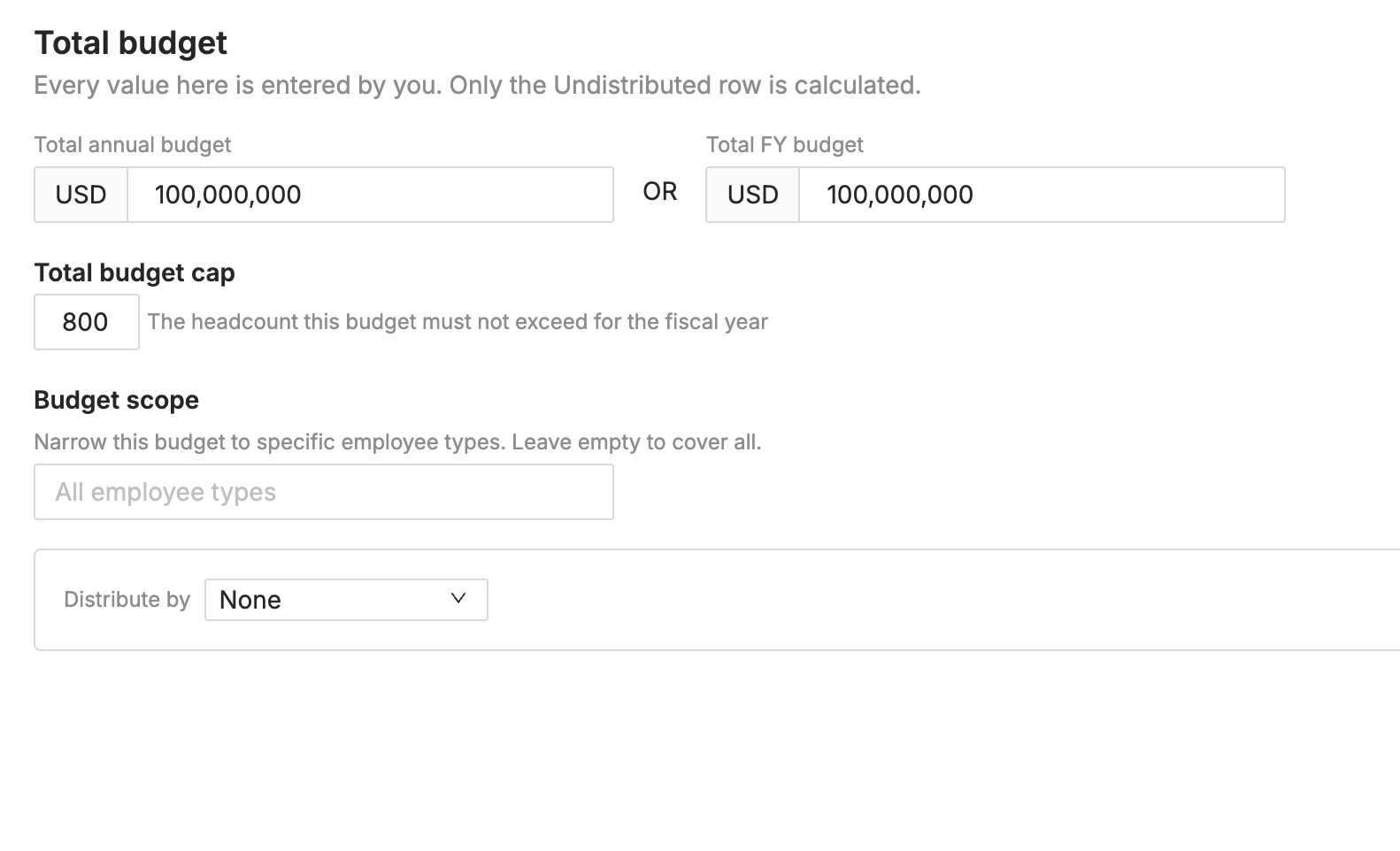
Budget scope: Next, you enter the Budget scope - i.e., which employee types does this budget apply to? You can choose all employees, or a subset - for example, just applicable to Full time.
Distribute by:
At this point, you can save your company-wide budget, or you can proceed to distribute it by division or department.
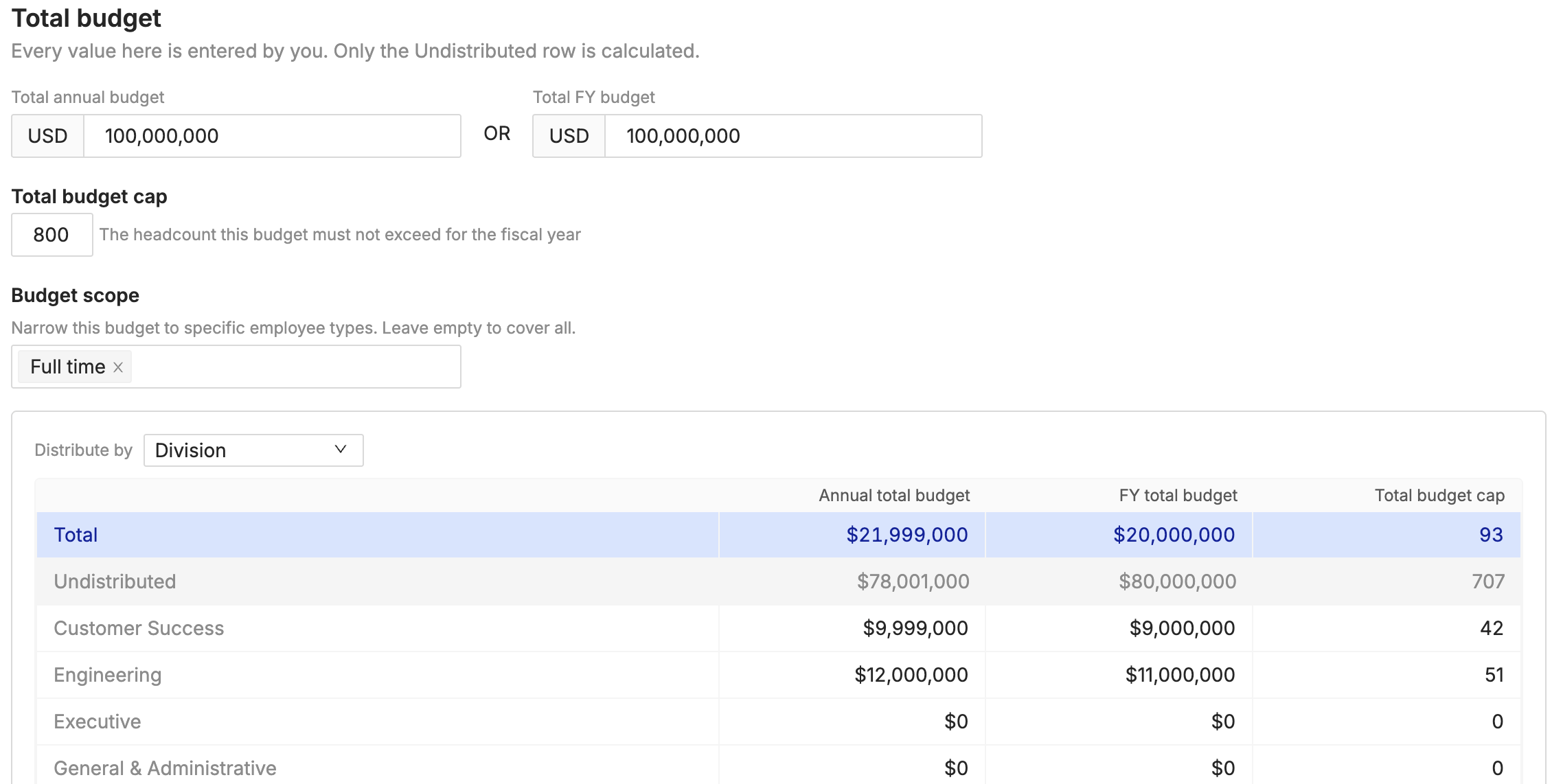
The creation of both your overall budget, as well as the distribution across divisions/departments, will likely happen outside of TeamOhana in your FP&A tool. Once the distribution is set, it will be entered into TeamOhana manually.
If the total headcount or the total budget across divisions/departments exceeds the overall caps that were set, you will see an error message.
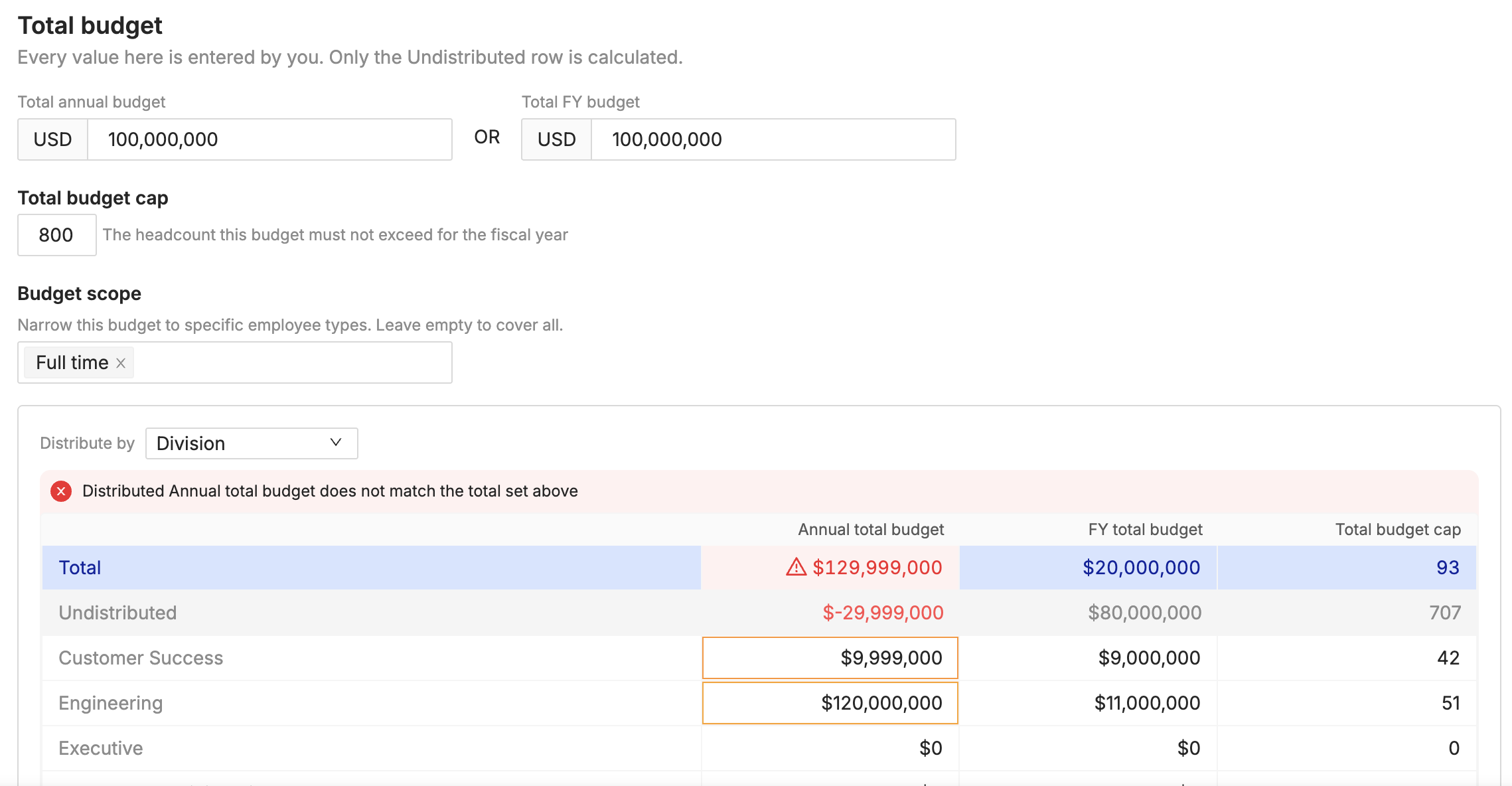
After you've distributed your budget across your divisions or departments, click "Create."
Budget envelopes across the platform
Once your budget is created, it will be present for those with the 'view budget' permissions in the Scenarios module (when available) and the Budgets & Forecast tab. If a merit increase budget was created as part of the Total budget, that will be visible for users with access to the Comp cycle module.
Your new budget will also default to the "Active" status. Active budgets can be archived, or set as the "Primary" budget, which means it will be the default budget that all users with "View budget" permissions will see in the UI.

Where can you see active budgets?
When a budget is active, it will appear in the following areas in TeamOhana:
Variance Tracker: Shows up in the top level stats of the page
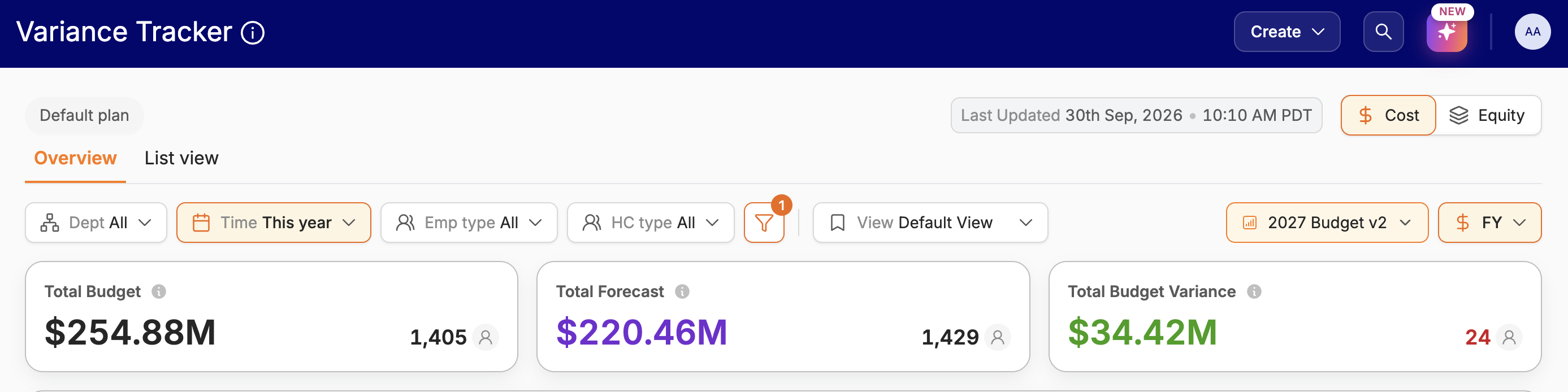
Scenarios: In Scenarios, the budget shows up in the Impact tab
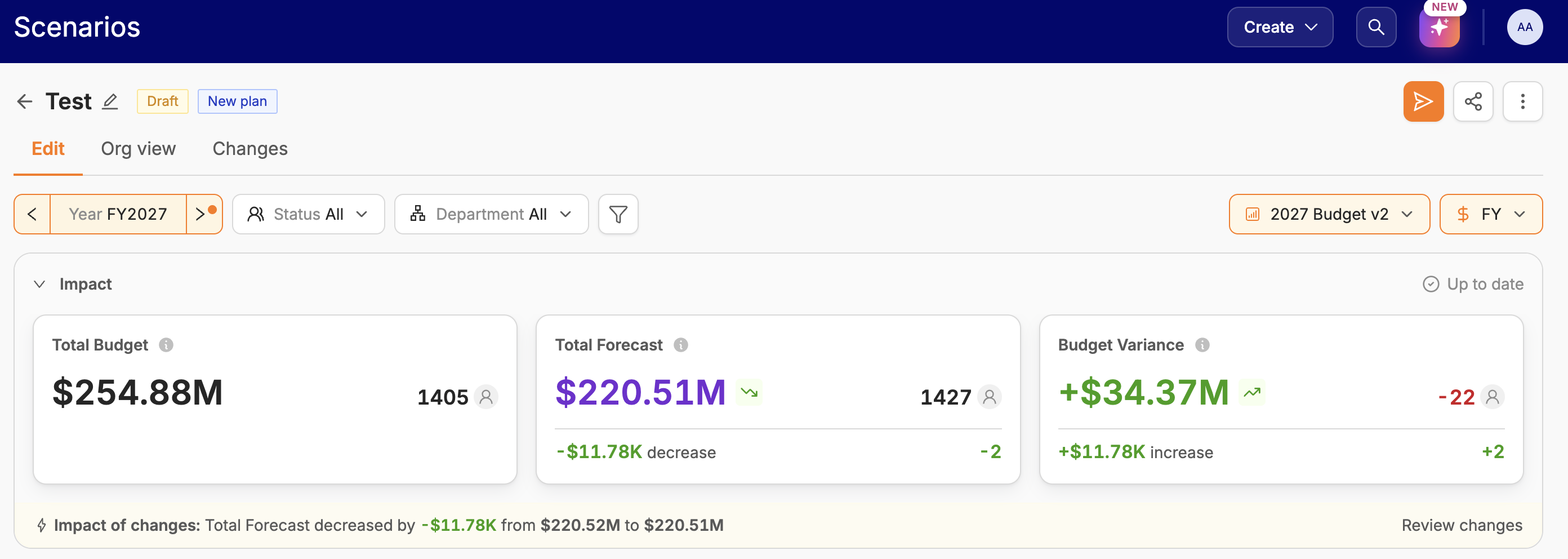
Budgets follow ABAC (Attribute Based Access Controls), so department heads with access only to their own department will only have access to their own department's budget. This also means that if budgets are set at the division level, department leaders will not see the budget in the UI.
Budget permissions
There are four permissions on the user role level that allow or deny access to budgets in TeamOhana:
Manage Budget envelope gives users the ability to create new budgets via Settings, as well as designate budgets as 'primary' or inactive
View headcount budget gives users visibility into budgets (within their ABAC scope) but does not allow users to create or edit budgets
Edit headcount budget allows users to edit the budget details tab of headcount
View Budget FY impact gives users visibility into the Budget FY Impact column on the Budgets & Forecast tab, but they cannot make edits to the budget
